---
title: "Bulk Agent in the planning: run an AI agent on all your content in one click and track progress in real time"
description: Select multiple drafts in your editorial planning and apply an AI agent to the entire selection in a single action. No more processing content one by one.
---
[Skip to content](https://help.semji.com/en/bulk-agent-planning#main-content)
- [English](https://help.semji.com/en/bulk-agent-planning)
- [Français](https://help.semji.com/fr/bulk-agent-planning)
English
Show submenu for translations

Open main navigation
Close main navigation
- - [English](https://help.semji.com/en/bulk-agent-planning)
- [Français](https://help.semji.com/fr/bulk-agent-planning)
English
Show submenu for translations
- Contact us
Contact us
How can we help you?
- There are no suggestions because the search field is empty.
1. [Help Center](https://help.semji.com/en?hsLang=en)
2. [AI+ Agents](https://help.semji.com/en/ai-agents?hsLang=en)
3. [Getting Started & Guides](https://help.semji.com/en/ai-agents?hsLang=en#getting-started-guides)
# Bulk Agent in the planning: run an AI agent on all your content in one click and track progress in real time
## Run an AI agent on dozens, or even hundreds, of drafts in a single click, and track progress in real time directly from your planning view. What used to take days now takes minutes.
Table of contents
---
[At a glance](https://help.semji.com/en/bulk-agent-planning#ata)
[What changes for you](https://help.semji.com/en/bulk-agent-planning#whatchanges)
[What you'll get](https://help.semji.com/en/bulk-agent-planning#whatyou)
[How to use it (step by step)](https://help.semji.com/en/bulk-agent-planning#howtouse)
[Tips for best results](https://help.semji.com/en/bulk-agent-planning#tipsfor)
[Go further](https://help.semji.com/en/bulk-agent-planning#gofurther)
### At a glance
- **What you can do**: launch an AI agent on a selection of drafts in bulk from the planning, and monitor every action in real time without leaving your workspace
- **Who it's for**: content managers, SEO leads, and teams handling large volumes of content
- **Why it matters**: process large volumes of content without repetitive manual intervention, with full visibility into the progress of every agent action in real time, directly from your planning view
### What changes for you
Until now, running an AI agent on your content meant opening each draft individually in the editor, configuring the agent, waiting for results, and moving on to the next one. For catalogs of dozens or hundreds of pages, this process created a real bottleneck. And even when workarounds existed, there was no visibility into what was happening once the work was launched.
**Before:** optimizing 50 pieces of content with an AI agent meant opening each draft individually, launching the agent, waiting for results, and starting over. Hours spent on low-value tasks, with no visibility into what had actually been processed.
**Now:** select your 50 drafts in the planning, choose your agent, click "Start." The AI works in the background. Each draft displays its status in real time. You can leave the page and come back later — the state is always up to date.
> **Good to know ℹ️**: the Bulk Agent is available to all Semji users with access to AI+ Agents.
### What you'll get
Once the Bulk Agent is launched, each selected draft is processed by the chosen agent and displays its status directly in the planning list view.
- Changes are applied directly to each draft (enabled by default) or submitted for review depending on your configuration
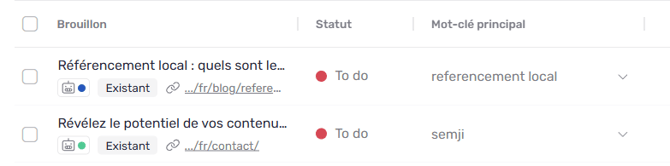
- Each draft displays a real-time status indicator: 🔵 in progress, 🟢 completed, 🔴 failed
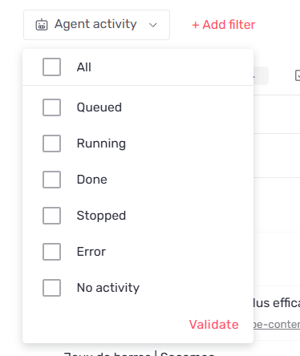
- A dedicated "Agent activity" filter lets you instantly find all processed, in-progress, or failed content
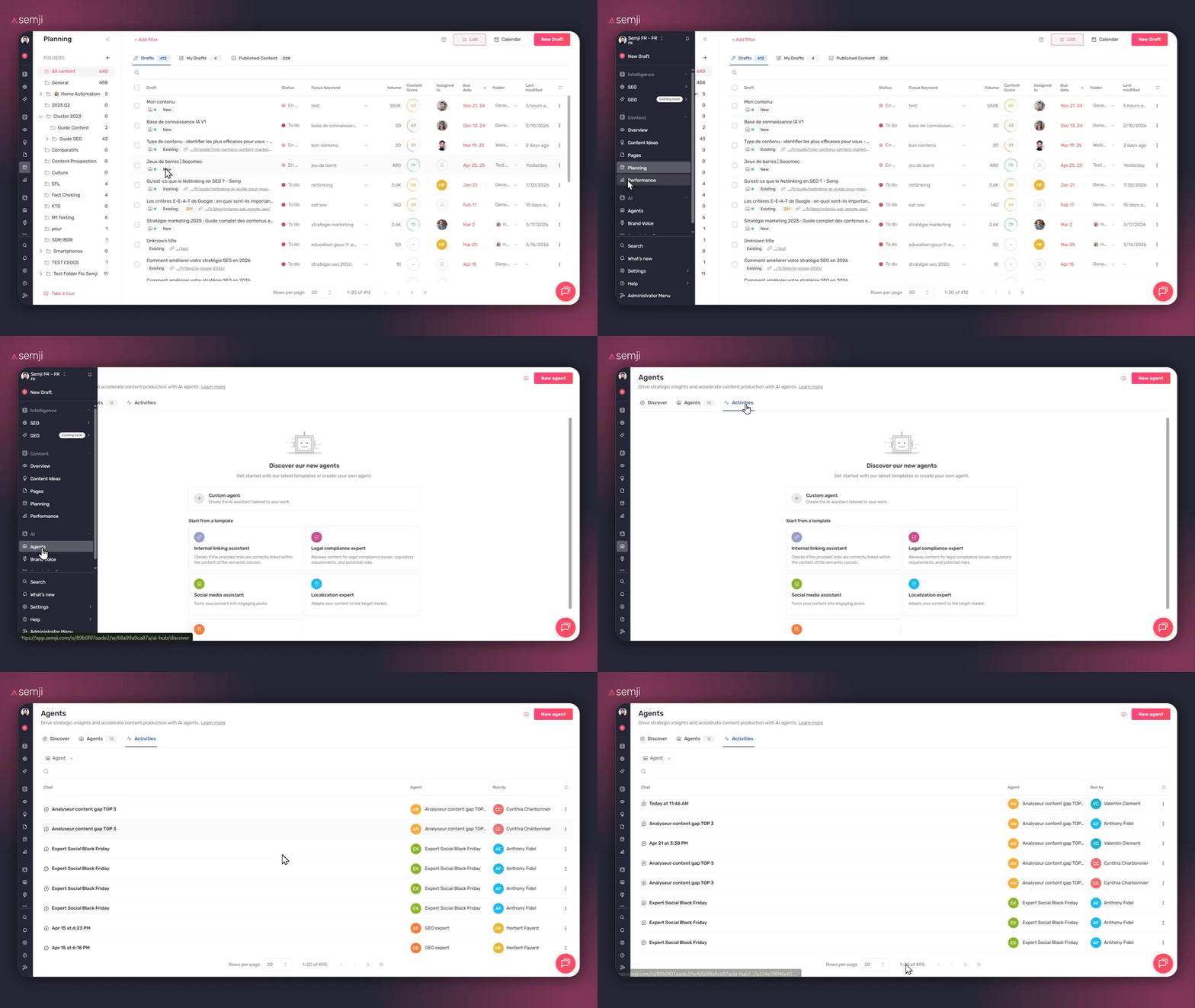
- The **Agents → Activities** screen centralizes the full history of all your agent executions
### How to use it (step by step)
#### 1) Open the planning in list view and select your drafts
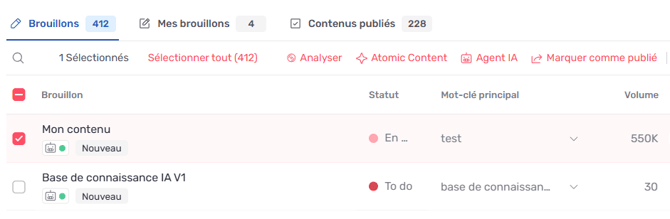
From the planning list view, check the drafts you want to process using the checkboxes. You can select one, several, or use "Select all" to process an entire folder or filtered selection.
#### 2) Click "AI Agent" in the bulk action bar
The bulk action bar appears as soon as at least one draft is selected. Click **"AI Agent"** to open the configuration modal.
#### 3) Choose your agent and configure the launch
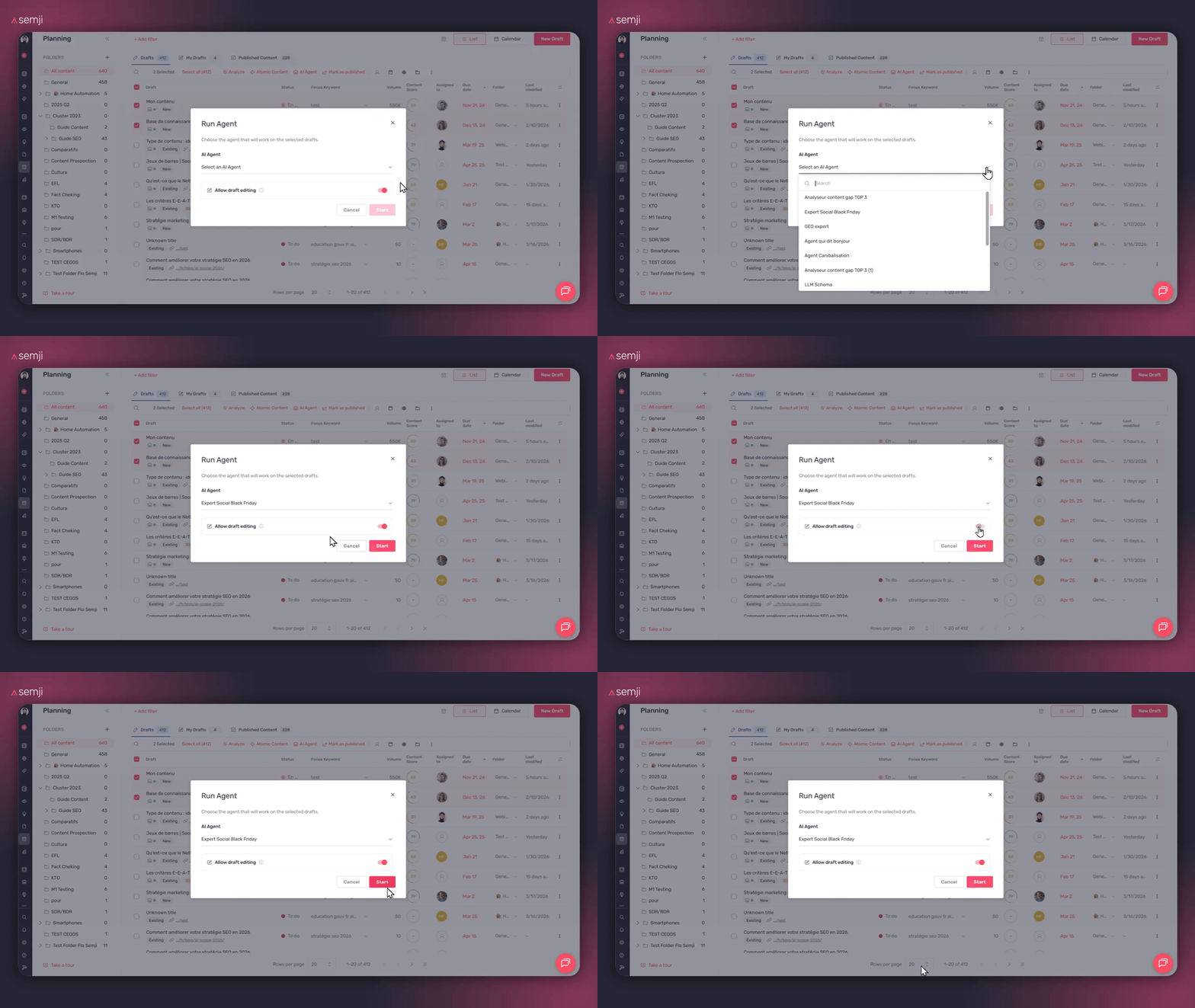
In the modal, select the agent you want to apply from those available in your workspace. The list is searchable. Then configure the two key options:
**Agent selection:** choose from all agents configured in your workspace (SEO Expert, Content Localizer, Internal Linking assistant, Legal compliance expert...).
**"Allow draft editing" option:** enabled by default, it lets the agent apply its changes directly to the draft. Disable it for "review only" mode, where suggestions are submitted without being automatically applied.
> **Warning ⚠️**: two prerequisites are checked before launch. First, make sure you have enough AI credits to cover all selected drafts — the "Start" button is blocked if your balance is insufficient. Second, drafts must have been analyzed beforehand. Drafts without an analysis are automatically excluded, with a message showing how many are affected. You can run the missing analyses from the bulk action bar, then relaunch the Bulk Agent.
#### 4) Launch and let the AI do the work
Click **"Start"**. Execution begins in the background. A confirmation notification appears. You don't need to stay on the page — the agent keeps working while you move on to something else.
#### 5) Track progress in real time
Each processed draft displays a status indicator directly in the planning list view, updated automatically without page refresh.
| Status | What it means |
| --- | --- |
| 🔵 In progress | The agent is currently working on this content |
| 🟢 Completed | The action completed successfully. Timestamp shown on hover |
| 🔴 Failed | The agent could not complete the action. Click the indicator to see the error detail and relaunch |
Click any indicator to access the action detail: agent used, launch date and time, execution duration, result, and available actions (relaunch, view applied changes...).
Use the **"Agent activity"** filter in the planning to display only content with an in-progress, completed, or failed action.
Find all your agent executions in **Agents → Activities**: a consolidated view, independent from the planning, for a full overview or to find an action launched several days ago.
### Tips for best results
Always test on a small sample before scaling up. 5 to 10 representative drafts are enough to confirm the agent produces the expected results. Adjust instructions if needed, then increase the volume gradually.
Make sure your drafts have been analyzed before launching. This is the most commonly overlooked prerequisite: without an analysis, the draft is automatically excluded. Consider filtering by analysis status in the planning before making your selection.
Use planning folders and filters to precisely target your scope. Filtering by topic cluster, market, or editorial status before selecting drafts prevents accidentally processing out-of-scope content.
> **Pro tip 💡**: the Bulk Agent is especially powerful for large-scale cross-cutting operations: legal compliance checks across a catalog, multi-country localization, internal linking reinforcement across an entire category. Combine it with the "Agent activity" filter to track progress without leaving your planning.
### Go further
Check **Agents → Activities** regularly to review past executions, identify which agents produce the best results on your content, and refine instructions accordingly. This consolidated view gives you full visibility into all your agent activity, independent of the planning view.
If a draft fails, the red indicator lets you relaunch in one click from the planning or from Agents → Activities, with no need to reconfigure the entire launch.
**Useful links:**
- **[\[Link to the AI+ Agents getting started guide\]](https://help.semji.com/en/guide-optimize-your-seo-geo-content-with-ai-agents?hsLang=en)**
- **[\[Link to Create and configure a custom AI agent\]](https://help.semji.com/en/create-and-configure-your-custom-ai-agent?hsLang=en)**
- [Getting started with Semji](https://help.semji.com/en/getting-started-with-semji?hsLang=en#main-content)
- [Create your account and log in](https://help.semji.com/en/getting-started-with-semji?hsLang=en#create-your-account-and-log-in)
- [Identifying opportunities](https://help.semji.com/en/identifying-opportunities?hsLang=en#main-content)
- [Identify opportunities](https://help.semji.com/en/identifying-opportunities?hsLang=en#identify-opportunities)
- [Exploring your pages in Semji](https://help.semji.com/en/identifying-opportunities?hsLang=en#exploring-your-pages-in-semji)
- [Managing your editorial planning](https://help.semji.com/en/managing-your-editorial-planning?hsLang=en#main-content)
- [Adapting the planning to your production workflow](https://help.semji.com/en/managing-your-editorial-planning?hsLang=en#adapting-the-planning-to-your-production-workflow)
- [Understanding the planning view](https://help.semji.com/en/managing-your-editorial-planning?hsLang=en#understanding-the-planning-view)
- [Optimizing and publishing content](https://help.semji.com/en/optimizing-and-publishing-content?hsLang=en#main-content)
- [Prepare & write](https://help.semji.com/en/optimizing-and-publishing-content?hsLang=en#prepare-write)
- [Optimize for SEO](https://help.semji.com/en/optimizing-and-publishing-content?hsLang=en#optimize-for-seo)
- [Update & publish](https://help.semji.com/en/optimizing-and-publishing-content?hsLang=en#update-publish)
- [Optimize for GEO](https://help.semji.com/en/optimizing-and-publishing-content?hsLang=en#optimize-for-geo)
- [AI+ Agents](https://help.semji.com/en/ai-agents?hsLang=en#main-content)
- [Getting Started & Guides](https://help.semji.com/en/ai-agents?hsLang=en#getting-started-guides)
- [Pre-configured Agents](https://help.semji.com/en/ai-agents?hsLang=en#pre-configured-agents)
- [Advanced Use Cases](https://help.semji.com/en/ai-agents?hsLang=en#advanced-use-cases)
- [Maximize your efficiency with AI](https://help.semji.com/en/maximize-your-efficiency-with-ai?hsLang=en#main-content)
- [Setting up your AI environment](https://help.semji.com/en/maximize-your-efficiency-with-ai?hsLang=en#setting-up-your-ai-environment)
- [Generate content with AI](https://help.semji.com/en/maximize-your-efficiency-with-ai?hsLang=en#generate-content-with-ai)
- [Track and analyze your competitors](https://help.semji.com/en/track-and-analyze-your-competitors?hsLang=en#main-content)
- [SEO](https://help.semji.com/en/track-and-analyze-your-competitors?hsLang=en#seo)
- [GEO](https://help.semji.com/en/track-and-analyze-your-competitors?hsLang=en#geo)
- [Track and analyze your performance](https://help.semji.com/en/track-and-analyze-your-performance?hsLang=en#main-content)
- [Understanding performance metrics](https://help.semji.com/en/track-and-analyze-your-performance?hsLang=en#understanding-performance-metrics)
- [Managing your SEO performance](https://help.semji.com/en/track-and-analyze-your-performance?hsLang=en#managing-your-seo-performance)
- [Connecting your tools](https://help.semji.com/en/connecting-your-tools?hsLang=en#main-content)
- [SSO & authentication](https://help.semji.com/en/connecting-your-tools?hsLang=en#sso-authentication)
- [Connect analytics & GSC](https://help.semji.com/en/connecting-your-tools?hsLang=en#connect-analytics-gsc)
- [CMS Integration](https://help.semji.com/en/connecting-your-tools?hsLang=en#cms-integration)
- [Semji & your CMS](https://help.semji.com/en/connecting-your-tools?hsLang=en#semji-your-cms)
- [Semji extension](https://help.semji.com/en/connecting-your-tools?hsLang=en#semji-extension)
- [Semji API](https://help.semji.com/en/connecting-your-tools?hsLang=en#semji-api)
- [Administration & global preferences](https://help.semji.com/en/administration-global-preferences?hsLang=en#main-content)
- [Users & roles](https://help.semji.com/en/administration-global-preferences?hsLang=en#users-roles)
- [Languages & general preferences](https://help.semji.com/en/administration-global-preferences?hsLang=en#languages-general-preferences)
- [Resources & Webinars](https://help.semji.com/en/resources-webinars?hsLang=en#main-content)
- [Webinar 2025](https://help.semji.com/en/resources-webinars?hsLang=en#webinar-2025)
- [Assistance & FAQs](https://help.semji.com/en/assistance-faqs?hsLang=en#main-content)
- [Data privacy & security](https://help.semji.com/en/assistance-faqs?hsLang=en#data-privacy-security)
- [Frequently Asked Questions](https://help.semji.com/en/assistance-faqs?hsLang=en#frequently-asked-questions)
[](http://semji.com?hsLang=en)
[mailto:email@email.com](mailto:email@email.com)
Copyright © 2026, Semji