> ## Documentation Index
> Fetch the complete documentation index at: https://help.semji.com/llms.txt
> Use this file to discover all available pages before exploring further.
# CMS Publisher: publish your content to your CMS without leaving Semji
> A new agent connects your CMS to Semji and publishes your content straight from the editor, on your terms.
## At a glance
* **What you can do**: publish your content to your CMS straight from the Semji editor, with no copy-pasting.
* **Who it's for**: content managers, writers, and SEO project managers.
* **Why it helps**: the final step of your workflow, going live, becomes seamless and closes the loop from idea to publication.
## What changes for you
**Before**: publishing content produced in Semji meant copying it into your CMS by hand. That manual step ate into the time you saved upstream and added the risk of formatting mistakes or missed publications.
**Now**: your content lands directly in the right place, in the right format. You stay in control of going live: by default, the agent creates a draft in your CMS and only publishes when you explicitly ask it to.
| Before | With CMS Publisher |
| - | - |
| Manual copy-paste from Semji to your CMS | Direct publishing from the editor |
| Reformatting with every publication | Semji respects your CMS structure |
| Risk of a missed or mis-published page | Draft by default, go live on your request |
CMS Publisher is a new agent template. Like other Semji agents, it accepts custom instructions. Its core job is to set up the connection to your CMS and publish your content from the editor.
Connecting a CMS happens once, at the workspace level, and is done by a workspace owner. The connection is then shared with the whole team.
## What you will get
Once your CMS is connected and your agent is created, you have a publishing channel built into the editor:
* a CMS Publisher agent linked to your CMS,
* your content created as a draft directly in the CMS,
* a go-live triggered on your request, never automatically,
* a structure that's respected: your CMS content types, fields, categories, and tags.
## How to use it
A workspace owner opens Settings → Integrations, then the CMS tab, and clicks Connect next to their CMS. Four CMS platforms are supported, plus the option to plug in your own MCP server.
* **WordPress** (native): connects through the REST API with an application password. You provide the site URL, username, and application password. Compatible from WordPress 5.6.
* **Drupal** (native): connects through the JSON:API module and Basic Auth. You provide the site URL, username, and password. Compatible from Drupal 8.7.
* **Contentful**: one-click connection via OAuth, through Contentful's hosted MCP server. Nothing to copy, you simply sign in and approve access.
* **Strapi**: connects to your instance's MCP endpoint with an admin token. Compatible from Strapi 5.47.0.
WordPress and Drupal connect natively. Contentful and Strapi go through an MCP server.
Create an agent from the CMS Publisher template. You can add custom instructions, for example the target content type or formatting rules specific to your site.
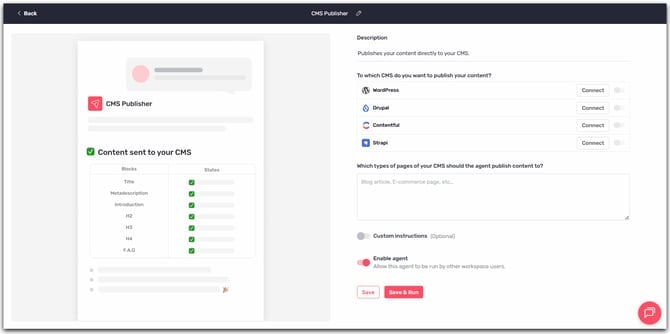 From the editor, ask the agent to publish your content. By default, it creates a draft in your CMS, in the right format and the right place. Nothing goes live at this stage.
When you're ready, explicitly ask the agent to publish. The content then moves from draft to published in your CMS. Until you ask, it stays a draft.
## Usage tips
Use the agent's custom instructions to shape its behavior: default content type, categories, formatting rules. The agent then follows them on every publication.
Always review the draft in your CMS before going live. It's the best way to check the final rendering, images, and structure before you publish.
Managing several sites or content types? Create one CMS Publisher agent per context, each with its own instructions, to avoid reconfiguring things back and forth.
## Going further
CMS Publisher completes your production chain. Pair it with Atomic Content to generate optimized content, then publish it as a draft to your CMS without leaving the editor.
WordPress and Drupal are supported natively. Contentful and Strapi go through an MCP server, which must be reachable from the public internet and served over HTTPS. If a firewall or WAF (Cloudflare, Akamai, Sucuri) protects your site, it can block Semji's requests before they reach your CMS. This is the most common cause of failed connections.
**Useful links:**
* [WordPress integration](/en/connect-your-tools/integration-wordpress)
* [Drupal integration](/en/connect-your-tools/integration-drupal)
* [Magento integration](/en/connect-your-tools/integration-magento)
* [Shopify integration](/en/connect-your-tools/integration-shopify)
* [Contentful integration](/en/connect-your-tools/integration-contentful)
* [Strapi integration](/en/connect-your-tools/integration-strapi)
This documentation is built and hosted on [Mintlify](https://mintlify.com), a developer documentation platform.
From the editor, ask the agent to publish your content. By default, it creates a draft in your CMS, in the right format and the right place. Nothing goes live at this stage.
When you're ready, explicitly ask the agent to publish. The content then moves from draft to published in your CMS. Until you ask, it stays a draft.
## Usage tips
Use the agent's custom instructions to shape its behavior: default content type, categories, formatting rules. The agent then follows them on every publication.
Always review the draft in your CMS before going live. It's the best way to check the final rendering, images, and structure before you publish.
Managing several sites or content types? Create one CMS Publisher agent per context, each with its own instructions, to avoid reconfiguring things back and forth.
## Going further
CMS Publisher completes your production chain. Pair it with Atomic Content to generate optimized content, then publish it as a draft to your CMS without leaving the editor.
WordPress and Drupal are supported natively. Contentful and Strapi go through an MCP server, which must be reachable from the public internet and served over HTTPS. If a firewall or WAF (Cloudflare, Akamai, Sucuri) protects your site, it can block Semji's requests before they reach your CMS. This is the most common cause of failed connections.
**Useful links:**
* [WordPress integration](/en/connect-your-tools/integration-wordpress)
* [Drupal integration](/en/connect-your-tools/integration-drupal)
* [Magento integration](/en/connect-your-tools/integration-magento)
* [Shopify integration](/en/connect-your-tools/integration-shopify)
* [Contentful integration](/en/connect-your-tools/integration-contentful)
* [Strapi integration](/en/connect-your-tools/integration-strapi)
This documentation is built and hosted on [Mintlify](https://mintlify.com), a developer documentation platform.