> ## Documentation Index
> Fetch the complete documentation index at: https://help.semji.com/llms.txt
> Use this file to discover all available pages before exploring further.
# How to plug in or change your Google Search Console?
> To view the performance of your content in Semji
### Why connect Google Search Console?
Connecting Google Search Console to Semji allows you to:
1. **Monitor the performance of your content** within the platform: number of clicks from Google, position of the URL on its keywords, click rate, etc.
2. **Cross data to facilitate analysis and decision-making**. Google Search Console data is considered in the calculation of the Content Score, which allows you to estimate the level of optimization of your content. Search console data is also used in the calculation of the priority score, which allows you to identify which content to work on first. Thanks to Semji, you can also connect [Google Analytics](/en/connect-your-tools/how-to-connect-my-google-analytics) or [Piano Analytics](/en/connect-your-tools/how-to-connect-my-piano-analytics-account) data.
### How to connect Google Search Console?
#### **Step 1**
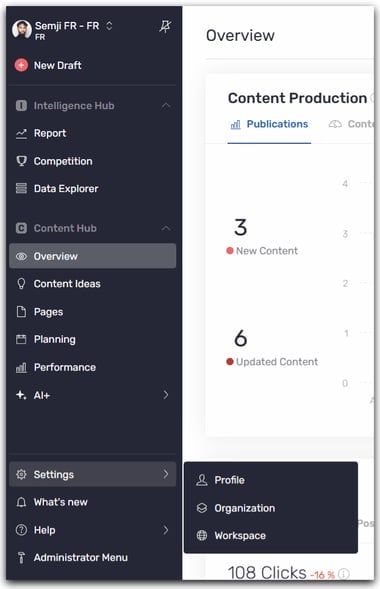
Go to the left sidebar menu, click on Settings -> Workspace
####  #### **Step 2**
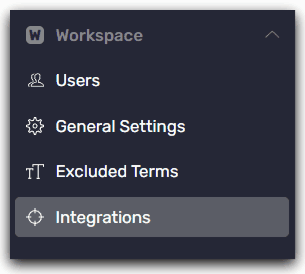
Once you have access to your workspace settings, click on "Integrations".
#### **Step 2**
Once you have access to your workspace settings, click on "Integrations".
 #### **Step 3**
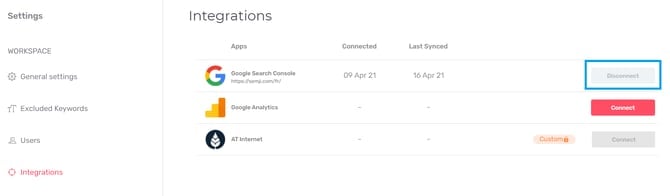
Here you can connect your web analytics tools. Most of the time, your Search Console is already connected because this operation was necessary to create your workspace.
Depending on the button that appears, click on the "Connect" button corresponding to Google Search Console to connect your property for the first time, or click on the "Disconnect" button to change the property that is connected to your workspace and replace it.
#### **Step 3**
Here you can connect your web analytics tools. Most of the time, your Search Console is already connected because this operation was necessary to create your workspace.
Depending on the button that appears, click on the "Connect" button corresponding to Google Search Console to connect your property for the first time, or click on the "Disconnect" button to change the property that is connected to your workspace and replace it.
 > **Tip**: If you don't have the right access to connect Search Console to other tools, such as the Semji application, you may need to ask a colleague with a higher level of access to help you. In this case, don't hesitate to ask them to grant you the same level of access or simply invite them to Semji to connect your Search Console property themselves.
>
> Here are the 3 possible levels of access in Google Search Console:
>
> * Owner: allows you to connect Search Console to Semji
> * Full access: allows you to connect Search Console to Semji
> * Limited Access: does NOT allow you to connect Search Console to Semji
#### **Step 4**
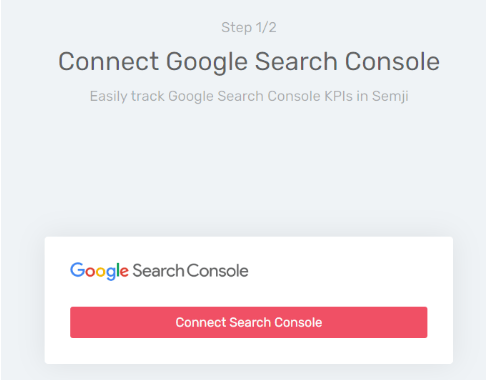
Continue by clicking on the "Connect Search Console" button
> **Tip**: If you don't have the right access to connect Search Console to other tools, such as the Semji application, you may need to ask a colleague with a higher level of access to help you. In this case, don't hesitate to ask them to grant you the same level of access or simply invite them to Semji to connect your Search Console property themselves.
>
> Here are the 3 possible levels of access in Google Search Console:
>
> * Owner: allows you to connect Search Console to Semji
> * Full access: allows you to connect Search Console to Semji
> * Limited Access: does NOT allow you to connect Search Console to Semji
#### **Step 4**
Continue by clicking on the "Connect Search Console" button
 #### **Step 5**
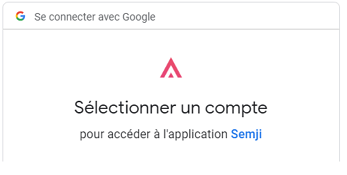
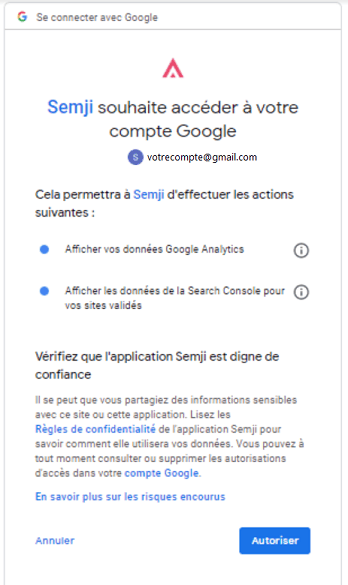
Select the Google account linked to the Google Search Console property that you wish to connect. Then click "Allow" to allow Semji to access your data.
#### **Step 5**
Select the Google account linked to the Google Search Console property that you wish to connect. Then click "Allow" to allow Semji to access your data.
 [](https://downloads.intercomcdn.com/i/o/223908804/fd12cdd2a69e869682f7ede4/autorisation-connexion-GA-Semji.PNG?expires=1619377200\&signature=85a5d9209acf38d46821e865f68e1aad61fb60739b081888cb3ee609908d7290)
 #### **Step 6**
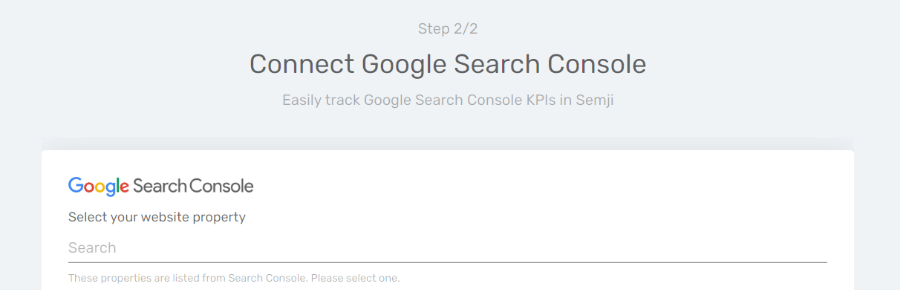
Use the search bar to find the Google Search Console property you want to connect to Semji. Click on "Activate" at the bottom left of the page to go to the next step.
#### **Step 6**
Use the search bar to find the Google Search Console property you want to connect to Semji. Click on "Activate" at the bottom left of the page to go to the next step.
 #### **Step 7**
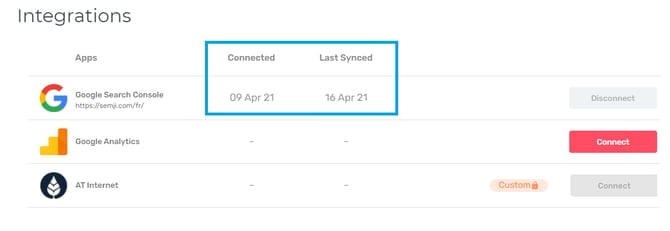
Your Google Search Console property is now connected to Semji! In the Semji interface dedicated to integrations, you can now see the date when you connected with Google Search Console (Connected) and when the last data synchronization was (Last Synced).
#### **Step 7**
Your Google Search Console property is now connected to Semji! In the Semji interface dedicated to integrations, you can now see the date when you connected with Google Search Console (Connected) and when the last data synchronization was (Last Synced).
 This documentation is built and hosted on [Mintlify](https://mintlify.com), a developer documentation platform.