> ## Documentation Index
> Fetch the complete documentation index at: https://help.semji.com/llms.txt
> Use this file to discover all available pages before exploring further.
# Already have a URL in the Pages tab? Why can't you mark your content as published?
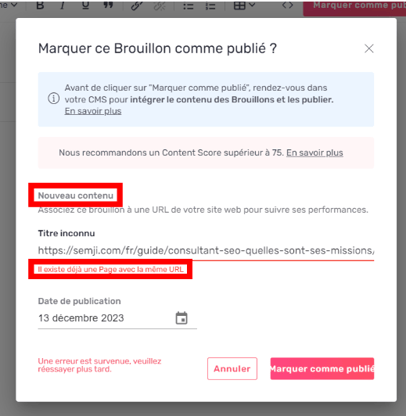
> When you want to mark your content as published, you get an error message telling you that the URL is already included in the Pages tab.
> *Good to know 💡: When optimizing existing content, make sure that the URL is not already included in* *the Pages tab. If it is not already imported into Semji, you can do so manually using the "\_\_[Import](/en/identify-opportunities/how-to-import-a-url-in-semji)" option.*\
> *Semji will then import your content directly into the platform.*
The message "A Page with the same URL already exists" appears, because you have created a new draft, but this content already exists and is already available in Semji.
 \
Here are the steps to solve this problem:
#### Step 1: Search for an existing page in Semji
Go to the Pages tab and use the magnifying glass on the left of the "Import" button to search for the URL or keyword of your content.
\
Here are the steps to solve this problem:
#### Step 1: Search for an existing page in Semji
Go to the Pages tab and use the magnifying glass on the left of the "Import" button to search for the URL or keyword of your content.
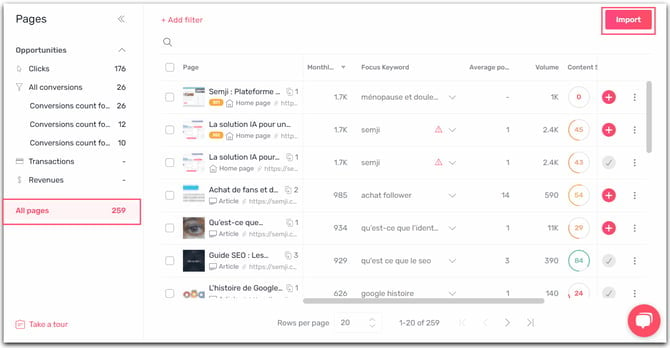 > Note: If you can't find the URL, filter on All pages to make sure you don't miss it!
Step 2:
* Click on existing content:
You can choose between two options:
You can copy the content of your new draft into the existing draft,
Or you can use the "Synchronise with website" feature on the existing draft to retrieve the latest online version of your content.
> Note: If you can't find the URL, filter on All pages to make sure you don't miss it!
Step 2:
* Click on existing content:
You can choose between two options:
You can copy the content of your new draft into the existing draft,
Or you can use the "Synchronise with website" feature on the existing draft to retrieve the latest online version of your content.
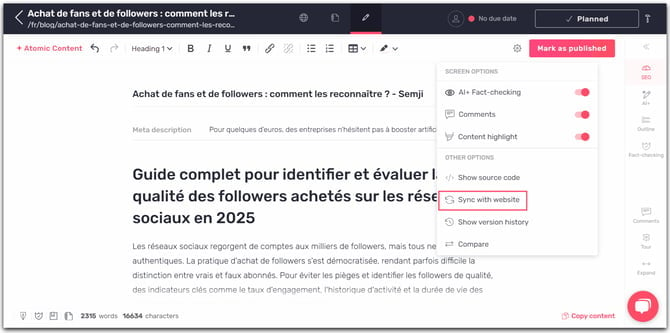 * Click on Mark as published
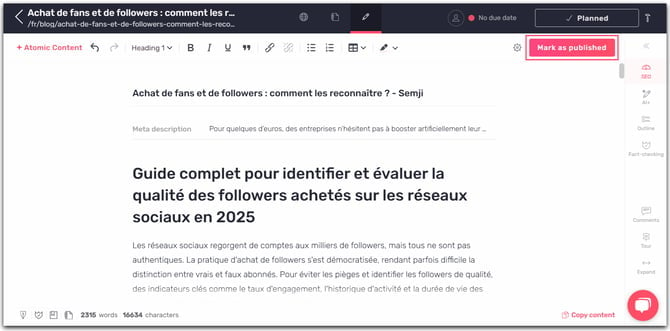 * As the content already exists, the URL is already provided.
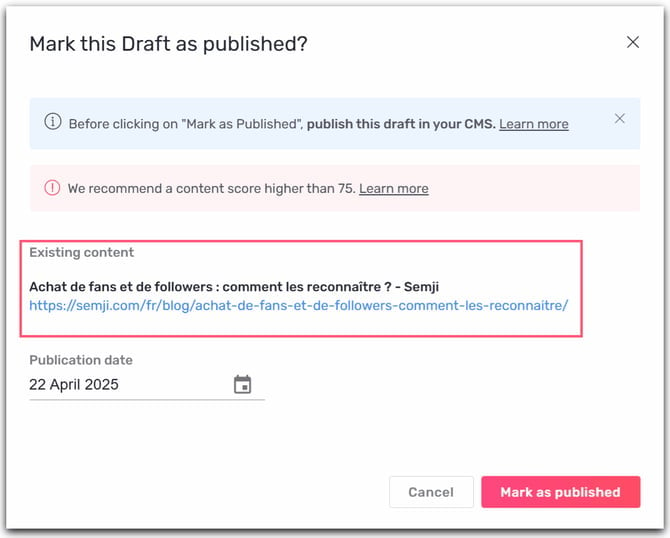 \
Step 3:
Once all your content has been duplicated in the existing version, you can delete the new draft to avoid duplicates in the Planning tab.
You can now manage existing content and Mark it as published!
This documentation is built and hosted on [Mintlify](https://mintlify.com), a developer documentation platform.
\
Step 3:
Once all your content has been duplicated in the existing version, you can delete the new draft to avoid duplicates in the Planning tab.
You can now manage existing content and Mark it as published!
This documentation is built and hosted on [Mintlify](https://mintlify.com), a developer documentation platform.