> ## Documentation Index
> Fetch the complete documentation index at: https://help.semji.com/llms.txt
> Use this file to discover all available pages before exploring further.
# How to access the version history of my content
> Easily view and restore a version of your content.
Benefits:
Save time and efficiency: compare older versions of your content to track changes and identify impacts on SEO performance.\
Version history allows teams to see other members' contributions and modifications, promoting collaborative and structured content optimization.
Follow these steps to access the version history of your content:
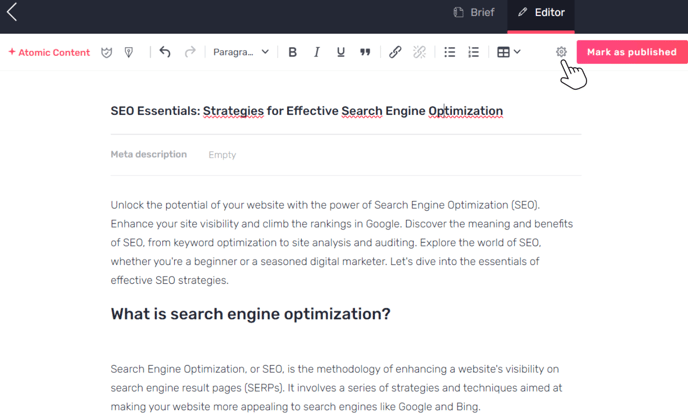
#### Step 1: Go to the Semji editor, then click on the wheel to access the parameters.
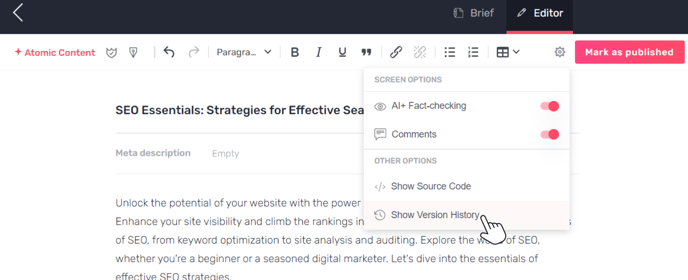
 Step 2: Click on "Show version history".
 #### Step 3: Select the version you wish to view
> Good to know: You can view the different versions of your content in production, and you can also view the different published versions of your content.
#### Step 3: Select the version you wish to view
> Good to know: You can view the different versions of your content in production, and you can also view the different published versions of your content.
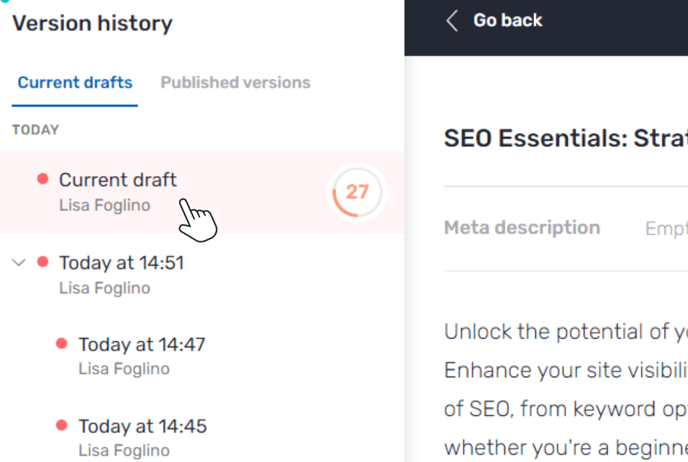 > You can view the date of the last modification, as well as the name of the person who last modified or published the content.
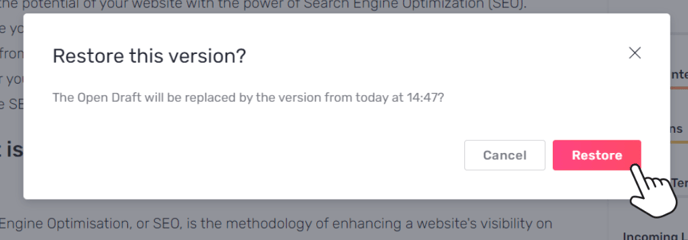
#### Step 4: Click on "Restore this version" and confirm.
> You can view the date of the last modification, as well as the name of the person who last modified or published the content.
#### Step 4: Click on "Restore this version" and confirm.
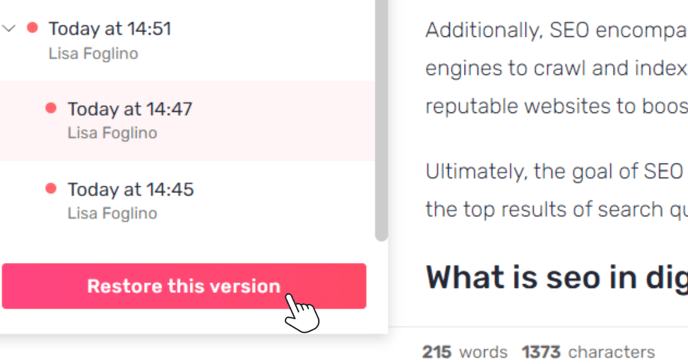
 You can easily view and restore a version of your content!
This documentation is built and hosted on [Mintlify](https://mintlify.com), a developer documentation platform.
You can easily view and restore a version of your content!
This documentation is built and hosted on [Mintlify](https://mintlify.com), a developer documentation platform.