---
title: "GEO configuration: set up your AI visibility monitoring"
description: Add the prompts you want to track in LLMs, organize them by topic, and configure your competitors to start measuring your AI visibility.
---
[Skip to content](https://help.semji.com/en/geo-configuration#main-content)
- [English](https://help.semji.com/en/geo-configuration)
- [Français](https://help.semji.com/fr/configuration-geo)
English
Show submenu for translations

Open main navigation
Close main navigation
- - [English](https://help.semji.com/en/geo-configuration)
- [Français](https://help.semji.com/fr/configuration-geo)
English
Show submenu for translations
- Contact us
Contact us
How can we help you?
- There are no suggestions because the search field is empty.
1. [Help Center](https://help.semji.com/en?hsLang=en)
2. [Track and analyze your competitors](https://help.semji.com/en/track-and-analyze-your-competitors?hsLang=en)
3. [GEO](https://help.semji.com/en/track-and-analyze-your-competitors?hsLang=en#geo)
# GEO configuration: set up your AI visibility monitoring
## Add the prompts you want to track in LLMs, organize them by topic, and configure your competitors to start measuring your AI visibility.
Table of contents
---
[At a glance](https://help.semji.com/en/geo-configuration#ata)
[ What changes for you](https://help.semji.com/en/geo-configuration#whatchanges)
[What you'll get](https://help.semji.com/en/geo-configuration#whatyou)
[How to use it](https://help.semji.com/en/geo-configuration#howtouse)
[Tips for getting the most out of it](https://help.semji.com/en/geo-configuration#tips)
[Go further](https://help.semji.com/en/geo-configuration#gofurther)
### At a glance
- **What you can do**: add prompts to monitor, assign them to a topic, and track up to 10 competitors depending on your plan.
- **Who it's for**: Org Admins and workspace members.
- **Why it matters**: the quality of your GEO monitoring depends directly on the relevance of your prompts. A solid setup from day one means actionable data within the first 24 hours.
### What changes for you
Before Intelligence Hub GEO, there was no way to systematically monitor your brand's presence in LLMs. Configuring the module lets you define exactly which queries you want to be visible on, organize your tracking by topic, and follow your competitors on those same queries.
Each configured prompt is automatically replayed every day on ChatGPT and Google AI Overviews. Once your setup is in place, there's nothing more to do: data accumulates and your history builds itself.
Setting up your first prompts no longer means starting from scratch. Semji automatically generates prompt suggestions from the GEO analyses available in your Content Hub, aligned with your existing SEO topics. You review, adjust, and monitoring starts the same day.
> **Good to know ℹ️**: the Persona and Funnel stage of each prompt are automatically detected by AI classification at creation. You can edit them manually at any time from the Prompts screen.
### What you'll get
Once your prompts are configured, you'll have for each query:
- a daily tracking of your mention rate and citation rate on that query,
- a ranking of your brand against your competitors,
- the history of responses captured by LLMs, with the full text of each response.
All data starts building within 24 hours of adding a prompt.
### How to use it (step by step)
#### 1) Use prompt suggestions
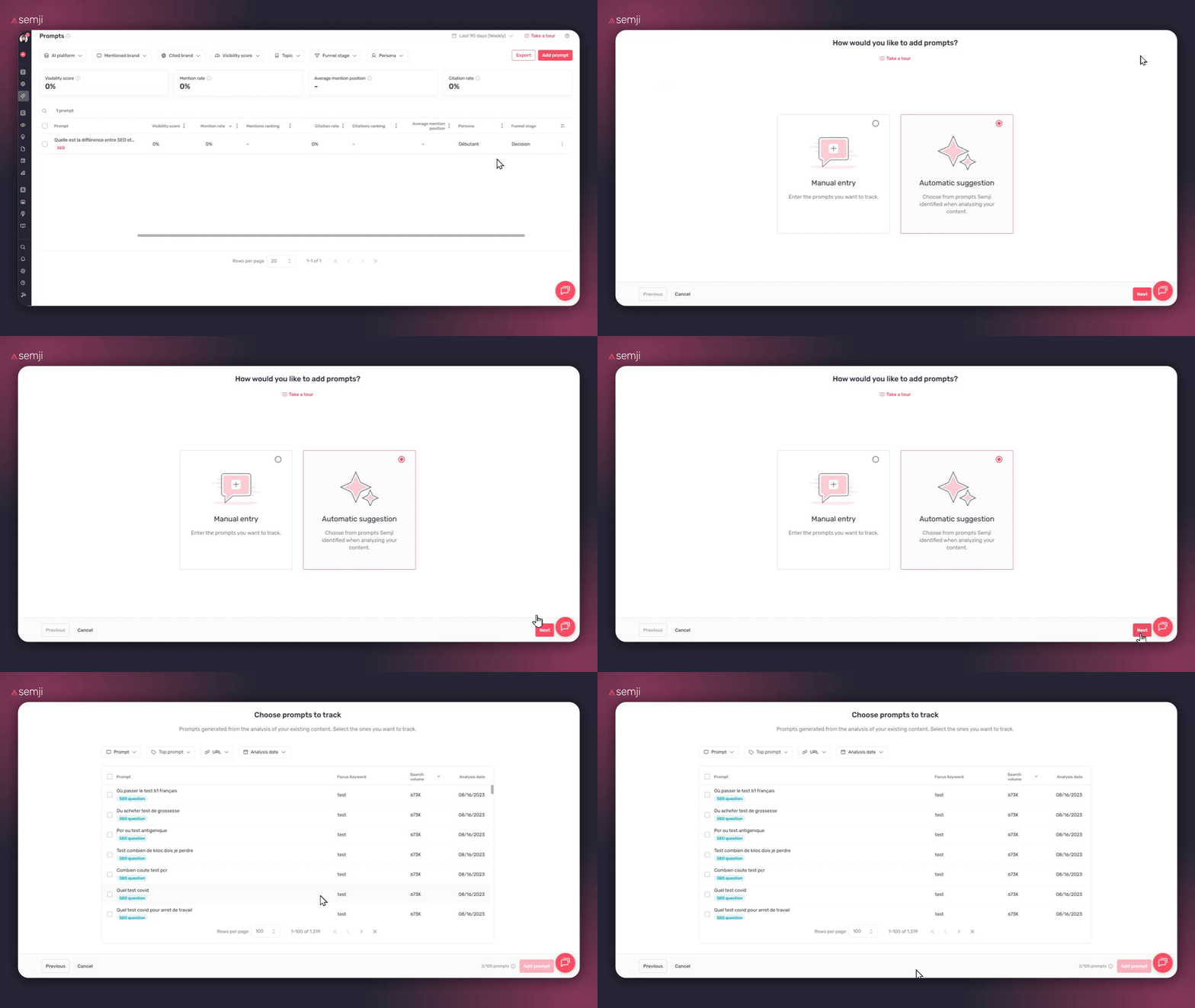
Before entering prompts manually, review the **suggestions generated by Semji**. From the "Add prompt" window, select a topic to see the list of prompts suggested from your existing GEO analyses and SEO keywords.
Check the prompts you want to activate and click **Import prompts** to add them to your monitoring in one go.
#### 2) Access the configuration
From the sidebar, click **GEO** then **Prompts**. Click the **Add prompt** button in the top right of the screen.
> **Good to know ℹ️**: only Org Admins and workspace owners or members can add and configure prompts.
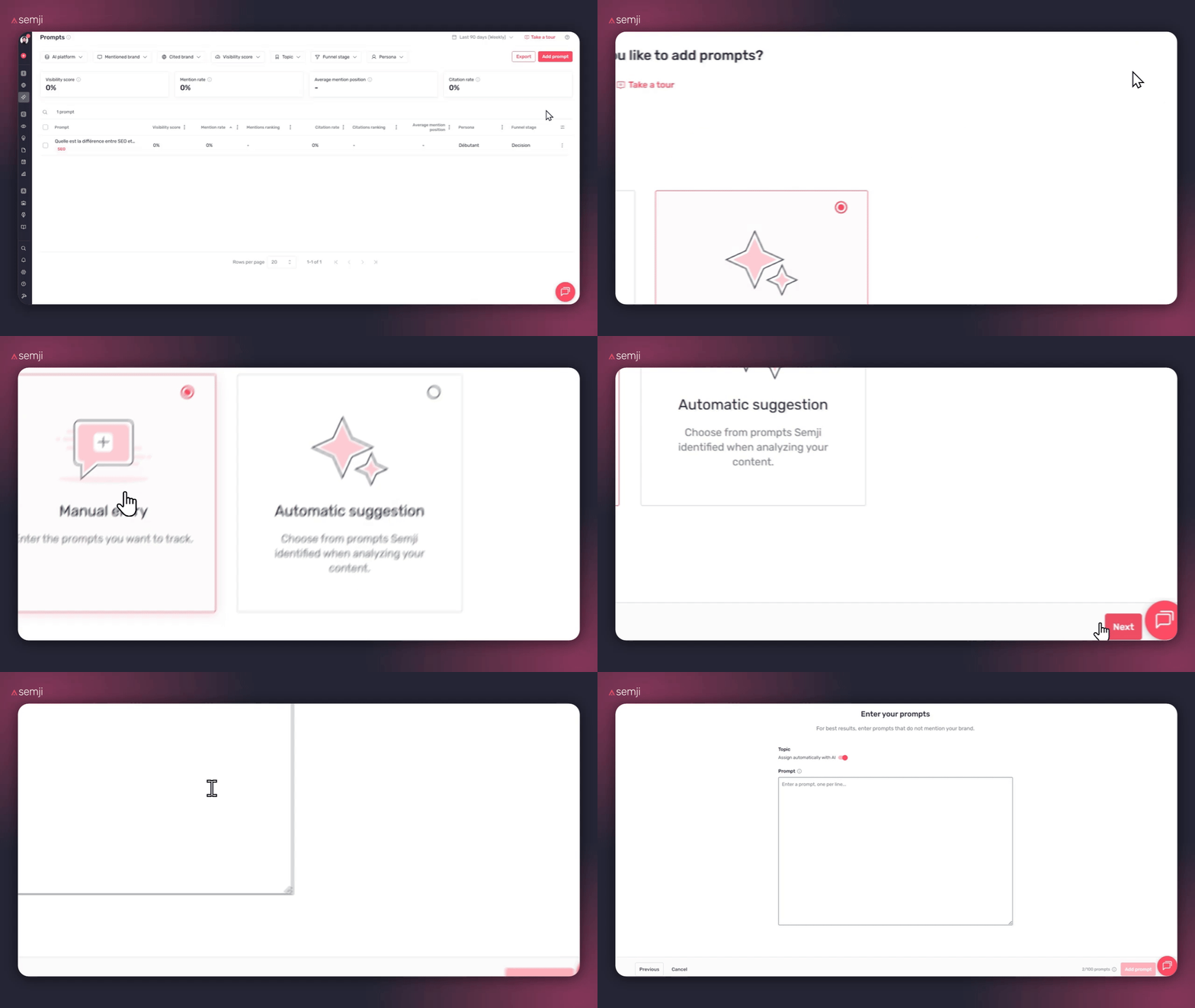
> **Tip ✅**: suggestions are aligned with your existing SEO topics — they're a solid starting point, not a definitive list. Adjust the wording if needed to make sure each prompt reflects a real user question.
#### 3) Select a topic
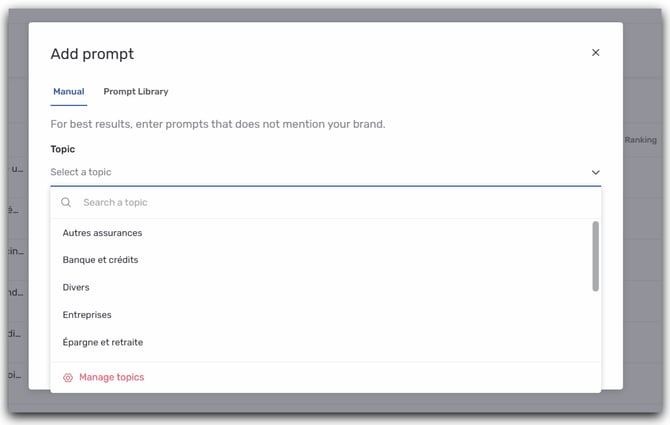
In the add prompt window, start by selecting the **Topic** your prompts belong to. The topic is required: it organizes your tracking by query universe and feeds the Competitor ranking by topic table in the AI Visibility screen.
Available topics are those you have defined in your **[AI Properties](https://help.semji.com/en/ai-properties-setup?hsLang=en)**. If no topic has been configured yet, create one before adding your first prompts.
#### 4) Enter your prompts
In the **Prompt** field, type your queries, one per line. You can add multiple prompts at once for the same topic.
The counter at the top of the field shows how many prompts you are adding against your plan's total (e.g. 322/1000).
> **Tip ✅**: write your prompts as real user questions, without mentioning your brand. Use "What is the best home insurance in France?" rather than "Axa home insurance". LLMs respond to natural questions — your prompts should reflect what your audience actually asks.
> **Good to know ℹ️**: each prompt is limited to 200 characters.
#### 5) Confirm and save
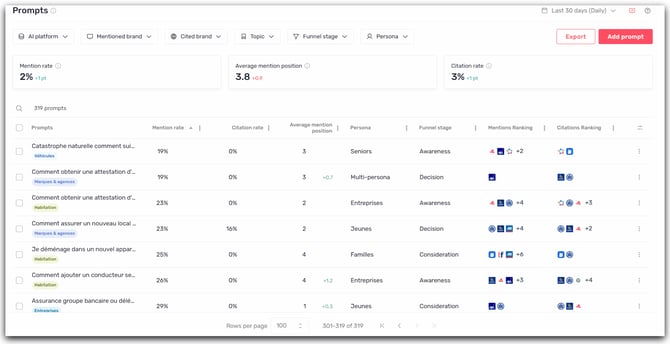
Click **Add \[N\] prompt(s)** to save. Prompts appear immediately in the Prompts screen list. First data is available within 24 hours of adding.
The Persona and Funnel stage of each prompt are automatically assigned by AI classification. If the detected values don't match your context, you can edit them directly from the prompt list.
### Tips for getting the most out of it
Start with 10 to 20 prompts per strategic topic. It's better to begin with a focused, well-chosen scope than to burn through your quota on less relevant queries. Analyze first results before expanding.
Cover different funnel stages. For a given topic, configure Awareness prompts ("What is the best car insurance?"), Consideration prompts ("How to compare car insurance online?"), and Decision prompts ("Where to get affordable car insurance?"). You'll get a complete picture of your visibility across the full user journey.
Keep an eye on your quota. The prompt usage counter is displayed at the top of the AI Visibility screen. Additional prompts are available as an add-on depending on your plan if you reach your limit.
> **Tip 💡**: the competitors tracked in Intelligence Hub GEO are the same as those configured in Intelligence Hub SEO. The competitor counter is shared between both modules — adding a competitor automatically benefits both.
### Go further
Once your prompts are configured and your first data is available, go to the AI Visibility screen to read your overall performance, or to the Prompts screen to explore results query by query.
> **Important ⚠️**: deleting a prompt is permanent. The historical data associated with that prompt cannot be recovered.
**Useful links:**
- **[\[AI Visibility: reading and interpreting your dashboard\]](https://help.semji.com/en/ai-visibility?hsLang=en)**
- [**\[GEO Prompts: monitoring your queries and reading your metrics\]**](https://help.semji.com/en/geo-prompts?hsLang=en)
- [Getting started with Semji](https://help.semji.com/en/getting-started-with-semji?hsLang=en#main-content)
- [Create your account and log in](https://help.semji.com/en/getting-started-with-semji?hsLang=en#create-your-account-and-log-in)
- [Identifying opportunities](https://help.semji.com/en/identifying-opportunities?hsLang=en#main-content)
- [Identify opportunities](https://help.semji.com/en/identifying-opportunities?hsLang=en#identify-opportunities)
- [Exploring your pages in Semji](https://help.semji.com/en/identifying-opportunities?hsLang=en#exploring-your-pages-in-semji)
- [Managing your editorial planning](https://help.semji.com/en/managing-your-editorial-planning?hsLang=en#main-content)
- [Adapting the planning to your production workflow](https://help.semji.com/en/managing-your-editorial-planning?hsLang=en#adapting-the-planning-to-your-production-workflow)
- [Understanding the planning view](https://help.semji.com/en/managing-your-editorial-planning?hsLang=en#understanding-the-planning-view)
- [Optimizing and publishing content](https://help.semji.com/en/optimizing-and-publishing-content?hsLang=en#main-content)
- [Prepare & write](https://help.semji.com/en/optimizing-and-publishing-content?hsLang=en#prepare-write)
- [Optimize for SEO](https://help.semji.com/en/optimizing-and-publishing-content?hsLang=en#optimize-for-seo)
- [Update & publish](https://help.semji.com/en/optimizing-and-publishing-content?hsLang=en#update-publish)
- [Optimize for GEO](https://help.semji.com/en/optimizing-and-publishing-content?hsLang=en#optimize-for-geo)
- [AI+ Agents](https://help.semji.com/en/ai-agents?hsLang=en#main-content)
- [Getting Started & Guides](https://help.semji.com/en/ai-agents?hsLang=en#getting-started-guides)
- [Pre-configured Agents](https://help.semji.com/en/ai-agents?hsLang=en#pre-configured-agents)
- [Advanced Use Cases](https://help.semji.com/en/ai-agents?hsLang=en#advanced-use-cases)
- [Maximize your efficiency with AI](https://help.semji.com/en/maximize-your-efficiency-with-ai?hsLang=en#main-content)
- [Setting up your AI environment](https://help.semji.com/en/maximize-your-efficiency-with-ai?hsLang=en#setting-up-your-ai-environment)
- [Generate content with AI](https://help.semji.com/en/maximize-your-efficiency-with-ai?hsLang=en#generate-content-with-ai)
- [Track and analyze your competitors](https://help.semji.com/en/track-and-analyze-your-competitors?hsLang=en#main-content)
- [SEO](https://help.semji.com/en/track-and-analyze-your-competitors?hsLang=en#seo)
- [GEO](https://help.semji.com/en/track-and-analyze-your-competitors?hsLang=en#geo)
- [Track and analyze your performance](https://help.semji.com/en/track-and-analyze-your-performance?hsLang=en#main-content)
- [Understanding performance metrics](https://help.semji.com/en/track-and-analyze-your-performance?hsLang=en#understanding-performance-metrics)
- [Managing your SEO performance](https://help.semji.com/en/track-and-analyze-your-performance?hsLang=en#managing-your-seo-performance)
- [Connecting your tools](https://help.semji.com/en/connecting-your-tools?hsLang=en#main-content)
- [SSO & authentication](https://help.semji.com/en/connecting-your-tools?hsLang=en#sso-authentication)
- [Connect analytics & GSC](https://help.semji.com/en/connecting-your-tools?hsLang=en#connect-analytics-gsc)
- [CMS Integration](https://help.semji.com/en/connecting-your-tools?hsLang=en#cms-integration)
- [Semji & your CMS](https://help.semji.com/en/connecting-your-tools?hsLang=en#semji-your-cms)
- [Semji extension](https://help.semji.com/en/connecting-your-tools?hsLang=en#semji-extension)
- [Semji API](https://help.semji.com/en/connecting-your-tools?hsLang=en#semji-api)
- [Administration & global preferences](https://help.semji.com/en/administration-global-preferences?hsLang=en#main-content)
- [Users & roles](https://help.semji.com/en/administration-global-preferences?hsLang=en#users-roles)
- [Languages & general preferences](https://help.semji.com/en/administration-global-preferences?hsLang=en#languages-general-preferences)
- [Resources & Webinars](https://help.semji.com/en/resources-webinars?hsLang=en#main-content)
- [Webinar 2025](https://help.semji.com/en/resources-webinars?hsLang=en#webinar-2025)
- [Assistance & FAQs](https://help.semji.com/en/assistance-faqs?hsLang=en#main-content)
- [Data privacy & security](https://help.semji.com/en/assistance-faqs?hsLang=en#data-privacy-security)
- [Frequently Asked Questions](https://help.semji.com/en/assistance-faqs?hsLang=en#frequently-asked-questions)
[](http://semji.com?hsLang=en)
[mailto:email@email.com](mailto:email@email.com)
Copyright © 2026, Semji