> ## Documentation Index
> Fetch the complete documentation index at: https://help.semji.com/llms.txt
> Use this file to discover all available pages before exploring further.
# Why and how to create folders in the Planning tab?
> In the Planning tab, you can easily create folders to better organize your content production!
### Why create folders in the Planning tab?
In the Planning tab, easily create folders by topic to find related content.
More than simple organization, folders allow you to view the content of your topic cluster, and [quickly identify the performance of that folder](/en/analyze-performance/all-about-customizing-the-performance-tab).
**With the 3rd hierarchical level, you can now:**
* Create hierarchies aligned with the complexity of your SEO strategy
* More precisely reflect your semantic clusters, product categories, or internal processes
* Analyze the performance of your content with more depth and granularity
> \_Good to know 💡: The "Folder" filter allows you to sort content associated with the same folder in the categories "My current drafts" and "Published".\
> \_
*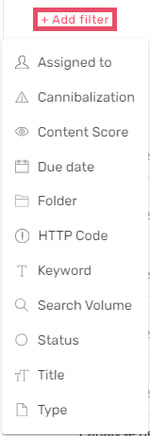 *
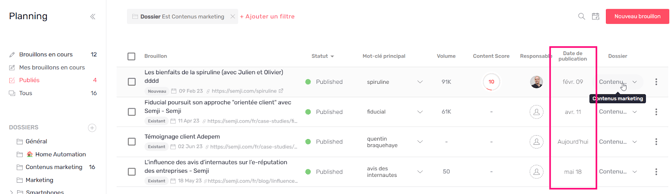
For example, using the "Folder" filter, you can easily find all the contents of a folder, along with the associated publication dates.
*
*
For example, using the "Folder" filter, you can easily find all the contents of a folder, along with the associated publication dates.
* *
### How to create folders in the Planning Tab?
**To create folders, go to the Planning tab:**
1. Click on the + icon next to "Folders";
*
### How to create folders in the Planning Tab?
**To create folders, go to the Planning tab:**
1. Click on the + icon next to "Folders";
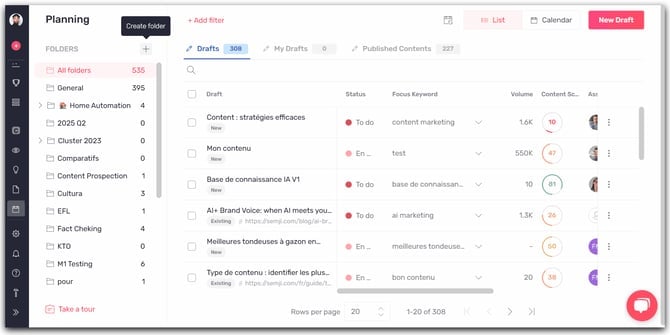 2\. Enter the name of the new folder;
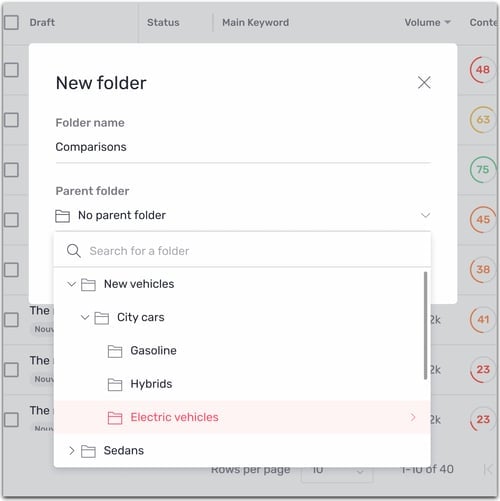
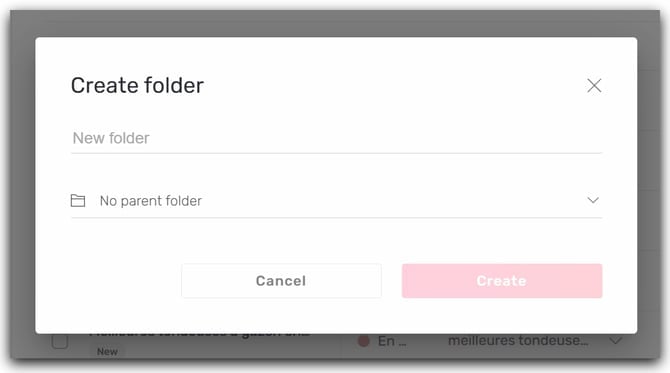 3\. Select a parent folder if you want to create a hierarchy.
Thanks to the new interface, you can easily navigate your existing structure and select the appropriate level.
3\. Select a parent folder if you want to create a hierarchy.
Thanks to the new interface, you can easily navigate your existing structure and select the appropriate level.
 4\. Organize all your content in folders;
###
You can now view your content in the different folders you have created:
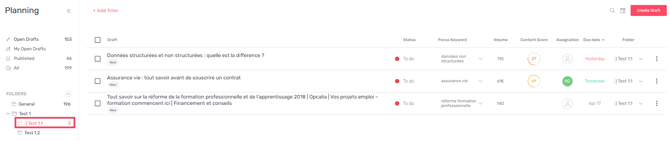
In the "General" folder, find all the drafts you've added to the Planning.
> *Good to know 💡: You cannot rename the "General" folder. This folder contains all your drafts and cannot be changed.*
Folders can be created up to three levels deep, allowing you to link and establish multiple subfolders under a parent folder.
4\. Organize all your content in folders;
###
You can now view your content in the different folders you have created:
In the "General" folder, find all the drafts you've added to the Planning.
> *Good to know 💡: You cannot rename the "General" folder. This folder contains all your drafts and cannot be changed.*
Folders can be created up to three levels deep, allowing you to link and establish multiple subfolders under a parent folder.
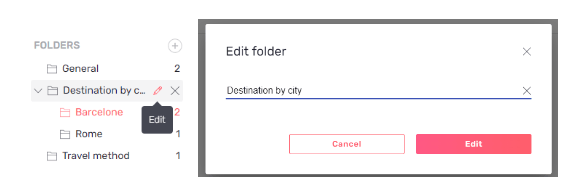
 You can change the folder name by moving your cursor over the folders.
###
You can change the folder name by moving your cursor over the folders.
###  > *Good to know 💡: When creating several drafts on the same theme, select the relevant folder directly in the Planning tab, then click on "New draft" and your drafts will be directly associated with the folder.*
### How to track folder performance in the Reports tab?
> *Good to know 💡: The Performances tab currently displays content in two sections. This means that if you have new content and optimized content in the same folder in the Planning tab, you won't be able to find them together in the Performances tab.*
Quickly identify a folder's performance in the Reports tab using the "Folders" filter.
Select the "Folders" filter, then click on the folder you want to analyze. The folder's performance data will be displayed. You can export this data to Excel or as a CSV file.
You can now create and analyze the performance of your folders!
### Use Cases Examples
Here's how to leverage the 3-level hierarchy based on your industry:
#### Media - News & Content Website
```text theme={null}
📰 Editorial
├── 🏛️ Politics
│ ├── 🗳️ Local Elections
│ ├── 🇺🇸 National Politics
│ └── 🌍 International
└── ⚽ Sports
├── 🏆 NFL Football
├── 🎾 Tennis US Open
└── 🏀 NBA Basketball
```
#### Banking - Financial Products & Services
```text theme={null}
🏦 Banking Products
├── 💳 Loans
│ ├── 🏠 Mortgage Loans
│ ├── 🛒 Personal Loans
│ └── 🚗 Auto Loans
└── 💰 Savings & Investments
├── 📈 Savings Accounts
├── 📊 Investment Products
└── 💎 Wealth Management
```
#### Insurance - Coverage & Customer Segments
```text theme={null}
🛡️ Insurance Solutions
├── 🚙 Auto Insurance
│ ├── 👨🎓 Young Drivers
│ ├── 🏎️ Luxury Vehicles
│ └── 🚐 Commercial Fleet
└── 🏠 Home Insurance
├── 🏘️ Single Family Homes
├── 🏢 Condominiums
└── 🏖️ Vacation Homes
```
Each level corresponds to increasingly specific search intents, enabling **precise SEO analysis** and **optimal editorial organization**.
This documentation is built and hosted on [Mintlify](https://mintlify.com), a developer documentation platform.
> *Good to know 💡: When creating several drafts on the same theme, select the relevant folder directly in the Planning tab, then click on "New draft" and your drafts will be directly associated with the folder.*
### How to track folder performance in the Reports tab?
> *Good to know 💡: The Performances tab currently displays content in two sections. This means that if you have new content and optimized content in the same folder in the Planning tab, you won't be able to find them together in the Performances tab.*
Quickly identify a folder's performance in the Reports tab using the "Folders" filter.
Select the "Folders" filter, then click on the folder you want to analyze. The folder's performance data will be displayed. You can export this data to Excel or as a CSV file.
You can now create and analyze the performance of your folders!
### Use Cases Examples
Here's how to leverage the 3-level hierarchy based on your industry:
#### Media - News & Content Website
```text theme={null}
📰 Editorial
├── 🏛️ Politics
│ ├── 🗳️ Local Elections
│ ├── 🇺🇸 National Politics
│ └── 🌍 International
└── ⚽ Sports
├── 🏆 NFL Football
├── 🎾 Tennis US Open
└── 🏀 NBA Basketball
```
#### Banking - Financial Products & Services
```text theme={null}
🏦 Banking Products
├── 💳 Loans
│ ├── 🏠 Mortgage Loans
│ ├── 🛒 Personal Loans
│ └── 🚗 Auto Loans
└── 💰 Savings & Investments
├── 📈 Savings Accounts
├── 📊 Investment Products
└── 💎 Wealth Management
```
#### Insurance - Coverage & Customer Segments
```text theme={null}
🛡️ Insurance Solutions
├── 🚙 Auto Insurance
│ ├── 👨🎓 Young Drivers
│ ├── 🏎️ Luxury Vehicles
│ └── 🚐 Commercial Fleet
└── 🏠 Home Insurance
├── 🏘️ Single Family Homes
├── 🏢 Condominiums
└── 🏖️ Vacation Homes
```
Each level corresponds to increasingly specific search intents, enabling **precise SEO analysis** and **optimal editorial organization**.
This documentation is built and hosted on [Mintlify](https://mintlify.com), a developer documentation platform.