> ## Documentation Index
> Fetch the complete documentation index at: https://help.semji.com/llms.txt
> Use this file to discover all available pages before exploring further.
# AI Presets: Set Up Your Writing Preferences Once
> Set up once, reuse everywhere. Your AI settings now follow each piece of content.
### At a glance
**What you can do:** Save and reapply your preferred AI settings (BrandVoice, Fact Check, knowledge sources, custom instructions) directly at the content level.
**For whom:** Writers, Content Managers, and SEO teams regularly using Semji's AI features.
**Why it matters:** Save time by avoiding repetitive AI configuration for each new piece of content.
### What's changing for you
Previously, some AI settings (BrandVoice, Fact Check, knowledge sources) were applied at the workspace level, which could create inconsistencies across your content.
Now, **each piece of content retains its own AI configuration**. Set your preferences once, and they stay linked to that specific content—even if you switch workspaces or return to it later.
### Settings included
Here are the elements you can configure for each content:
| Setting | Description |
| - | - |
| **BrandVoice** | Select the brand voice to apply to AI generations |
| **Fact-Checking** | Enable or disable fact verification |
| **Knowledge Web** | Allow AI to leverage web sources |
| **Knowledge Base** | Use your internal knowledge base |
| **Knowledge File** | Include specific source files |
| **Custom Instructions** | Add specific guidelines to direct the AI |
### How to configure your AI presets
**Step 1:** Open a piece of content in the Semji editor.
**Step 2:** Access the AI settings panel (settings icon or dedicated menu).
**Step 3:** Configure your preferences:
* Select your BrandVoice
* Enable or disable Fact Check
* Choose your knowledge sources (Web, Base, Files)
* Write custom instructions if needed
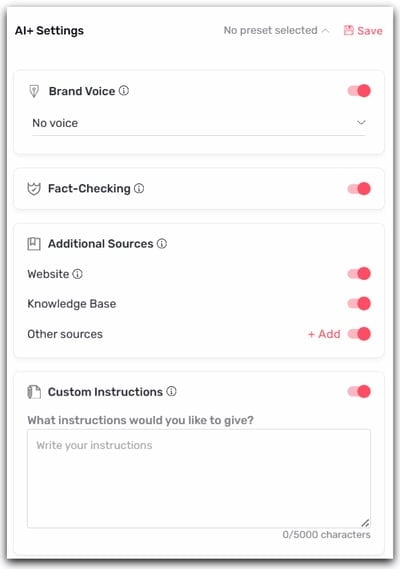 **Step 4:** Once your AI+ settings are configured, click **"Save"**
**Step 5:** Give a name to your preset and a description if needed
> **Good to know: you can save changes to an existing preset.**
>
> After **modifying** a preset (instructions, sources, Brand Voice, etc.), click **Save** to store those changes to the same preset.
>
> Future generations will automatically use the updated version, without needing to create a new preset.
### Usage examples
**Example 1: E-commerce with multiple product categories** You manage an appliance website with product pages and buying guides. For product pages, you enable Fact Check and use your technical knowledge base. For guides, you prefer Knowledge Web to enrich the content.
**Example 2: Multi-client agency** You work on content for several clients. Each piece of content can have its own associated BrandVoice, preventing any tone confusion between brands.
#### Good to know
> **Availability:** This feature is accessible on all plans that include AI features.
> **Warning ⚠️**: Following this update, all AI+ settings will be reset to zero on your existing content. Only custom instructions will be preserved.
This documentation is built and hosted on [Mintlify](https://mintlify.com), a developer documentation platform.
**Step 4:** Once your AI+ settings are configured, click **"Save"**
**Step 5:** Give a name to your preset and a description if needed
> **Good to know: you can save changes to an existing preset.**
>
> After **modifying** a preset (instructions, sources, Brand Voice, etc.), click **Save** to store those changes to the same preset.
>
> Future generations will automatically use the updated version, without needing to create a new preset.
### Usage examples
**Example 1: E-commerce with multiple product categories** You manage an appliance website with product pages and buying guides. For product pages, you enable Fact Check and use your technical knowledge base. For guides, you prefer Knowledge Web to enrich the content.
**Example 2: Multi-client agency** You work on content for several clients. Each piece of content can have its own associated BrandVoice, preventing any tone confusion between brands.
#### Good to know
> **Availability:** This feature is accessible on all plans that include AI features.
> **Warning ⚠️**: Following this update, all AI+ settings will be reset to zero on your existing content. Only custom instructions will be preserved.
This documentation is built and hosted on [Mintlify](https://mintlify.com), a developer documentation platform.