> ## Documentation Index
> Fetch the complete documentation index at: https://help.semji.com/llms.txt
> Use this file to discover all available pages before exploring further.

# How to export the credit report?

> Easily export data related to the use of analytics, content ideas and AI credits to your settings

### Why export the credit report? 

Within the settings, quickly identify the number of [credits allocated](/en/work-faster-with-ai/understanding-the-credit-system) to your Organization in the "Billing and invoicing" tab.
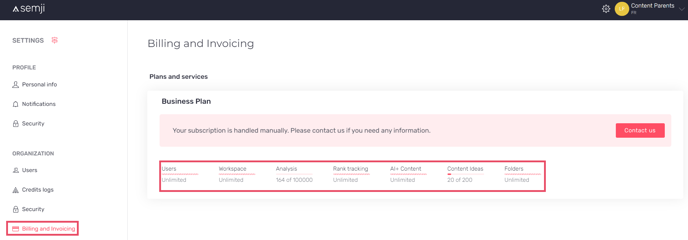
<img src="https://mintcdn.com/semji/uoAOd5e_4KNbCe8T/images/help-center/work-faster-with-ai/how-to-export-the-credit-report/01-billing-and-invoicing.png?fit=max&auto=format&n=uoAOd5e_4KNbCe8T&q=85&s=1e759c67c3f1554f829f27aa0912002a" alt="billing and invoicing" width="688" height="240" data-path="images/help-center/work-faster-with-ai/how-to-export-the-credit-report/01-billing-and-invoicing.png" />

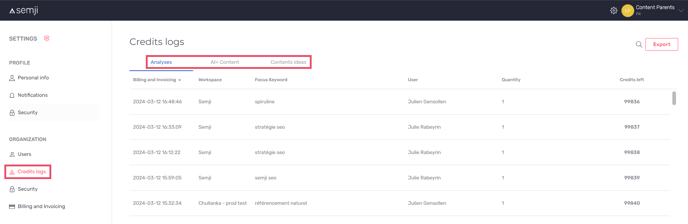
In the "Credit logs" tab, you can view the credits spent on analysis, AI and content ideas. 
<img src="https://mintcdn.com/semji/uoAOd5e_4KNbCe8T/images/help-center/work-faster-with-ai/how-to-export-the-credit-report/02-credits-logs.png?fit=max&auto=format&n=uoAOd5e_4KNbCe8T&q=85&s=f7cbf7b65ed98928a9a4d3fbb6ce9fe1" alt="credits logs" width="688" height="224" data-path="images/help-center/work-faster-with-ai/how-to-export-the-credit-report/02-credits-logs.png" />

**In the various tabs, identify :** 

* The debit date
* The workspace concerned
* Focus Keyword
* User
* Quantity of credits
* Credits left  

How do you export credit data?

\*\*Step 1: Connect to Semji
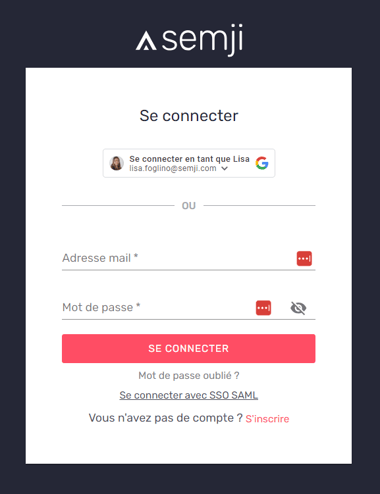
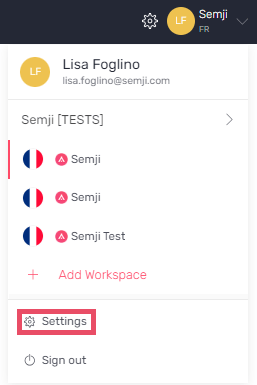
<img src="https://mintcdn.com/semji/uoAOd5e_4KNbCe8T/images/help-center/work-faster-with-ai/how-to-export-the-credit-report/03-connexion-a-semji.png?fit=max&auto=format&n=uoAOd5e_4KNbCe8T&q=85&s=37c5a57195cd0dc213e88692a8c0a189" alt="connexion à Semji" width="380" height="494" data-path="images/help-center/work-faster-with-ai/how-to-export-the-credit-report/03-connexion-a-semji.png" /><br />Step 2: Go to settings<br />\*\*

<img src="https://mintcdn.com/semji/ql0fCIIUu6X2284g/images/help-center/connect-your-tools/how-to-use-the-sso-connection-via-saml/01-settings-app.png?fit=max&auto=format&n=ql0fCIIUu6X2284g&q=85&s=7fac3a04250a01ec31967f8afb13f949" alt="settings app" width="257" height="385" data-path="images/help-center/connect-your-tools/how-to-use-the-sso-connection-via-saml/01-settings-app.png" /><br />**Step 3: Go to the "Credit logs" in Organization tab** 
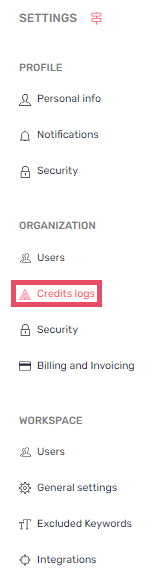
<img src="https://mintcdn.com/semji/uoAOd5e_4KNbCe8T/images/help-center/work-faster-with-ai/how-to-export-the-credit-report/04-credits-logs-settings.png?fit=max&auto=format&n=uoAOd5e_4KNbCe8T&q=85&s=d3f6bbc3e49ef4737456154ee3ee5947" alt="credits logs settings" width="159" height="579" data-path="images/help-center/work-faster-with-ai/how-to-export-the-credit-report/04-credits-logs-settings.png" />

**Step 4: Select the view you wish to export:** 

* **Analysis**
* **AI+ Suite**
* **Content ideas**
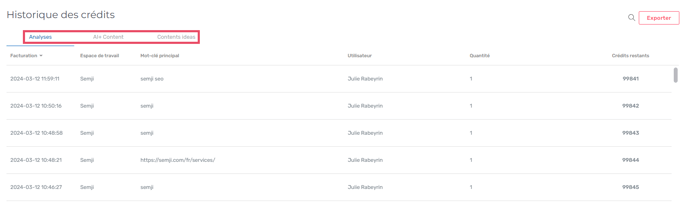
<img src="https://mintcdn.com/semji/uoAOd5e_4KNbCe8T/images/help-center/work-faster-with-ai/how-to-export-the-credit-report/05-vue-historiques.png?fit=max&auto=format&n=uoAOd5e_4KNbCe8T&q=85&s=22b9ad0bbbe5c2541d32d7d9216cdd52" alt="vue historiques" width="688" height="204" data-path="images/help-center/work-faster-with-ai/how-to-export-the-credit-report/05-vue-historiques.png" />

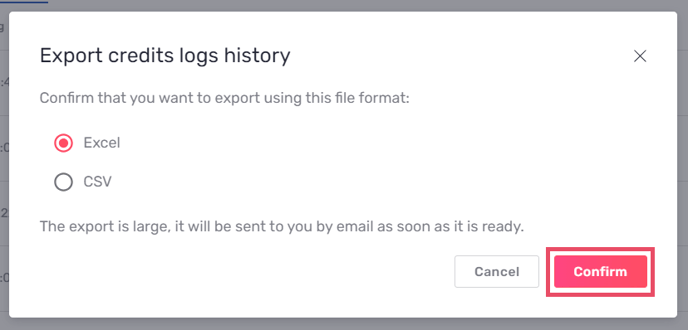
**Step 5: Click on the "Export" button and select the file type.** 
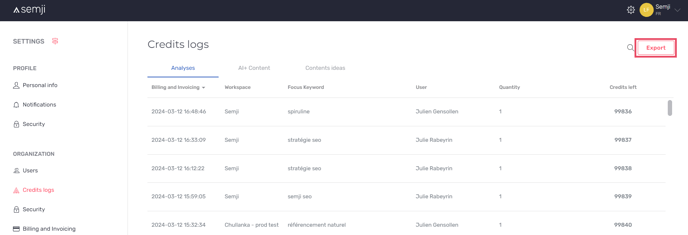
<img src="https://mintcdn.com/semji/uoAOd5e_4KNbCe8T/images/help-center/work-faster-with-ai/how-to-export-the-credit-report/06-export-1.png?fit=max&auto=format&n=uoAOd5e_4KNbCe8T&q=85&s=311d06974b1c3679453950bdc1101dc9" alt="export-1" width="688" height="235" data-path="images/help-center/work-faster-with-ai/how-to-export-the-credit-report/06-export-1.png" />

<img src="https://mintcdn.com/semji/uoAOd5e_4KNbCe8T/images/help-center/work-faster-with-ai/how-to-export-the-credit-report/07-confirm-export.png?fit=max&auto=format&n=uoAOd5e_4KNbCe8T&q=85&s=f76f320355b90d8ab87ab45586789186" alt="confirm export" width="688" height="330" data-path="images/help-center/work-faster-with-ai/how-to-export-the-credit-report/07-confirm-export.png" />

<img src="https://mintcdn.com/semji/uoAOd5e_4KNbCe8T/images/help-center/work-faster-with-ai/how-to-export-the-credit-report/03-connexion-a-semji.png?fit=max&auto=format&n=uoAOd5e_4KNbCe8T&q=85&s=37c5a57195cd0dc213e88692a8c0a189" alt="connexion à Semji" width="380" height="494" data-path="images/help-center/work-faster-with-ai/how-to-export-the-credit-report/03-connexion-a-semji.png" /><br />Step 2: Go to settings<br />\*\*

<img src="https://mintcdn.com/semji/ql0fCIIUu6X2284g/images/help-center/connect-your-tools/how-to-use-the-sso-connection-via-saml/01-settings-app.png?fit=max&auto=format&n=ql0fCIIUu6X2284g&q=85&s=7fac3a04250a01ec31967f8afb13f949" alt="settings app" width="257" height="385" data-path="images/help-center/connect-your-tools/how-to-use-the-sso-connection-via-saml/01-settings-app.png" /><br />**Step 3: Go to the "Credit logs" in Organization tab** 

> *Good to know: If the export is large, it will be sent to you by e-mail.*

<img src="https://mintcdn.com/semji/uoAOd5e_4KNbCe8T/images/help-center/work-faster-with-ai/how-to-export-the-credit-report/04-credits-logs-settings.png?fit=max&auto=format&n=uoAOd5e_4KNbCe8T&q=85&s=d3f6bbc3e49ef4737456154ee3ee5947" alt="credits logs settings" width="159" height="579" data-path="images/help-center/work-faster-with-ai/how-to-export-the-credit-report/04-credits-logs-settings.png" />**You can now export and analyze credit utilization.**

<img src="https://mintcdn.com/semji/uoAOd5e_4KNbCe8T/images/help-center/work-faster-with-ai/how-to-export-the-credit-report/05-vue-historiques.png?fit=max&auto=format&n=uoAOd5e_4KNbCe8T&q=85&s=22b9ad0bbbe5c2541d32d7d9216cdd52" alt="vue historiques" width="688" height="204" data-path="images/help-center/work-faster-with-ai/how-to-export-the-credit-report/05-vue-historiques.png" />

<img src="https://mintcdn.com/semji/uoAOd5e_4KNbCe8T/images/help-center/work-faster-with-ai/how-to-export-the-credit-report/06-export-1.png?fit=max&auto=format&n=uoAOd5e_4KNbCe8T&q=85&s=311d06974b1c3679453950bdc1101dc9" alt="export-1" width="688" height="235" data-path="images/help-center/work-faster-with-ai/how-to-export-the-credit-report/06-export-1.png" />


This documentation is built and hosted on [Mintlify](https://mintlify.com), a developer documentation platform.