

 Home
Home Getting Started
 Help Center
 Developer
 Status
At a glance
- What you can do: read individual metrics for each prompt, filter and search your query list, and quickly spot the prompts that need your attention most.
- Who it’s for: content managers, heads of SEO, and SEO project leads.
- Why it matters: where the AI Visibility screen gives you a macro view, the Prompts screen lets you go down to the level of each individual query to pinpoint exactly where your brand is absent from LLM responses.
What changes for you
Before Intelligence Hub GEO, there was no way to know on which specific query your brand wasn’t being mentioned in LLMs, or to compare your performance prompt by prompt against competitors. Before: no granularity, no individual data per query, no way to prioritize actions. Now: every monitored prompt has its own metrics, compared to the previous period, with the ability to filter, search, and sort to identify the most critical queries in seconds.Good to know ℹ️: the metrics displayed at the top of the screen (mention rate, mention rank, citation rate) apply to your brand only, and are calculated across all currently filtered active prompts.
What you’ll get
The Prompts screen has three main components. Three aggregated metrics at the top of the screen, calculated across all filtered prompts for the active period: overall mention rate, mention rank (your average ranking against your competitors), and overall citation rate. Each metric shows its value, its delta vs the previous period, and the previous period’s value in a tooltip on hover. A prompt table with, for each query: its text, its Topic badge, its average mention position, mention rank, mention rate, and citation rate — all with their respective deltas. A filter bar and a full-text search to refine the display by AI platform, topic, persona, funnel stage, and to filter prompts where your brand is mentioned or cited.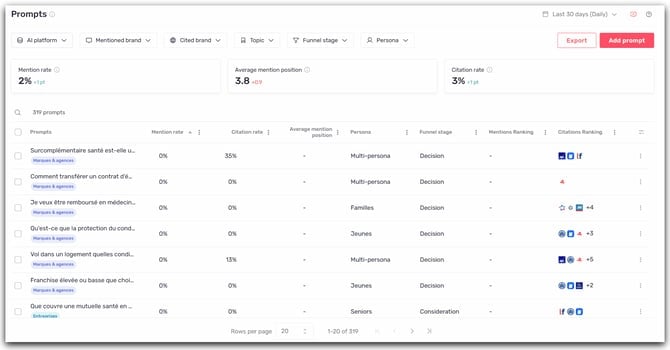
How to use it (step by step)
1) Read the aggregated metrics
The three cards at the top of the screen give you a summary read of your performance across all currently filtered prompts. Mention rate shows the share of LLM queries where your brand appears in the response text. Mention rank shows your average ranking against your competitors on those same prompts — a #1 rank means you are the most mentioned brand. Citation rate shows the share of queries where a URL from your domain appears as a cited source. Green and red deltas show the change compared to the previous period of the same duration.
2) Read and sort the prompt table
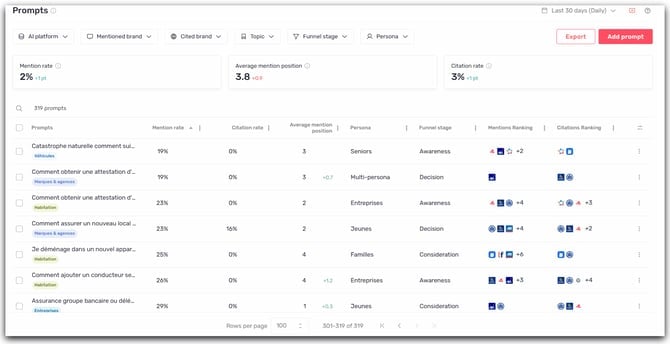
Each row in the table corresponds to a monitored prompt. Columns shown by default are: average mention position, mention rank, mention rate, citation rate, persona, and funnel stage. Click a column header to sort the table by that metric. Sort by mention rate ascending to bring the prompts where your brand is least visible to the top of the list.Good to know ℹ️: the Average mention position column is hidden by default. To display it, click the column configuration icon in the top right of the table and enable it.
3) Filter and search
Use the filter bar at the top of the screen to refine your analysis:- AI platform: filter on ChatGPT only or Google AI Overviews only to compare your visibility between the two LLMs.
- Topic: isolate one or more topics to focus on a specific query universe.
- Persona and Funnel stage: segment by user profile or by moment in the purchase journey.
- Mention and Citation: show only prompts where your brand is mentioned, or only those where it isn’t — ideal for quickly identifying your blind spots.
Tip ✅: combine the “Mention: No” filter with a strategic topic to isolate in a few clicks all the prompts where you’re not mentioned in that topic. This is the ideal starting point for prioritizing your content actions.
4) Open a prompt’s detail panel
Click on a prompt in the table to open its detail panel. This panel shows the individual performance of that prompt, the latest responses captured by LLMs, and options to take action.Tips for getting the most out of it
Sort by mention rank to find your most critical prompts. A high rank (#8, #9…) on a high-volume prompt means competitors are consistently cited before you on that query. That’s where action is most urgent. Use the Mention and Citation filters separately. Your blind spots may not be the same across both metrics. A prompt where you’re not mentioned but your domain is cited as a source means your pages are recognized by the LLM, but your brand isn’t named in the response text. Cross topic with funnel stage. Filter on a strategic topic, then on the Decision stage to identify high-stakes commercial prompts where your visibility is insufficient.Tip 💡: filters on the Prompts screen are shared with the AI Visibility screen. Apply your filters in Prompts, then switch to AI Visibility to see the impact of that segment on your overall metrics.