
In summary
What you can do: Generate a complete SEO-ready piece of content from a blank page or optimize your existing content with a single click using AI.
For whom: Content managers, SEO writers, CMOs and marketing managers who want to speed up their content production.
Why it's useful: Cut your production time by 3 while ensuring SEO quality thanks to recommendations based on SERP analysis. You stay in control by choosing the mode that best fits your context.
Prerequisites for optimal results
AI is powerful and fast, but it needs a clear brief to produce relevant content. A poor brief yields a vague, generic result. A precise brief delivers relevant content that stays true to your brand.
✅ Brand Voice configured
Ensure tone and style consistency with your brand.
Pro tip: Configure different Brand Voices according to your page types:
- An expert tone for your technical guides
- A more accessible tone for your general articles
- A commercial tone for your product pages
✅ Knowledge Base powered
Enriches generated content with your proprietary data and expertise.
Tip: Feed your Knowledge Base with your product sheets, customer case studies, technical documentation, and exclusive numerical data.
✅ Fact-checking enabled (optional)
Automatically verifies generated information to prevent AI hallucinations.
Recommendation: Enable it systematically for factual content (figures, dates, studies). Additional cost: 15 credits.
✅ Custom instructions
Tailor the generations to your specific needs (structure, length, editorial angle).
Example of use: "Always include a paragraph on the business benefits" or "Structure with a maximum of 4 H2s".
⚠️ Excluded terms
Make sure to properly configure your Excluded Terms. A correct configuration prevents the AI from including or recommending competitors or topics outside the scope.
Create content from a blank page
Two modes for two needs
Atomic Content offers you a choice of generation mode:
| Mode | Approach | Duration | Ideal for |
|---|---|---|---|
| Deep | In-depth analysis, very high-quality content | ~6 minutes | Complex topics, high-value content, articles requiring minimal edits |
| Flash | Quick generation : a solid base to build on | ~2 minutes | Drafts, article structures, quick starts when you have a clear idea |
Cost: 50 AI credits per generation (Deep or Flash), +15 credits if you enable Fact-checking.
Usage steps
Step 1: Prepare your content
- Go to your blank content
- Start the analysis of the main keyword (or relaunch it if it is older than 30 days)
- Sort through the suggested recommendations if you want to exclude some of them
Step 2: Configure the generation
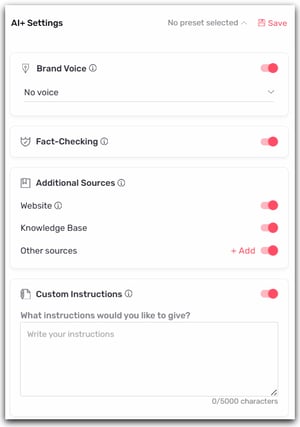
- Check that your prerequisites are in place
- Choose your Brand Voice (if you have more than one)
- Activate the desired options: Knowledge Base, Fact-checking, Custom instructions
Step 3: Launch Atomic Content
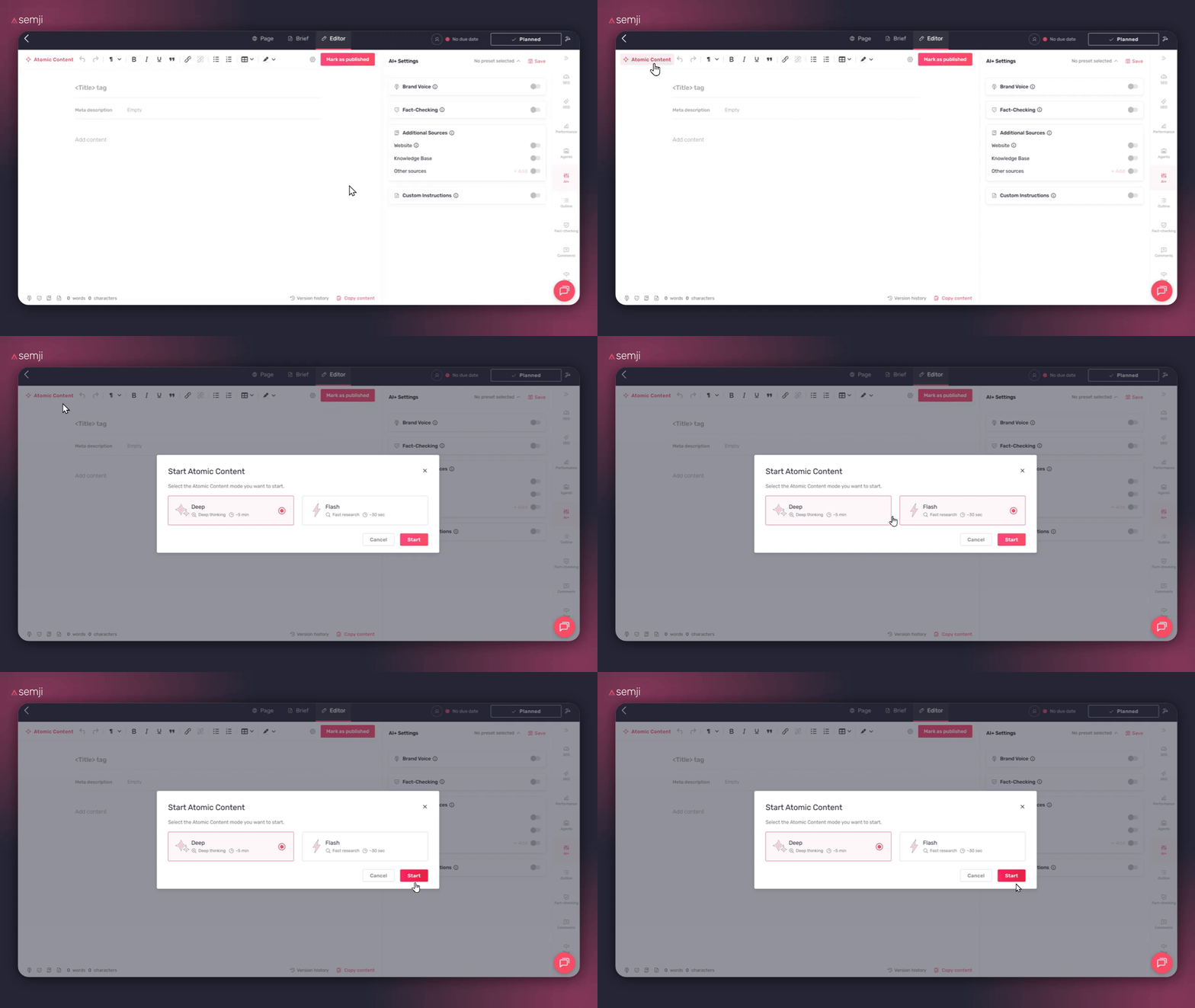
- Click "Atomic Content"
- The selection modal appears
- Select your mode:
- Deep for in-depth, high-quality content (~6 min)
- Flash for a solid and fast starting point (~2 min)
- Click "Launch"
Step 4: Wait while the generation runs
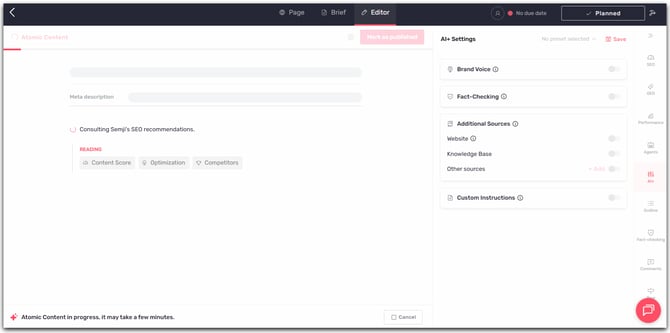
Generation time varies depending on the chosen mode. You can track the progress on screen.
- Deep Mode: the AI performs an in-depth analysis of your brief, the competition, and your editorial guidelines to produce a polished piece of content.
- Flash Mode: The AI quickly generates a complete structure with the main ideas, ready to be expanded.
Step 5: Review and adjust
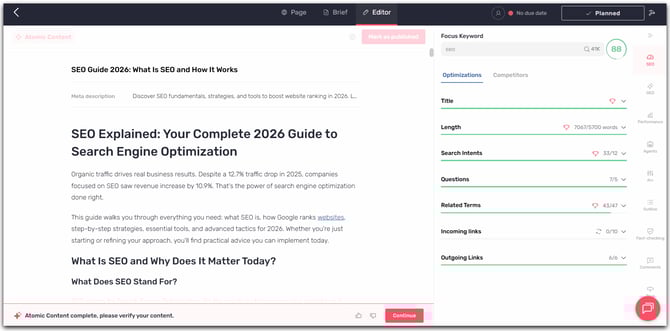
- The generated content appears in the editor
- Review and make any necessary changes
- Access the version history to compare or revert changes
Which mode should you choose?
Choose Deep when:
- The topic is complex or technical
- The content has high added value (pillar page, comprehensive guide)
- You want to minimize manual editing time
- Quality takes precedence over speed
Choose Flash when:
- You already have a clear idea of the final content
- You prefer to start from a structure to enrich yourself
- You need to produce a first draft quickly
- The topic is relatively simple or well documented in your Knowledge Base
Optimize existing content
Two options depending on your need
When you launch Atomic Content on existing content, you have a choice:
| Option | What the AI does | Ideal for |
|---|---|---|
| Optimize | Analyze your content and intelligently enrich it by incorporating SEO recommendations | Content to refresh, improve the Content Score, add missing information |
| Replace | Generates an entirely new piece of content to replace the existing one | Outdated content requiring a complete overhaul |
Cost: 50 AI credits per operation, +15 credits if you enable Fact-checking.
Usage steps
Step 1: Prepare the optimization
- Go to the content you want to optimize
- Check that the keyword analysis is recent (less than 30 days old)
- Review the recommendations and exclude any you don't want to take into account
Step 2: Configure the generation
- Choose your Brand Voice (if you have more than one)
- Activate the desired options: Knowledge Base, Fact-checking, Custom instructions
Step 3: Launch Atomic Content
- Click "Atomic Content"
- The modal automatically detects that content exists
- Choose your option:
- Optimize content: The AI analyzes and improves your existing content
- Replace the content: the AI generates new content to replace it
- Click "Launch"
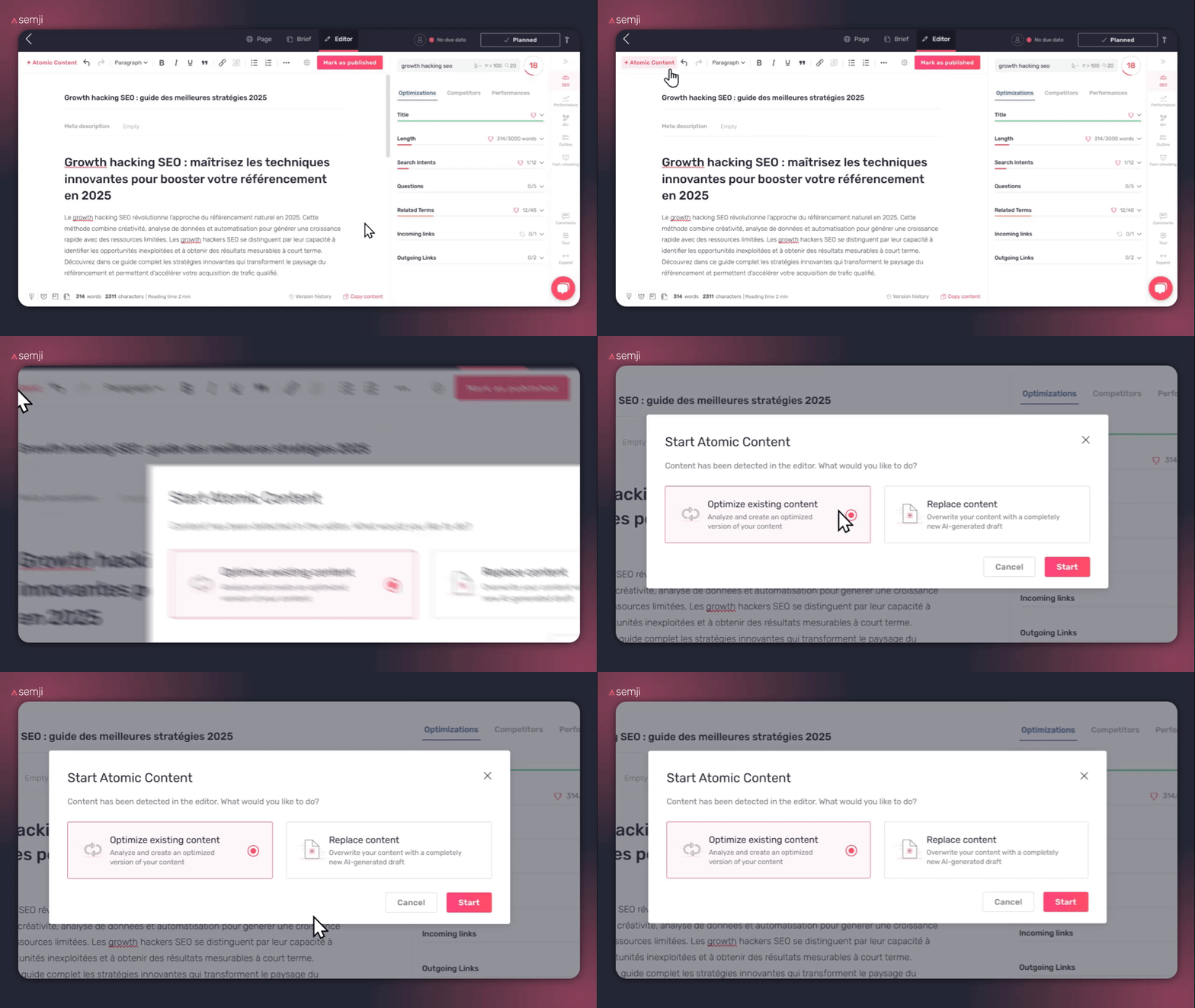
⚠️ Warning: If you choose "Replace", your current content will be completely overwritten. A message will remind you of this consequence. Don't worry: you can always revert via the version history.
Step 4: Review the changes
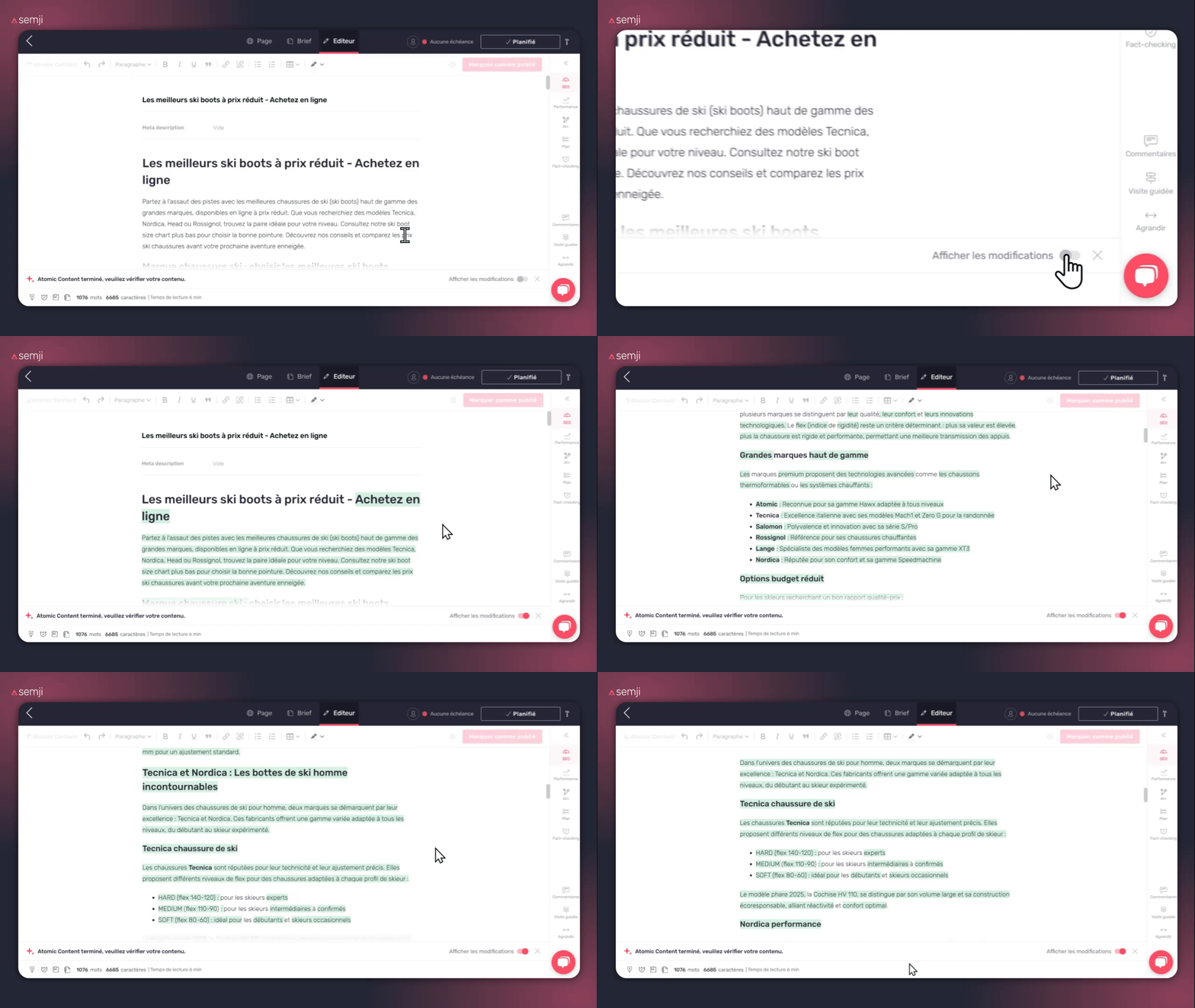
Once the optimization is complete, the updated content appears in the editor.
- Click "Show changes" to see exactly what was modified
- Additions, deletions and modifications are highlighted
- Check that the Content Score has improved
Step 5: Validate or adjust
- Click the cross to the right of "Show changes" to return to edit mode
- Make your manual edits if needed
- Go to "Version history" to compare versions or revert changes
Which option should I choose?
Choose "Optimize" when:
- Your content has a solid foundation but needs refreshing
- You want to improve the Content Score without rewriting everything
- The article contains specific information that you want to keep
- You want to incorporate new SEO recommendations into existing content
Choose "Replace" when:
- The content is too old or outdated to be simply optimized
- The editorial angle needs to be completely rethought
- The Content Score is very low and requires a complete overhaul
- You prefer to start from a fresh base generated by AI
Typical use cases
Refresh an old article Has a piece not been updated for 2–3 years? Run an optimization to incorporate recent data and address new search intents.
Improve content stuck on page 2 Is your article close to the top 10 but can’t quite get there? Optimization can add the missing elements to help you cross the threshold.
Recover lost rankings Has content lost visibility? The AI analyzes what changed in the SERP and adapts your content accordingly.
Update outdated data Outdated statistics or information? Optimization with Fact-checking enabled refreshes your content with verified data.
Keep control with version history
Each Atomic Content action creates a major version tagged "Atomic Content" in the history. You can thus:
- Compare the pre-AI version, the AI version, and your subsequent edits
- Restore a previous version with one click if the result doesn't suit you
- Track the evolution of your content over time
Good practice: Always have an AI-written or AI-optimized version validated by a human before publication.
Best practices
- Invest in your prerequisites: A well-configured Brand Voice and a rich Knowledge Base significantly improve the quality of generated content, regardless of the chosen mode.
- Enable Fact-checking for factual content: figures, statistics, dates... Fact-checking prevents errors that could damage your credibility.
- Always proofread AI-generated content: AI is a powerful assistant, but human validation remains essential before publication.
- Use the version history: easily compare versions to make sure your edits haven't removed any important information.