
Report screen
Objective
Get an overview of your organic performance and compare it to your competitors from multiple analytical angles.
What is it used for?
- Quickly spot trends (rises, drops, sudden falls).
- Identify opportunity areas (topics, personas, formats, funnel stages).
- Access detailed data using the Data Explorer.
Available charts
Traffic and positioning analyses
- Organic traffic evolution: track traffic trends monthly and over the last 12 months to position yourself versus competitors
- Evolution of the number of pages produced: track the number of pages produced by your competitors monthly and over the last 12 months
-
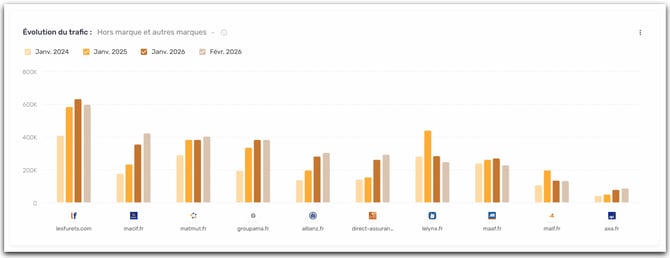
Branded traffic, other brands vs non-branded: measure your dependency on your brand and estimate the potential for non-branded growth.
-
- Brand: queries containing your brand.
- Non-branded: generic queries, essential for growing acquisition.
- Other brands: queries containing the name of a brand different from yours, but related to products you sell on your site.
- Example: you are Zalando and you sell Adidas shoes → a query like “adidas gazelle” is counted as Other brands (because it contains “Adidas”).
- Traffic by page types: identify which formats (blog, product, landing page, etc.) perform best
- Short-tail vs long-tail traffic: understand the nature of the queries that generate traffic and where opportunities lie.
- Short-tail: short, highly competitive queries, often with high volume.
- Long tail: more specific queries, often easier to capture, with a more precise intent.
- Number of keywords by position: view the number of keywords ranked in the TOP 3, TOP 10 and TOP 30+
AI-enhanced analyses
Thanks to the model enhanced with AI Properties, you will find enriched charts on your own themes, personas, and stages of the marketing funnel.
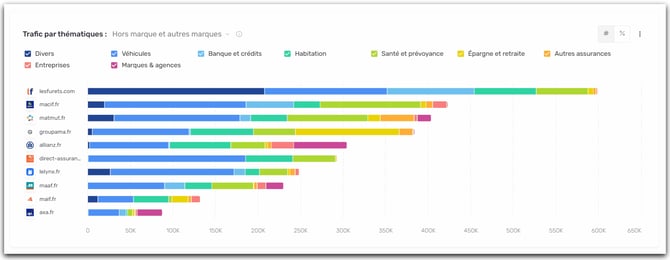
- Traffic by themes: identify your strengths/weaknesses by theme and compare your coverage versus competitors.
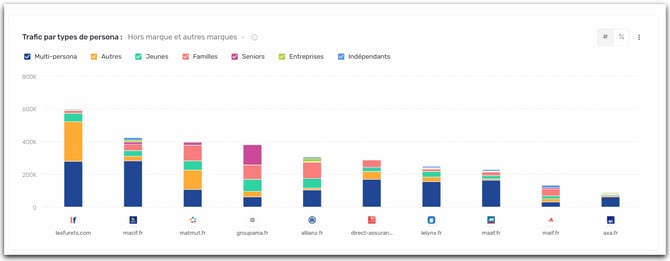
- Traffic by personas: understand which audiences drive the most traffic to you, and which are underutilized.
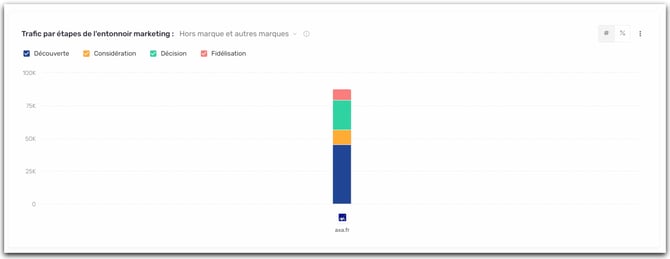
- Traffic by funnel stages: check the balance of your presence (Discovery → Loyalty) and detect gaps.
How to use it?
- Browse the charts to get an overall view.
- Use the global filters to frame your analysis.
- Click on an element in a chart to open the Data Explorer.
- Export if needed to share or build an action plan.
Competition screen
Objective
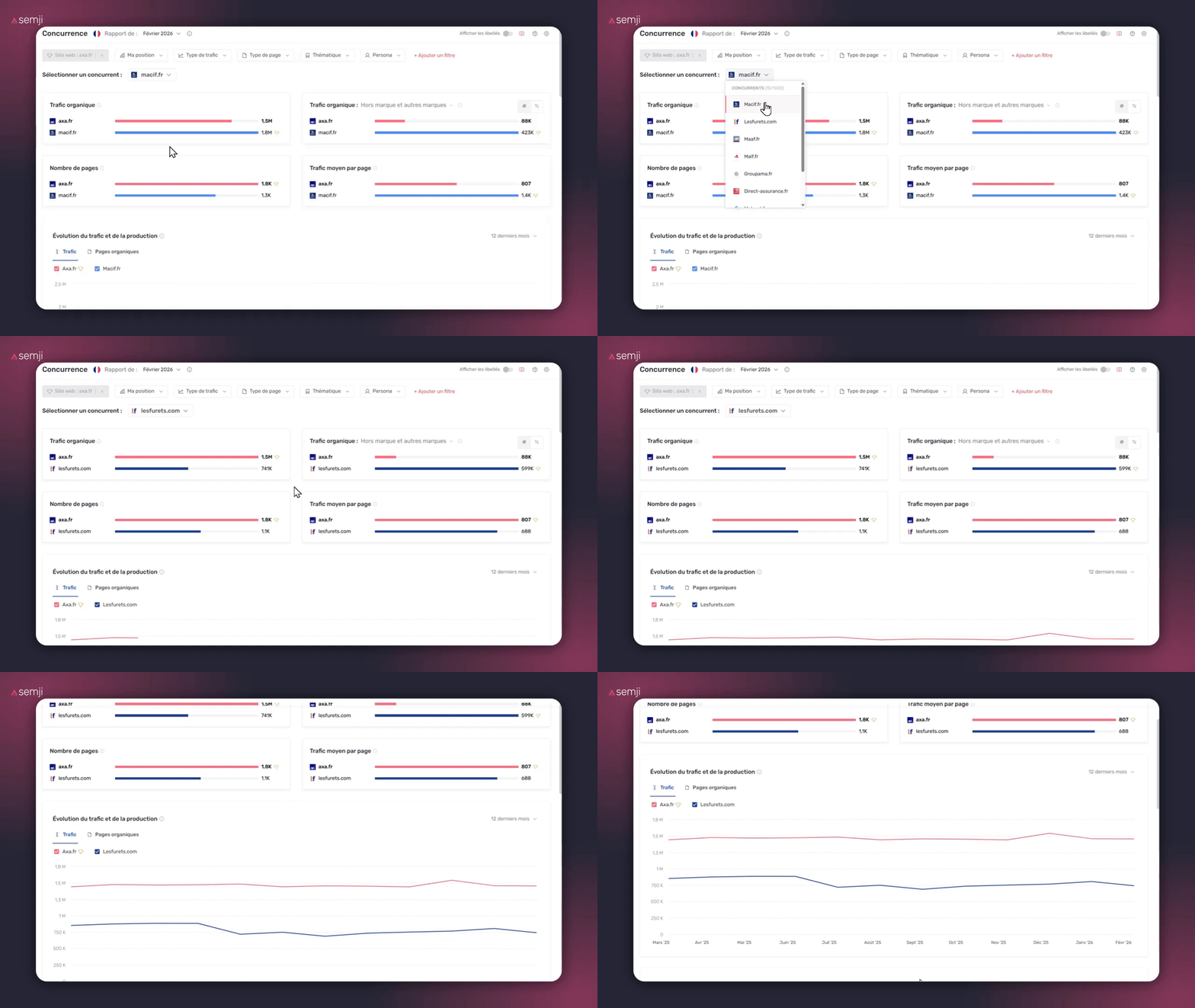
Set up and analyze your competitive landscape, then compare your performance in a head-to-head (1v1) matchup.
What is it used for?
- Make a targeted comparison with a competitor (view in “Battle” mode).
- Switch to the Data Explorer to analyze the URLs behind any gap.
What you'll find there
- Find all the charts available in the Report tab
Data Explorer screen
Objective
Access the data details (URLs, keywords, metrics and dimensions) to move from insight to concrete actions.
What is it used for?
- Understand which URLs and which keywords explain a result seen in the Report or Competition.
- Identify opportunities (content to create, content to optimize, angles to strengthen).
- Send the identified keywords directly to the Planning in your Content Hub.
- Export the data (CSV / Excel) for analysis and sharing.
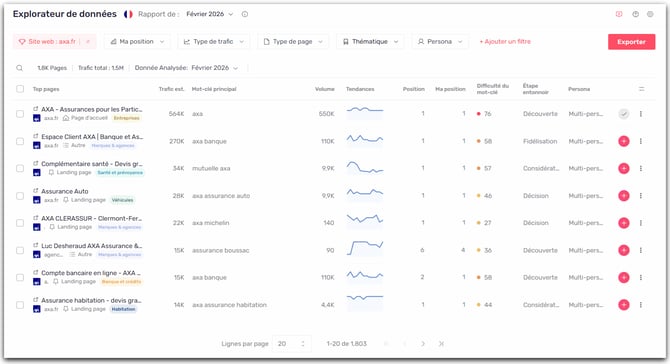
Understanding the metrics and dimensions of the data table
- Top pages: the page that generated at least 1 unit of traffic
- Estimated traffic: the estimated traffic generated by this page
- Primary keyword: the keyword that brings the most traffic to this page in search results
- Volume: the average monthly search volume for the primary keyword (how many times it is searched per month)
- Trends: a mini-chart showing the evolution of search volume over the past 12 rolling months
- Position: the current position of the page in Google results for its primary keyword
- My position: your own page's position for that same keyword
- Keyword difficulty: a score indicating how hard it is to rank for this keyword (the higher the score, the more competitive it is)
- Funnel stage: indicates where the page sits in the user journey: Discovery, Consideration, or Loyalty
- Persona: the typical user profile targeted by this page
- First seen: the date when this page was first detected in Google
Dimensions at your disposal
With the different filters at your disposal, cross-reference your data and easily identify your opportunities.
- Website: allows you to select one or more competitor websites to include in the analysis.
- My position: allows you to filter pages according to your current SEO ranking in search results.
- Traffic type: allows you to segment data by the nature of the traffic (Branded, Non-branded, Other brands).
- Page type: allows you to filter pages according to their typology (homepage, article, tool, article listing, e‑commerce category, etc.).
- Theme: allows you to restrict the display to pages belonging to a specific theme.
- Persona: allows you to filter pages based on the target audience profile associated with them.
- First seen: allows you to filter pages by the date when they first appeared on Google.
- Funnel stage: allows you to filter according to the page’s position in the conversion funnel (Discovery, Consideration, Decision, Loyalty).
- Keyword length: allows you to filter for long‑tail or short‑tail keywords.
- Keyword: allows you to filter for specific keywords.
- Keyword difficulty: allows you to filter by the competitiveness level of the primary keyword associated with the page.
- Position: allows you to filter by the rankings of your competitors’ pages.
- Title: allows you to filter by titles or terms present in page titles.
- Volume: allows you to filter pages according to the monthly search volume of their primary keyword.
- Estimated traffic: allows you to filter pages according to their estimated organic traffic.
- Planning: allows you to filter content that has already been added or not added to your Planning in Content Hub.
- URL: allows you to filter by types of URLs.
Q&A
What are the different types of pages analyzed (and how are they defined)?
- News: a page that covers a recent event, an announcement, or time-sensitive information.
- Article: editorial content (often a blog post) that addresses a topic or a search intent.
- E-commerce category: a page that lists products belonging to the same category.
- Forum: a discussion page where users ask questions and respond via posts.
- Landing page: a page designed to convert for a specific offer or action (signup, demo request, purchase).
- Article listing: a page that aggregates multiple articles (by theme, tag, date, etc.) in a list format.
- Local: a page dedicated to a geographic area, a point of sale, or a localized search.
- Tool: a page offering an interactive feature (simulator, generator, calculator, etc.).
- Homepage: the site's main homepage.
- Product: a page presenting a product or an item for purchase.
- Video: a page whose primary content is a video (hosted on the site or via a platform).
What is the difference between "Position" and "My position"? Why is there sometimes a discrepancy between these two metrics on pages of my site?
These are two metrics that come from different sources, so they may not necessarily match.
My position:
It corresponds to a position observed by Semji by "re-reading" a Google SERP and checking at which position your site appears best at the time the monthly report is calculated.
Position :
It corresponds to a position coming from another Semrush data source and generally refers to the previous month.
For concrete examples of opportunities in the Explorer, see: Identifying opportunities using your data.