

 Home
Home Getting Started
 Help Center
 Developer
 Status
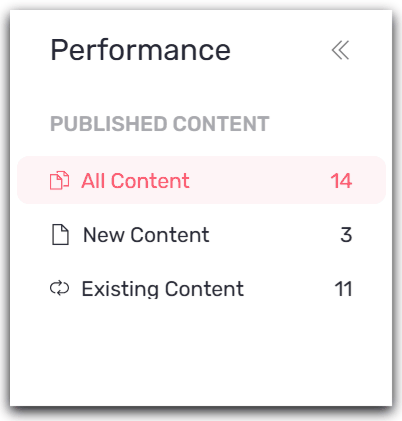
Here’s how to export your Performance Report:** Step 1: Select the view you wish to export
- All Contents export existing and new content.
- News Contents View
- Existings contents view
Good to know 💡: The export is contextual, i.e. it adapts according to all the filters you apply to your view. You can filter on the tab of your choice or obtain an overview of your earnings.Step 3: Click on “Export” on the right of the screen
You can also filter by folder to analyze the performance of a particular folder/theme, for example.

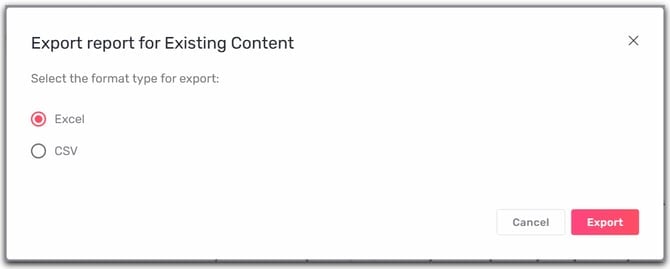
Step 5: Click on “Export”. The export will be saved directly to your downloads. If the file size is too large, it will be automatically emailed to you. It’s easy to export and measure your performance!