

 Home
Home Getting Started
 Help Center
 Developer
 Status
At a glance
- What you can do: import a complete editorial backlog into the Semji planning via a CSV file, in just a few clicks
- Who it’s for: content managers, SEO project managers, editorial leads, teams in an onboarding or migration phase
- Why it’s useful: what used to take hours of manual creation can now be done in seconds, regardless of the volume
What this changes for you
Until now, populating the Semji planning required creating each draft one by one through the “New draft” creation wizard. An acceptable friction for 10 pieces of content, but quickly prohibitive for 500 or 1,000 pieces. Before: every piece of content had to be added manually. Teams managing a large catalogue lost hours during onboarding, and migrations from other tools were practically impossible to absorb without massive re-entry of data. Now: you prepare your CSV file from your existing tools and by following the Semji template (Google Sheets, Excel, Search Console, Screaming Frog), you drop it into Semji, and your drafts appear instantly in the planning. Your team can start working immediately.Bulk import does not consume any credits. Credits are only used when you run an analysis on a piece of content.
What you will get
Once your CSV file has been imported, all your drafts appear directly in the active folder of your Semji planning. Each piece of content is created with the information you filled in the file: title, main keyword, URL (for existing content), status, and any other column defined in the template.- Drafts created instantly, ready to be assigned and analyzed
- A planning view immediately usable to manage production
- The ability to import existing content (with URL) directly in “Optimize” mode
- A downloadable CSV template from the interface to ensure the correct format from the start
How to use it (step by step)
1) Prepare your CSV file
Download the CSV template directly from the Semji import interface (link “Download a sample CSV file”) or from the Help Center. Fill it in with your data: content title, main keyword, URL if the content already exists on your site, and any other relevant field.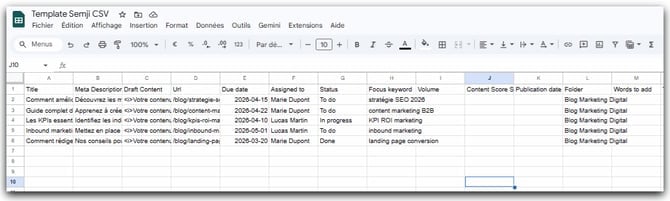
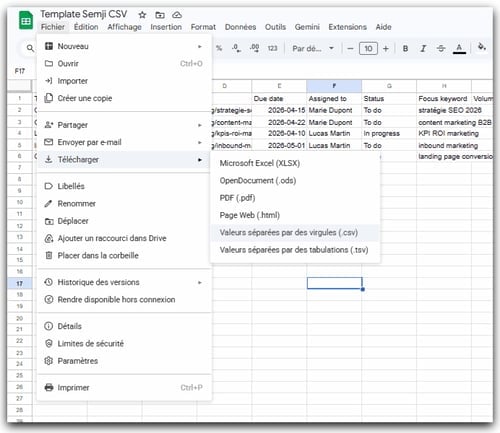
2) Open the “New Draft” creation wizard
In your Semji planning, click on the “New draft” button. The creation wizard opens and presents three draft creation options. Select the “Import a CSV file” card (third option).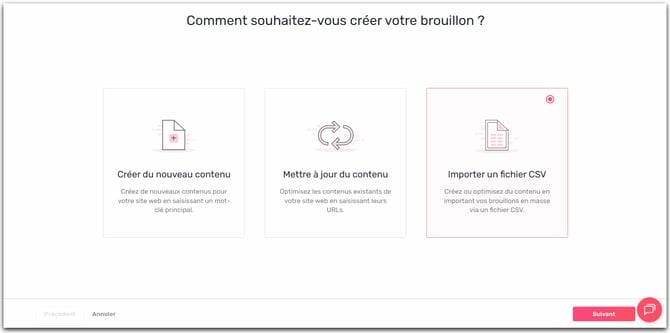
3) Drop your CSV file
Drag and drop your CSV file into the drop zone, or click to select it from your computer. Semji immediately analyzes the file and displays a preview: the number of drafts to be created, the number of existing content pieces to be updated, and any error or warning messages.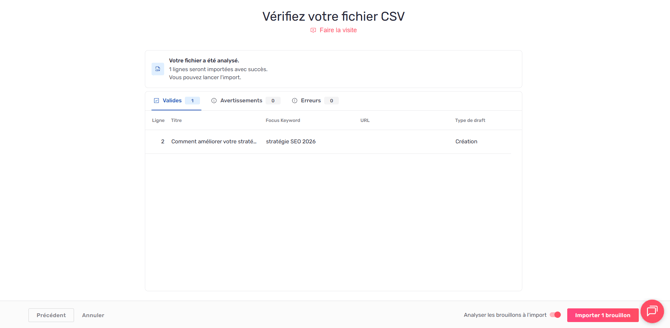
4) Launch the import
Click “Import”. Your drafts are instantly created in the active folder of your planning. A confirmation message indicates the number of contents added. You can immediately assign, filter and run analyses on these contents.