

 Home
Home Getting Started
 Help Center
 Developer
 Status
At a glance
- What you can do: give Semji’s agents read and update access to your Strapi content.
- Who it’s for: workspace owners and Strapi administrators.
- Compatibility: Strapi 5.47.0 and newer.
Prerequisites
- A Strapi 5.47.0 or newer instance that exposes its MCP endpoint.
- The endpoint served over HTTPS, reachable from the public internet, at a URL ending in /mcp (for example https://your-cms.example.com/mcp).
- An admin token for that endpoint, created as described in the Strapi MCP server documentation. Semji sends it as Authorization: Bearer
<token>on every request. - You are a workspace owner in Semji. The connection is shared with the whole workspace.
Availability of the Strapi integration depends on your Semji plan. If the Connect button opens an upgrade dialog instead, contact your account manager.
How to connect your Strapi instance
1
Open the CMS integrations
In Semji, open Settings → Integrations, go to the CMS tab, and click Connect on the Strapi row.
2
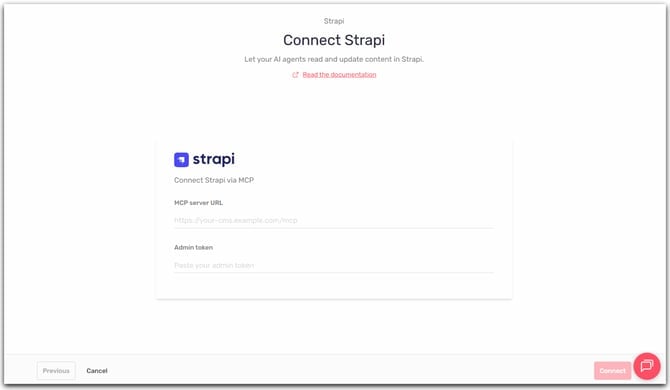
Enter your MCP endpoint and token
Fill in the two fields:
- MCP server URL: your Strapi MCP endpoint, for example https://your-cms.example.com/mcp. It must use HTTPS and end with /mcp.
-
Admin token: the token from your Strapi instance.
3
Connect
Click Connect. The Strapi row now shows as connected for the whole workspace.[Suggested screenshot: the Strapi connection form in Semji, with the MCP server URL and Admin token fields filled in and the Connect button]
What Semji can do once connected
The available actions come from your Strapi MCP endpoint, typically reading and updating content. Agents discover these actions as they use them.Semji’s publishing agents never delete content, even if your instance offers a delete action.
Manage or disconnect
From Settings → Integrations → CMS, the Strapi row offers Disconnect, which clears the stored token for the whole workspace. Reconnecting asks for the token again. The MCP server URL cannot be edited in place. To change it, disconnect, then set up the connection again with the new URL.Network and IP allowlisting
Your Strapi MCP endpoint must be reachable from the public internet. Semji reaches the internet through a fixed set of outbound IP addresses. If a firewall or protection like Cloudflare sits in front of your site, it can block Semji’s requests, usually with a “403 Forbidden”, before they ever reach your CMS, even when your credentials are correct. Semji’s servers reach the internet through a fixed set of outbound IP addresses. If a firewall, WAF, or anti-bot protection (Cloudflare, Akamai, Sucuri, …) sits in front of your site, it can block Semji’s requests — typically with a403 Forbidden — before they ever reach your CMS, even when your credentials are correct.
Allow the following Semji IP addresses:
Troubleshooting
The MCP server URL must end with /mcp.
The MCP server URL must end with /mcp.
Enter the full MCP endpoint URL, not your Strapi root URL, for example https://your-cms.example.com/mcp.
Failed to create the CMS connector.
Failed to create the CMS connector.
The connector could not be created. Check that the URL starts with https://, that the same URL is not already connected in this workspace, and that you are a workspace owner.
Failed to connect to the CMS connector.
Failed to connect to the CMS connector.
The token could not be stored. Make sure it isn’t empty, then try again.
Agents say they have no Strapi tools, or hit authentication errors
Agents say they have no Strapi tools, or hit authentication errors
The stored token is wrong or revoked, or the endpoint is unreachable or blocked by a firewall. Check that the endpoint answers at its URL, review your firewall (see the network section), then disconnect and reconnect with a valid token.