

 Home
Home Getting Started
 Help Center
 Developer
 Status
At a glance
- What you can do: give Semji’s agents read and update access to your Contentful content.
- Who it’s for: workspace owners with a Contentful account.
- Compatibility: all Contentful versions.
Prerequisites
- A Contentful account with access to the space you want Semji to work in.
- You are a workspace owner in Semji. The connection is shared with the whole workspace.
- A browser that allows popups from Semji. The Contentful sign-in screen opens in a new tab.
Availability of the Contentful integration depends on your Semji plan. If the Connect button opens an upgrade dialog instead, contact your account manager.
How to connect Contentful
You must be a workspace owner, since the connection applies to the whole team.1
Open the CMS integrations
In Semji, open Settings → Integrations, go to the CMS tab, and click Connect on the Contentful row.
2
Start the connection
Click Connect Contentful. A new tab opens on Contentful’s sign-in and authorization screen.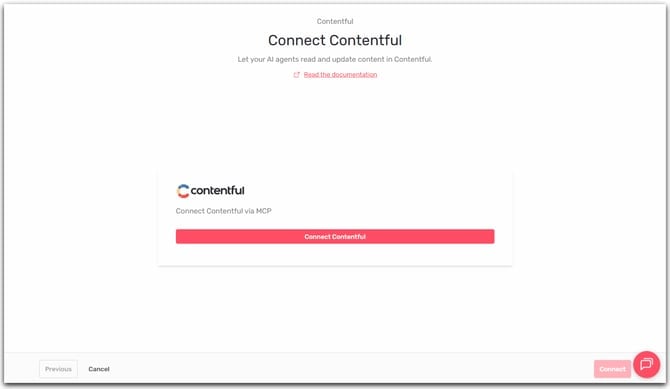
3
Sign in and approve
Sign in with your Contentful account and approve the requested access. Do it within 10 minutes: after that, the attempt expires and you have to start over.
4
Done
The tab closes and you land back in Semji, where the Contentful row now shows as connected for the whole workspace.
What Semji can do once connected
The available actions come from Contentful’s MCP server, typically reading and updating entries. Agents discover these actions as they use them.Semji’s publishing agents never delete content, even if the server offers a delete action.
Manage or disconnect
From Settings → Integrations → CMS, the Contentful row offers Disconnect, which removes the access for the whole workspace. To switch Contentful accounts, disconnect, then reconnect with the other account.Network
The connection runs only between Semji and Contentful’s cloud. Semji never calls your own infrastructure, so there’s nothing to allow on your side for Contentful.Troubleshooting
The popup was blocked by your browser. Allow popups to connect to the MCP server.
The popup was blocked by your browser. Allow popups to connect to the MCP server.
Your browser prevented the Contentful tab from opening. Allow popups for the Semji domain, then click Connect Contentful again.
Failed to connect to the CMS connector.
Failed to connect to the CMS connector.
The connection didn’t go through. You may have denied the access, or the attempt expired. Click Connect Contentful and try again.
The connection shows as Expired
The connection shows as Expired
Contentful no longer accepts the stored access, and agents skip Contentful in the meantime. A workspace owner must reopen the integration and reconnect.
Agents say they have no Contentful tools
Agents say they have no Contentful tools
The connection was removed or expired. A workspace owner must reconnect Contentful under Settings → Integrations → CMS.