---
title: "Control your AI data sources: disable web search in AI+ settings"
description: Master the data sources used by AI by disabling web search in the AI+ settings of the Semji editor
---
[Skip to content](https://help.semji.com/en/control-your-ai-data-sources-disable-web-search-in-ai-settings#main-content)
- [English](https://help.semji.com/en/control-your-ai-data-sources-disable-web-search-in-ai-settings)
- [Français](https://help.semji.com/fr/contrôlez-vos-sources-de-données-ia-désactivez-la-recherche-web-dans-les-paramètres-ai)
English
Show submenu for translations

Open main navigation
Close main navigation
- - [English](https://help.semji.com/en/control-your-ai-data-sources-disable-web-search-in-ai-settings)
- [Français](https://help.semji.com/fr/contrôlez-vos-sources-de-données-ia-désactivez-la-recherche-web-dans-les-paramètres-ai)
English
Show submenu for translations
- Contact us
Contact us
How can we help you?
- There are no suggestions because the search field is empty.
1. [Help Center](https://help.semji.com/en?hsLang=en)
2. [Maximize your efficiency with AI](https://help.semji.com/en/maximize-your-efficiency-with-ai?hsLang=en)
3. [Setting up your AI environment](https://help.semji.com/en/maximize-your-efficiency-with-ai?hsLang=en#setting-up-your-ai-environment)
# Control your AI data sources: disable web search in AI+ settings
## Master the data sources used by AI by disabling web search in the AI+ settings of the Semji editor
Table of contents
---
[In summary](https://help.semji.com/en/control-your-ai-data-sources-disable-web-search-in-ai-settings#insummary)
[What this changes for you](https://help.semji.com/en/control-your-ai-data-sources-disable-web-search-in-ai-settings#whatthischanges)
[How to disable web search](https://help.semji.com/en/control-your-ai-data-sources-disable-web-search-in-ai-settings#howtodisablewebsearch)
[When to disable web search?](https://help.semji.com/en/control-your-ai-data-sources-disable-web-search-in-ai-settings#whento)
[Best practices](https://help.semji.com/en/control-your-ai-data-sources-disable-web-search-in-ai-settings#bestpractices)
[FAQ](https://help.semji.com/en/control-your-ai-data-sources-disable-web-search-in-ai-settings#faq)
[Go further](https://help.semji.com/en/control-your-ai-data-sources-disable-web-search-in-ai-settings#gofurther)
### In summary
**What you can do:** disable web search in the AI+ settings of the Semji editor so that the AI only relies on your proprietary sources when generating content.
**Who it's for:** any user with access to the AI+ Suite (AI+ Content, Atomic Content).
**Why it's useful:** you maintain total control over the data sources used by the AI, for content that's more consistent with your strategy and catalog.
### What this changes for you
Until now, web search was systematically enabled during each AI generation in the Semji editor. The AI automatically retrieved information from search results to enrich the generated content.
From now on, you can **disable this source** directly in the AI+ settings of the editor. Result: the AI relies exclusively on your own sources (Knowledge Base, My website, Other sources) without interference from data coming from the web.
This is an essential control lever to guarantee the accuracy and relevance of your content, especially when you have a product repository or proprietary technical documentation.
> **Good to know** ℹ️: web search allows the AI to use data retrieved from search results in order to generate more recent and complete responses. When you disable it, the AI no longer has access to this source and relies solely on your internal sources and its general knowledge.
### How to disable web search
#### Step 1: Open a piece of content in the Semji editor
Go to the Planning tab and open the content you want to work on in the Semji editor.
#### Step 2: Access the AI+ Setting
In the right-hand sidebar of the editor, locate the **AI+ Settings** section. If the sidebar is not visible, click the corresponding icon in the editor toolbar.
#### Step 3: Find the “Data sources” section
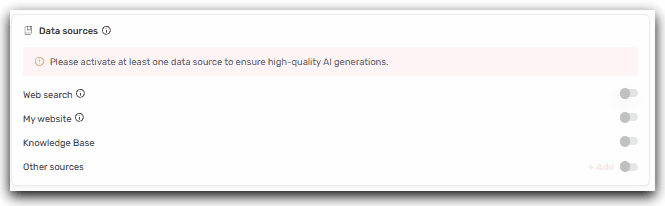
In AI+ Settings, locate the **Data sources** block. This groups all the data sources the AI can use during generation:
- **Web search:** data from search results
- **My website:** data crawled from your own site
- **Knowledge Base:** your internal documents and knowledge bases
- **Other sources:** additional sources added manually (URL, files…)
#### Step 4: Disable the “Web search” toggle
Click the toggle to the right of “Web search” to switch it to the off position (grayed out). The change takes effect immediately for all AI generations performed in this content.
**Tip 💡:** If you want to apply this configuration to all your future content, save it as an AI+ preset. That way you can retrieve your settings with one click, without having to reconfigure them each time.
### When to disable web search?
Disabling web search is particularly relevant in the following situations:
#### Strong proprietary knowledge
Your company has a product catalog, technical documentation, or a specific business repository. You want the AI to generate content based **only on this information**, without incorporating competing or generic data from the web.
*Concrete example:* an e-commerce site generates texts for its category pages with Atomic Content. With web search enabled, the AI might mention brands not sold by the site. By disabling it and relying on the Knowledge Base, the generated content will mention only the brands and products actually present in the catalog.
#### Strict brand content
You must ensure that generated content remains 100% aligned with your brand positioning and key messages, without external influence. Disabling web search ensures the AI does not pull in phrasing, data, or third-party references that could dilute your brand identity.
#### Regulated sector
In healthcare, finance, or legal fields, using exclusively **validated and internal sources** is often necessary to guarantee regulatory compliance. Disabling web search ensures the AI relies only on controlled and approved sources.
### Best practices to optimize your data sources
Disabling web search is even more effective when combined with the right configuration habits:
- **Enable AI+ features**, especially **My website**, so the AI can use data crawled from your own site.
- **Enable the Knowledge Base** and populate it with your reference documents (product sheets, internal guides, technical documentation…).
- **Add the URL of existing content in Other Sources:** this allows the AI to retrieve the overall context of content already online, for example a category page with a product listing.
- **Use Custom Instructions** to guide the AI’s behavior. For example: “Search the site directly for existing products and only mention the brands we distribute.”
- **Clean up the recommendations** before each generation: disable unwanted terms in “Associated terms” and “Search intents.”
- **Prefer Atomic Deep** rather than Atomic Flash when creating new content, for a more thorough and better-documented result.
> **Warning ⚠️:** even with web search disabled, if unwanted brands or products appear in the recommendations (Associated terms, Search intents), the AI may include them in the generated content. Remember to disable them beforehand for an optimal result.
#### Good to know
- The **Web search** toggle is **enabled by default** in AI+ Settings.
- Disabling it applies **per content** item: it does not affect other items in your workspace (unless you use a preset).
- The other data sources (My website, Knowledge Base, Other Sources) remain independent and can be enabled or disabled separately.
- This setting applies to all AI generation functions available in the editor: AI+ Content (generation of paragraphs, introductions, outlines…) and Atomic Content (full generation).
### Quick FAQ
**Is web search enabled by default?** Yes. When creating new content, web search is enabled by default in the AI+ Settings. You can disable it manually or via a preset.
**If I disable web search, will the AI still use web data?** No. Once the toggle is turned off, the AI no longer retrieves any data from search results. It relies only on your other enabled sources (Knowledge Base, My website, Other sources) and its general knowledge.
**Can I disable web search only for Atomic Content?** The setting applies to all AI generations performed within the current content (AI+ Content and Atomic Content). It is not possible to enable it for one and disable it for the other within the same content.
**Can I save this setting in a preset?** Yes. Save your AI+ Settings configuration as a preset to easily apply it to future content without having to reconfigure each parameter manually.
**Should I disable web search in all cases?** No. Web search is valuable for enriching your content with up-to-date and contextualized data (trends, market data, recent information). Disabling it is recommended in the specific cases mentioned above (strong proprietary knowledge, strict brand requirements, regulated sectors).
### Go further
- **[👉 Everything you need to know about AI+ Knowledge Base: create more relevant, optimized content quickly!](https://help.semji.com/en/en/ai-knowledge-base-create-a-knowledge-base?hsLang=en)**
- **[👉 How to create and optimize your SEO content using AI with Atomic Content?](https://help.semji.com/en/how-to-create-and-optimize-your-seo-content-with-atomic-content?hsLang=en)**
- **[👉 How to configure your Brand Voice?](https://help.semji.com/en/how-to-use-semjis-ai-brand-voice?hsLang=en)**
- **[👉 Fact Checking: Produce quality, verified content](https://help.semji.com/en/en/produce-quality-verified-content-with-fact-checking?hsLang=en)**
- **[👉 AI+ Suite: AI+ Template](https://help.semji.com/en/en/ai-suite-ai-template?hsLang=en)**
- [Getting started with Semji](https://help.semji.com/en/getting-started-with-semji?hsLang=en#main-content)
- [Create your account and log in](https://help.semji.com/en/getting-started-with-semji?hsLang=en#create-your-account-and-log-in)
- [Identifying opportunities](https://help.semji.com/en/identifying-opportunities?hsLang=en#main-content)
- [Identify opportunities](https://help.semji.com/en/identifying-opportunities?hsLang=en#identify-opportunities)
- [Exploring your pages in Semji](https://help.semji.com/en/identifying-opportunities?hsLang=en#exploring-your-pages-in-semji)
- [Managing your editorial planning](https://help.semji.com/en/managing-your-editorial-planning?hsLang=en#main-content)
- [Adapting the planning to your production workflow](https://help.semji.com/en/managing-your-editorial-planning?hsLang=en#adapting-the-planning-to-your-production-workflow)
- [Understanding the planning view](https://help.semji.com/en/managing-your-editorial-planning?hsLang=en#understanding-the-planning-view)
- [Optimizing and publishing content](https://help.semji.com/en/optimizing-and-publishing-content?hsLang=en#main-content)
- [Prepare & write](https://help.semji.com/en/optimizing-and-publishing-content?hsLang=en#prepare-write)
- [Optimize for SEO](https://help.semji.com/en/optimizing-and-publishing-content?hsLang=en#optimize-for-seo)
- [Update & publish](https://help.semji.com/en/optimizing-and-publishing-content?hsLang=en#update-publish)
- [Optimize for GEO](https://help.semji.com/en/optimizing-and-publishing-content?hsLang=en#optimize-for-geo)
- [AI+ Agents](https://help.semji.com/en/ai-agents?hsLang=en#main-content)
- [Getting Started & Guides](https://help.semji.com/en/ai-agents?hsLang=en#getting-started-guides)
- [Pre-configured Agents](https://help.semji.com/en/ai-agents?hsLang=en#pre-configured-agents)
- [Advanced Use Cases](https://help.semji.com/en/ai-agents?hsLang=en#advanced-use-cases)
- [Maximize your efficiency with AI](https://help.semji.com/en/maximize-your-efficiency-with-ai?hsLang=en#main-content)
- [Setting up your AI environment](https://help.semji.com/en/maximize-your-efficiency-with-ai?hsLang=en#setting-up-your-ai-environment)
- [Generate content with AI](https://help.semji.com/en/maximize-your-efficiency-with-ai?hsLang=en#generate-content-with-ai)
- [Track and analyze your competitors](https://help.semji.com/en/track-and-analyze-your-competitors?hsLang=en#main-content)
- [SEO](https://help.semji.com/en/track-and-analyze-your-competitors?hsLang=en#seo)
- [GEO](https://help.semji.com/en/track-and-analyze-your-competitors?hsLang=en#geo)
- [Track and analyze your performance](https://help.semji.com/en/track-and-analyze-your-performance?hsLang=en#main-content)
- [Understanding performance metrics](https://help.semji.com/en/track-and-analyze-your-performance?hsLang=en#understanding-performance-metrics)
- [Managing your SEO performance](https://help.semji.com/en/track-and-analyze-your-performance?hsLang=en#managing-your-seo-performance)
- [Connecting your tools](https://help.semji.com/en/connecting-your-tools?hsLang=en#main-content)
- [SSO & authentication](https://help.semji.com/en/connecting-your-tools?hsLang=en#sso-authentication)
- [Connect analytics & GSC](https://help.semji.com/en/connecting-your-tools?hsLang=en#connect-analytics-gsc)
- [CMS Integration](https://help.semji.com/en/connecting-your-tools?hsLang=en#cms-integration)
- [Semji & your CMS](https://help.semji.com/en/connecting-your-tools?hsLang=en#semji-your-cms)
- [Semji extension](https://help.semji.com/en/connecting-your-tools?hsLang=en#semji-extension)
- [Semji API](https://help.semji.com/en/connecting-your-tools?hsLang=en#semji-api)
- [Administration & global preferences](https://help.semji.com/en/administration-global-preferences?hsLang=en#main-content)
- [Users & roles](https://help.semji.com/en/administration-global-preferences?hsLang=en#users-roles)
- [Languages & general preferences](https://help.semji.com/en/administration-global-preferences?hsLang=en#languages-general-preferences)
- [Resources & Webinars](https://help.semji.com/en/resources-webinars?hsLang=en#main-content)
- [Webinar 2025](https://help.semji.com/en/resources-webinars?hsLang=en#webinar-2025)
- [Assistance & FAQs](https://help.semji.com/en/assistance-faqs?hsLang=en#main-content)
- [Data privacy & security](https://help.semji.com/en/assistance-faqs?hsLang=en#data-privacy-security)
- [Frequently Asked Questions](https://help.semji.com/en/assistance-faqs?hsLang=en#frequently-asked-questions)
[](http://semji.com?hsLang=en)
[mailto:email@email.com](mailto:email@email.com)
Copyright © 2026, Semji