
At a glance
- What you can do: continuously measure your visibility in LLMs and benchmark your brand against competitors, prompt by prompt and by topic.
- Who it's for: heads of SEO, content managers, CMOs, and SEO project leads.
- Why it matters: generative AI is capturing an ever-growing share of search. Without dedicated monitoring, your brand can disappear from these answers without you knowing. Intelligence Hub GEO closes that blind spot.
What changes for you
Until now, there was no native way in Semji to know whether your brand appeared in generative AI responses. You had to query ChatGPT manually, prompt by prompt, with no historical data and no competitive benchmarking.
Before: you tested questions in ChatGPT with no tracking, no trend data, and no visibility into what competitors were doing on the same queries.
Now: Intelligence Hub GEO automatically monitors your prompts every day, measures your mention and citation rates across LLMs, and shows you exactly which topics your competitors outrank you on.
Good to know ℹ️: in V1, the LLMs covered are ChatGPT and Google AI Overviews. Gemini, Perplexity, and AI Mode will be added in future releases.
| Before | With Intelligence Hub GEO |
|---|---|
| Manual queries with no history | Automated daily monitoring across all your prompts |
| No competitive visibility | Brand vs. competitor benchmark by topic |
| Isolated data, no trends | KPIs compared over time, period by period |
| Measurement tools and production tools separate | Action integrated into the same platform |
What you'll get
Once the module is set up, you have access to two complementary screens.
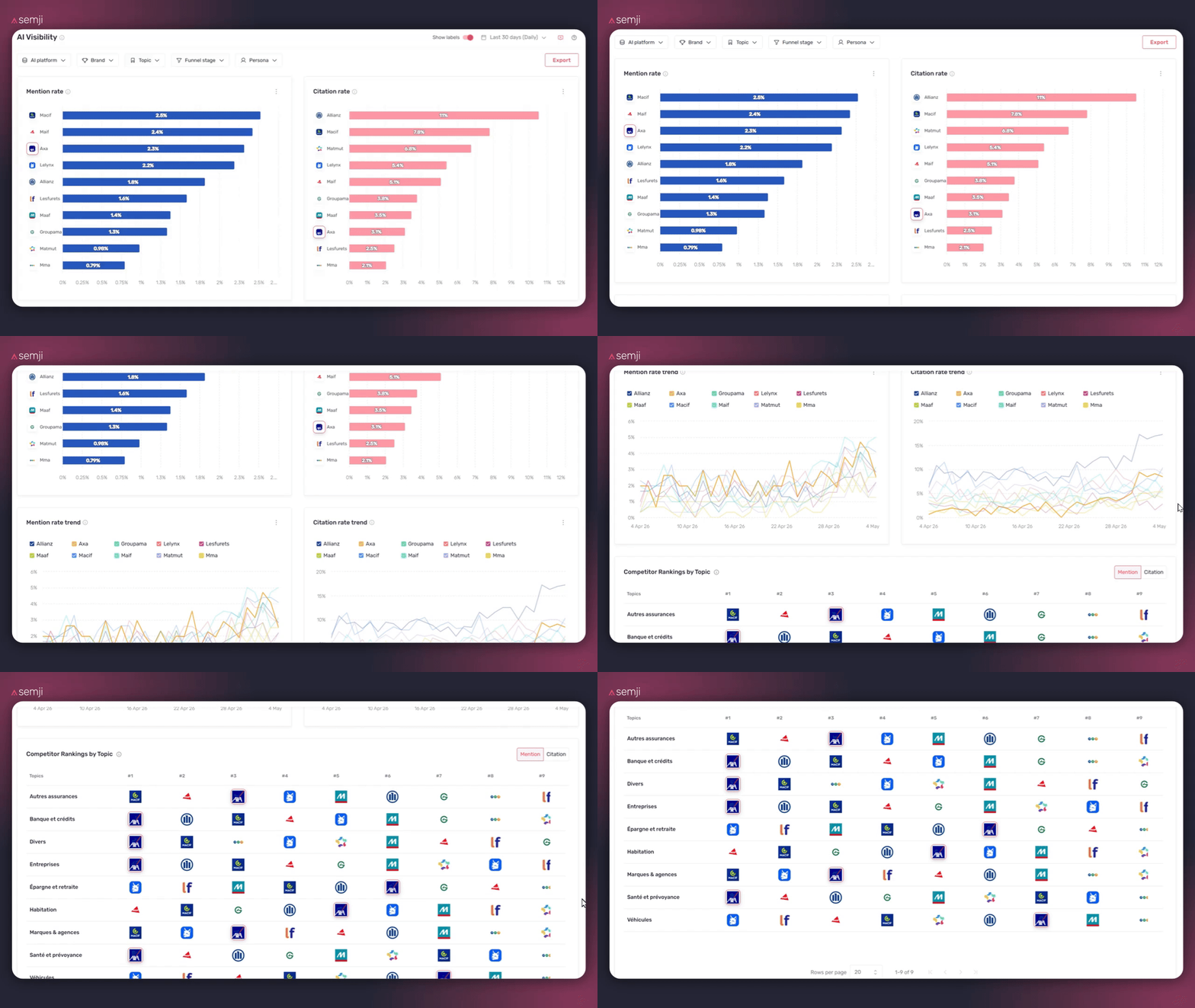
AI Visibility is the module's macro dashboard. It gives you a full overview of your brand's and competitors' presence across all monitored prompts: mention rate, citation rate, trends over time, and a competitor ranking by topic.
Prompts is the operational view. It lists all the queries you're monitoring with their individual metrics, and lets you explore each prompt in detail to identify your visibility gaps.
How to use it (step by step)
1) Access the module
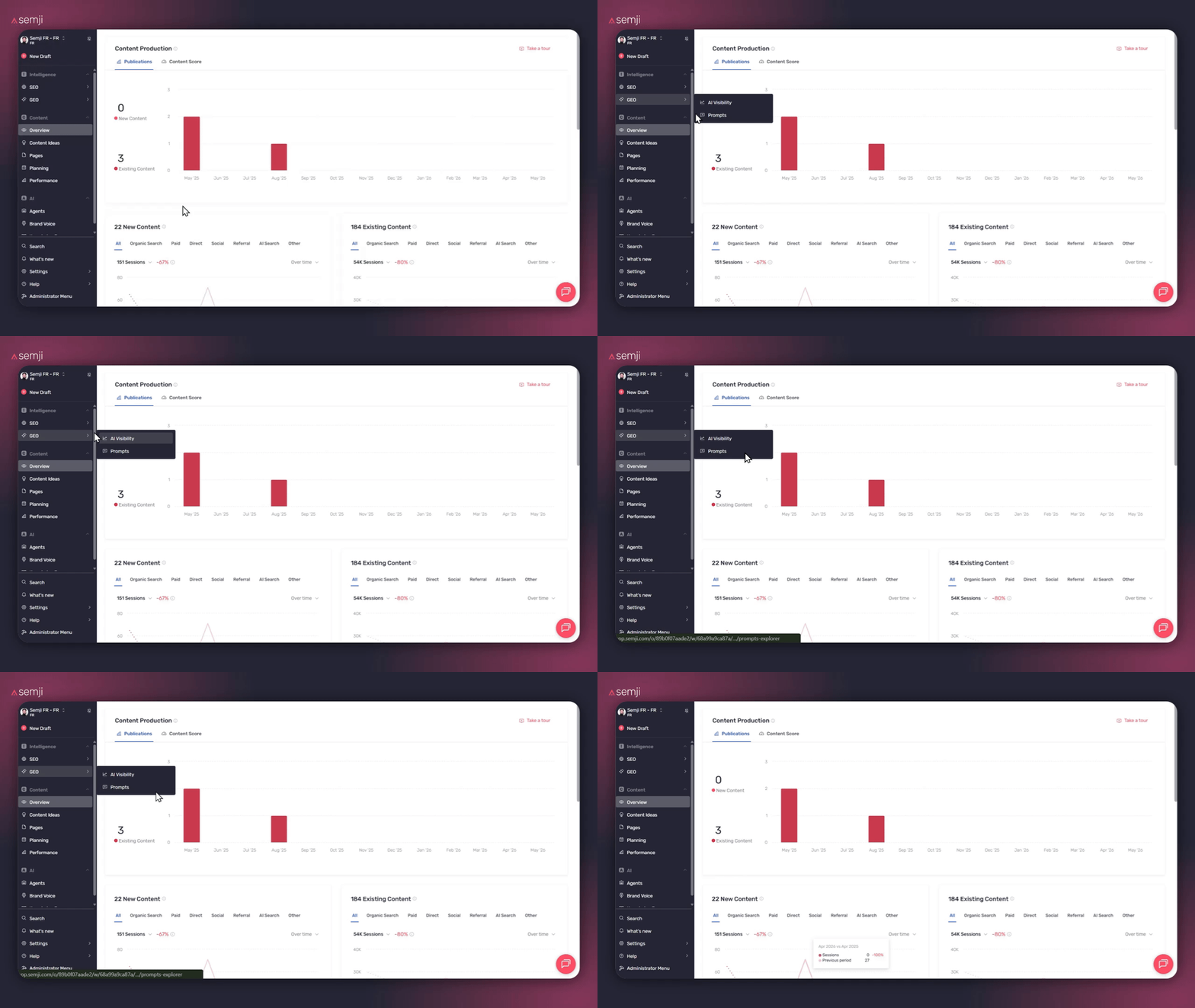
From Semji, click GEO in the left sidebar, under the Intelligence Hub section. You land directly on the AI Visibility screen.
Good to know ℹ️: the module is accessible to Admins and Members. Guest editors do not have access.
2) Navigate between the two screens
Two entries are available under GEO in the sidebar: AI Visibility and Prompts. Use AI Visibility for a macro read of your performance and your competitors'. Use Prompts to manage your monitored queries and explore results prompt by prompt.
Good to know ℹ️: the AI platform, Topic, Persona, and Funnel stage filters are shared between both screens. A filter applied on AI Visibility stays active when you switch to Prompts.
3) Set your analysis period
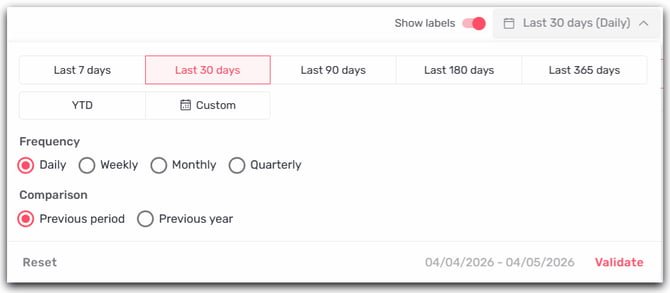
The period selector is available in the top right of each screen. Choose a preset range (7d, 14d, 30d…) or a custom period, up to a maximum of 12 rolling months.
All metrics and deltas displayed in the interface are calculated for the selected period and automatically compared to the previous period of the same duration.
Tip 💡: hover over the tooltip next to the screen title to see when metrics were first calculated and when data was last updated.
Tips for getting the most out of it
Configure your prompts first. The module only collects data from the moment your prompts are set up. The earlier you start, the richer your historical data will be for future analysis.
Combine both screens for complete analysis. AI Visibility tells you "where do I stand overall", Prompts tells you "which specific queries do I need to act on". Both views are complementary and share the same filters.
Important ⚠️: collected data covers a rolling 12-month history from your activation date. It is not possible to retrieve data prior to when the module was configured.
Go further
Useful links: