 Home
Home Getting Started
 Help Center
 Developer
 Status
At a glance
- What you can do: monitor your AI credit consumption, your time saved and your published content on your own, broken down by workspace, by user and by feature.
- Who it is for: organization admins only. In practice, the CMOs, SEO project managers and content managers who run a team and answer for a budget.
- Why it matters: you always know where you stand against your allowance, so you can set your production pace with confidence instead of holding back just in case.
What changes for you
Before: AI credit consumption was mostly a black box. Finding out where your team stood meant asking your CSM and waiting for an export. Without a reliable reference point, many organizations slowed their use of AI for fear of running out before the end of the contract, even though they were nowhere near exhausting the volume they had purchased. Now: you get a direct, continuous reading of your consumption, set against your credit limit and the actual length of your contract. And the data does more than track a counter. It also shows what AI has returned, in hours saved and content published, which makes it a solid basis for defending your budget internally.Every figure on this page is cumulative since the start of your contract, not since the
start of the calendar year. The summary line at the top of the screen always restates
that scope.
What you will get
A single page, organized in three levels of reading. At the top, three summary metrics:- Credits used, shown against your total allowance, for example 93,262 out of 180,000.
- Time saved, expressed in hours and derived from your AI usage.
- Content published with Semji over the period.
- Credit consumption, which plots your credits used against your credit limit across the full contract period.
- AI usage and time saved over time, which pairs your monthly usage volume with the matching time saved.
- AI usage by feature, as a percentage, covering AI+ Content, Atomic Content, Fact-checking, Agents and Ask AI+.
- Top contributors, ranked by share of usage, viewable by workspace or by user.
- Time saved by feature, as a percentage.
- Time saved ranking, expressed in hours saved, also by workspace or by user.
How to use it
1
Open the AI usage page
From your Semji workspace, go to Settings > Organization > AI usage.The page opens straight onto your organization’s summary. There is nothing to configure first.The AI usage entry only appears if you hold the organization admin role. If you cannot see it in your settings, ask your account admin for the data, or have the role assigned to you.
2
Read your summary metrics and your credit consumption
Start with the summary line and the three cards. Together they answer the question “where do we stand?” in a second.Then move down to the Credit consumption chart in the AI credits section. Your credits used curve reads against the horizontal line marking your credit limit. The gap between the two is your remaining headroom, and the slope tells you whether your current pace is heading toward exhausting the allowance before your contract ends.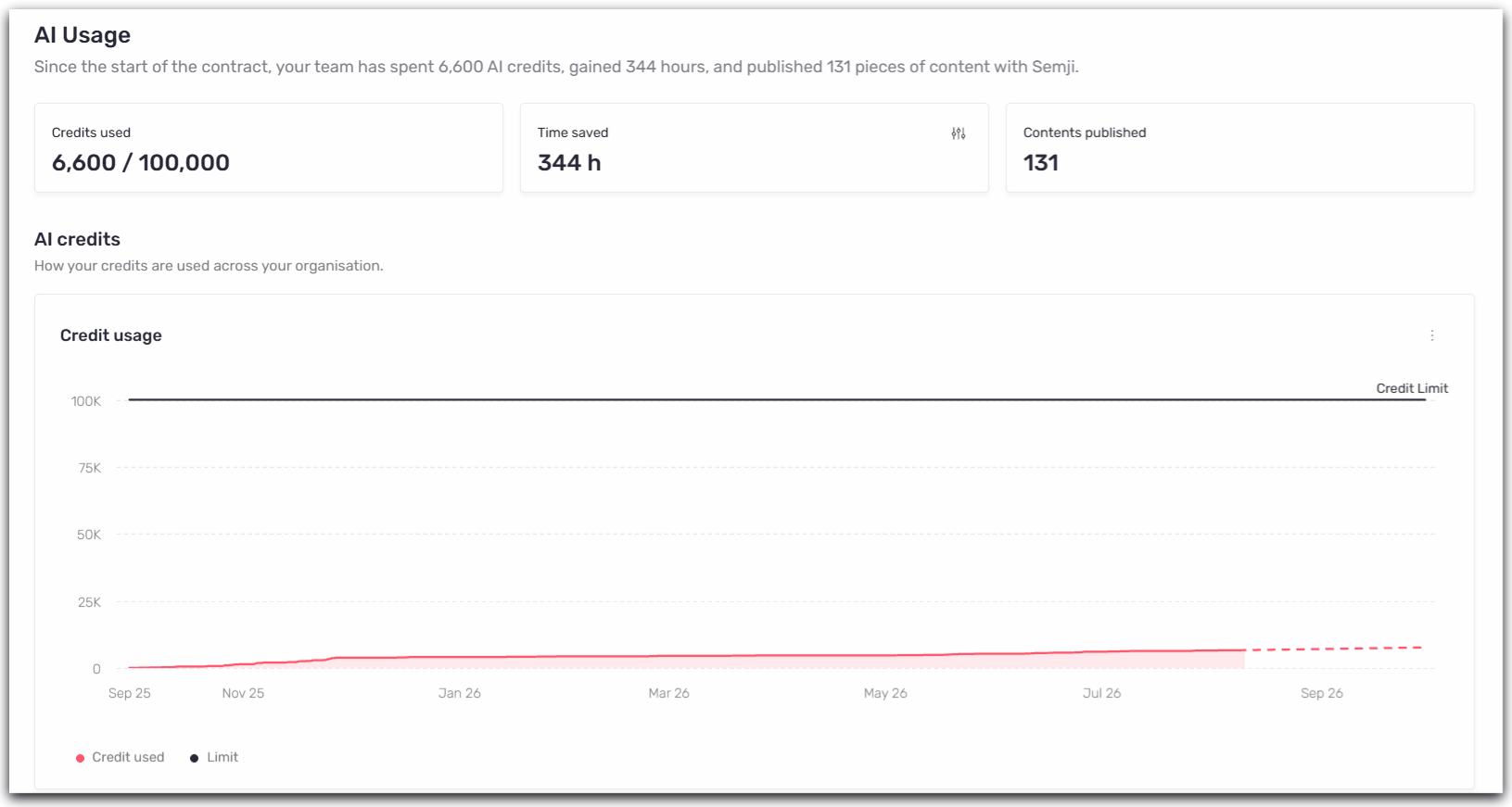
3
Filter by workspace, user or feature
In the AI usage section, three filters let you narrow the scope: Workspace, User and Feature. They apply to the AI usage and time saved over time chart and to the breakdown blocks below it.That chart layers two series. The bars show usage volume, the line shows time saved. Reading them together prevents a common misreading: a high volume month does not automatically mean a high gain, since it all depends on which features were used.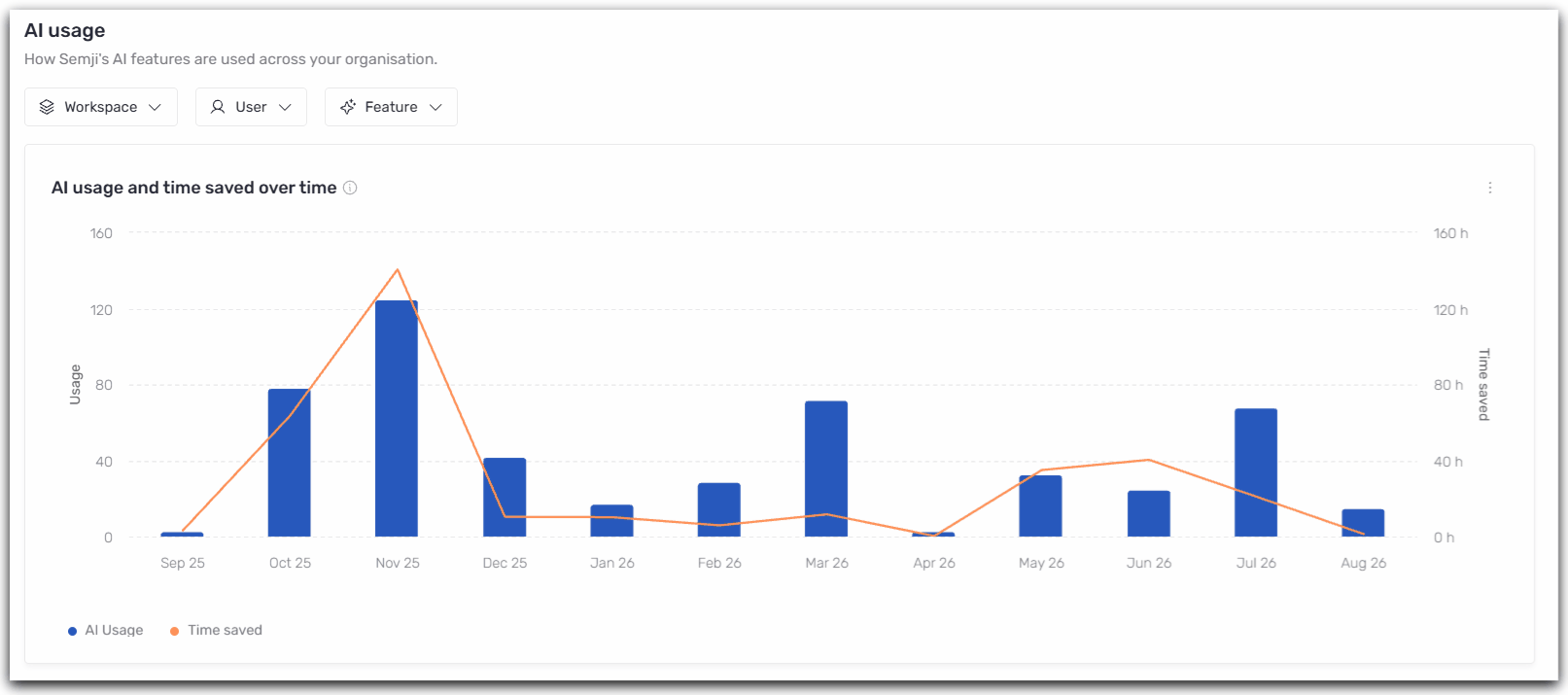
4
Spot your most active features and contributors
The four blocks at the bottom answer two different questions. AI usage by feature and Top contributors tell you where your credits go. Time saved by feature and Time saved ranking tell you where the value comes from.Both rankings can be viewed by workspace or by user using the toggle at the top right of each block, and sorted in ascending or descending order. See more expands the rest of the ranking.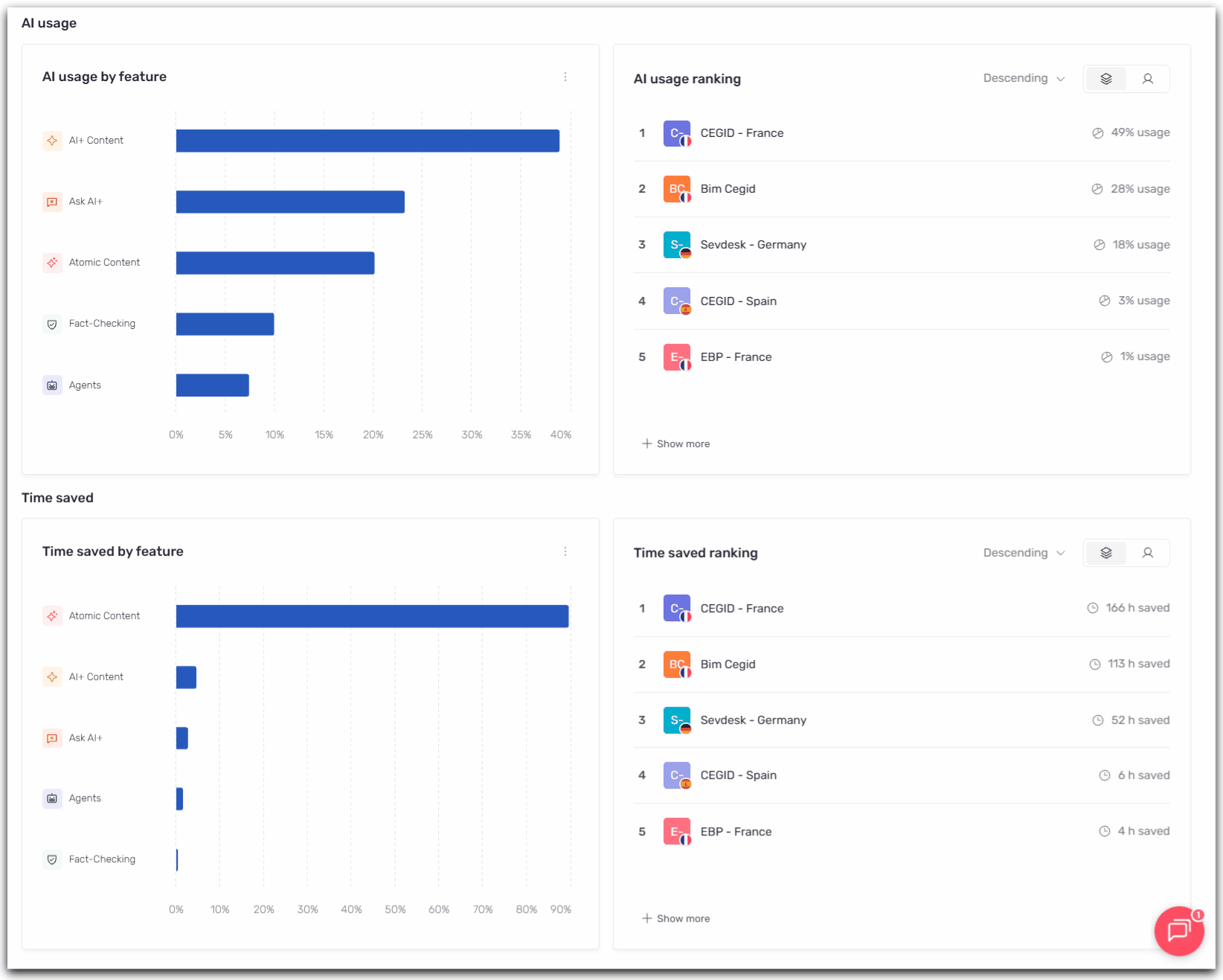
5
Adjust the time saved configuration
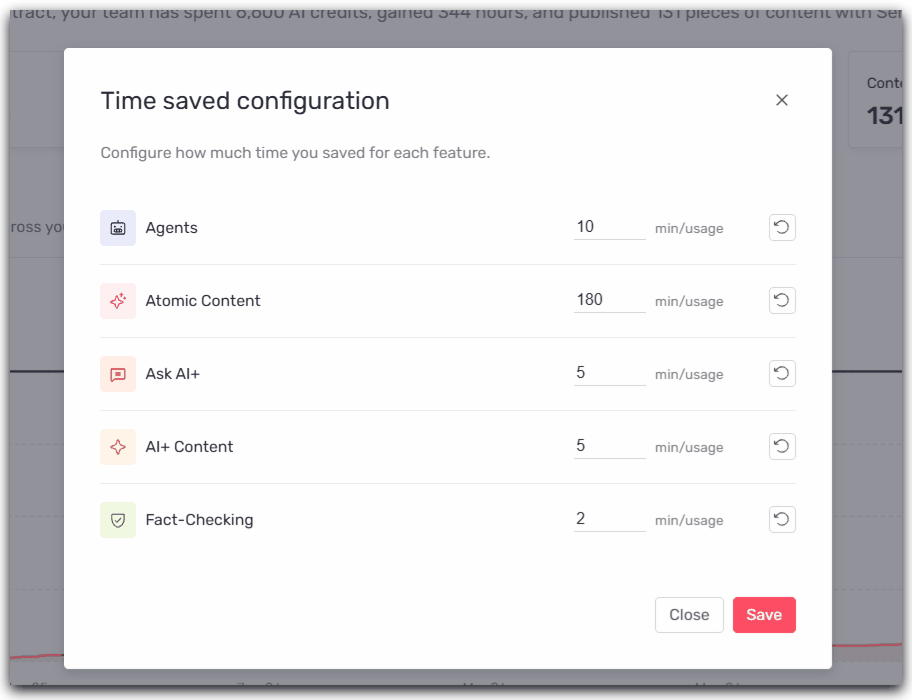
Time saved is not an opaque estimate. It rests on a minutes per usage ratio, defined feature by feature, that you can align with your own reality.Click the configuration icon at the top right of the Time saved card. The Time saved configuration window opens with one row per feature and its value in min/usage. The defaults are 180 minutes for Atomic Content, 10 minutes for Agents, 5 minutes for Ask AI+, 5 minutes for AI+ Content and 2 minutes for Fact-checking.Adjust any value that does not match your process, then click Save. The reset icon at the end of each row restores that feature’s default.