

 Home
Home Getting Started
 Help Center
 Developer
 Status
How to customize the Report Overview
Within the Overview, customize your report view to hide metrics you don’t want to see using the arrow to the left of the metric. For example, if you don’t have an e-commerce site, you can hide the “E-commerce” view from the overview. By clicking on “View details” in the Overview, you are redirected to one of the corresponding Report tabs.How to customize the Report with filters
To refine your report, you can also add various filters:- Title tag
- Content Score
- Date of publication
- Position evolution
- Keyword
- Planning
- Position
- Average position
- URL
- Search volume
- Assigned to a specific editor
- Folder These different filters allow you to customize the report to your needs.
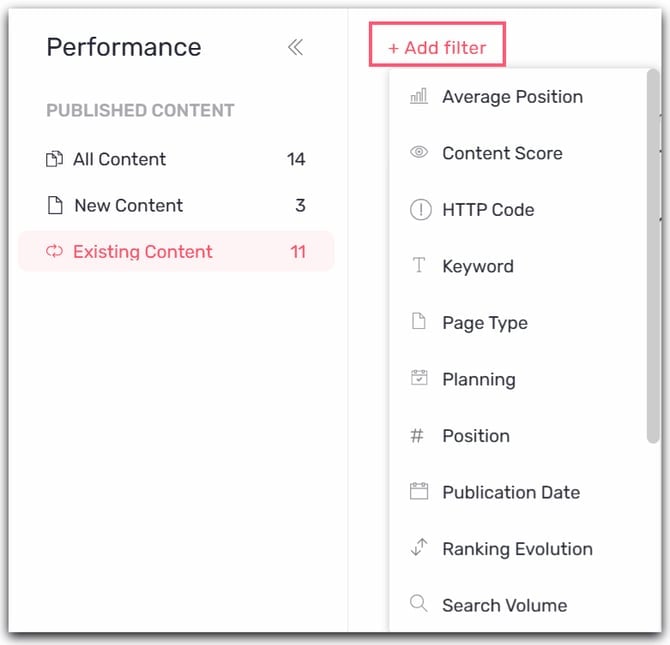
If you’re working in a thematic or semantic cocoon logic, you can use the folder filter to isolate the performance of this folder in order to observe the performance of strategic themes in your eyes.
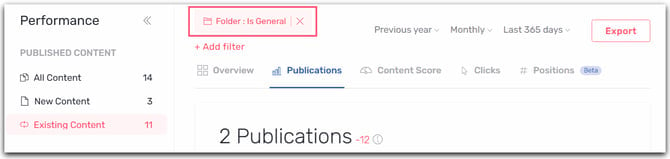
How to customize the Report with periodicity settings
You can also specify the periodicity of your choice within the Report.
Good to know 💡: The export function allows you to export your Performance Report in the file format of your choice. Please note that this export is context-sensitive, depending on the filters you have applied.