 Home
Home Getting Started
 Help Center
 Developer
 Status
What is the purpose of the Planning tab?
Discover how to invite collaborators in SemjiCollaborators can assign different statuses to the content they are working on, to give you an idea of their progress in relation to your internal process: content in progress, awaiting review, approved… You can build up an editorial schedule for the short, medium and long term, and easily monitor its progress. You can filter the list of contents to view the breakdown of contents among your editorial team, but you can also be alerted in case of late contents, or contents stuck at a stage of your process. The Planning tab gathers all the operational production of your SEO content.
Composition of the Planning tab
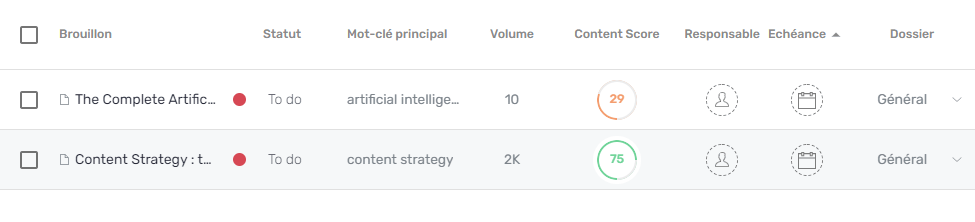
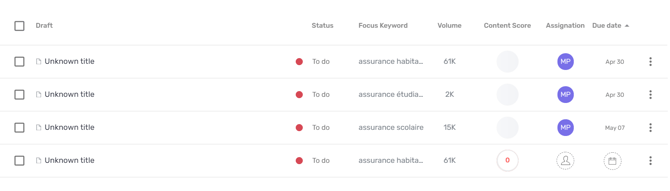
The Planning tab consists of the following elements:A table listing the drafts, at the center of the screen
This table proposes to visualize in columns the different information related to the identification of a draft and its management in your editorial planning:- content title
- status
- the keyword focus chosen for the analysis
- the search volume for this keyword
- the draft’s Content Score
- the collaborator in charge
- the target date of the content
A left sidebar, with sub-tabs
More details about sub-tabs below.A filter bar
This is a link that allows you to add filter settings to the Drafts table below.
A search feature
By clicking on the magnifying glass, you can run a keyword search on the Title tags and Focus Keywords of the listed Drafts.A “Create Draft” button
With this button, you can access the creation flow of one or more new drafts, which will automatically be added to the list of drafts in the schedule.
The Planning sub-tabs
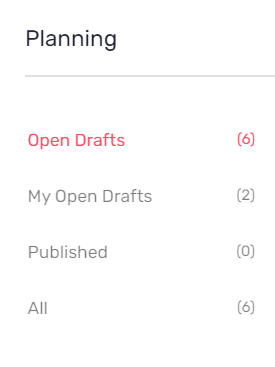
Open Drafts: to view all content in production
The Open Drafts sub-tab is the one a user is on by default when he clicks on the Planning tab. It shows all drafts, whether they are New Content or Updated Content, whether they are assigned to him or not. However, only content that is in the process of being produced or for which optimization work has not yet begun is listed here.My Open Drafts: to filter the content assigned to me
Want to know at a glance which drafts are specifically assigned to you? Each contributor who is assigned drafts can get a view of the contents he is in charge of by going to the left side menu and clicking on “My Open Drafts”.Published: to find finished and published content
You may want to identify the collaborator who optimized a specific content to congratulate him on its performance? Or simply reopen a draft to rework it according to the evolutions of Google and your competitors? Content that has been completed and for which you have clicked on “Mark as Published” can be found in this tab. You can find all the content that has been drafted in the past but on which work is no longer in progress.The Folder tree
Organize your drafts in folders to better organize your production. Like a tree structure in your email program or in Windows file explorer for example, you can create first level folders (parent) and second level folders (child). The parent folders only display the content that you have specifically stored in them, and not the content stored in the child folders.Note: The folder view is also filtered by user status. Owners see all folders while Limited Guest Writers only see folders with drafts assigned to them.Some examples of how to organize your Planning tab using folders:
- New content on one side, existing content on the other
- Content to be produced for sales, end of year celebrations, editorial chestnuts…
- Content belonging to a specific semantic cocoon
- Blocked content waiting to be reread, isolated in a folder…
Functionalities of the Planning tab in detail
The Planning tab is where the editorial content is concentrated. You can easily add new content to your editorial planning by clicking on the “Create Draft” button or simply on the ”+” button accessible from any Semji Platform screen.- Create new content or optimize existing content
Discover how to create a new content with SemjiUpdated Content is content already online on your site, which you want to optimize to improve its current performance.
Learn how to optimize an existing content with SemjiReminder: You can also create multiple Drafts by importing several urls or by selecting several new Focus Keywords. These contents will all be imported into the Planning in the form of Drafts, with the assignment and Due Date information that you have entered. This way, you can add all the content you plan to create or optimize several months in advance in one go!
- Launch an analysis

- Write content with the Drafts editor
Organize production and collaboration between users
The Planning tab was designed to facilitate collaboration within your team. It is ideal for managing an editorial project of any size.- Assigning collaborators
- from the Planning tab
- directly from the Draft’s editor
- Manage Content status
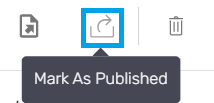
Discover the different content status and how to customize themNote: the “Published” status is automatically set when you or one of your collaborators click on the “Mark as Published” button inside the Draft Editor. This means that you report that you have published the content in your CMS and that it is now accessible online.
- View a content optimization level thanks to the Content Score
- Manage deadlines
Manage contents
- Sort and filter your drafts
- At the first click, you order the contents in ascending order or in alphabetical order (from A to Z)
- With the second click, you order by descending order or from Z to A
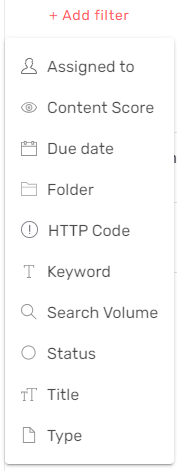
- assigned collaborator
- Content Score
- Due Date
- chosen Focus Keyword
- Focus Keyword search volume
- content status
- content’s title
- kind of content (New ou Updated)
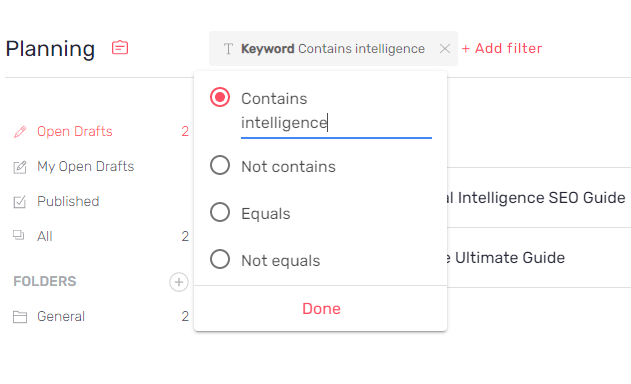
Quick tip: You can now filter content with HTTP codes! __This feature allows you to view 301 pages after redesign and fix 404 pages. __ Use the “Folder” filter to filter the different contents related to the same folder within the “My current drafts” and “Published” categories. For example, use the “Folder” filter to easily find all the content in a folder, along with the publishing dates..Some examples : A filter on Focus Keywords

- Exporting content recommendations
- Search Intents (only the unlocked ones)
- Related Terms
- Questions

- Publish content in bulk
- the official publication date (this date will be indicated by a pink dot on your performance graphs)
- each content’s URL
- Delete Drafts