 Home
Home Getting Started
 Help Center
 Developer
 Status
Why create new content with Semji?
If you are in a hurry, here is the short answer:- To save time
- Because not everyone is an SEO expert
- To generate performance and boost your business!
How to create new content?
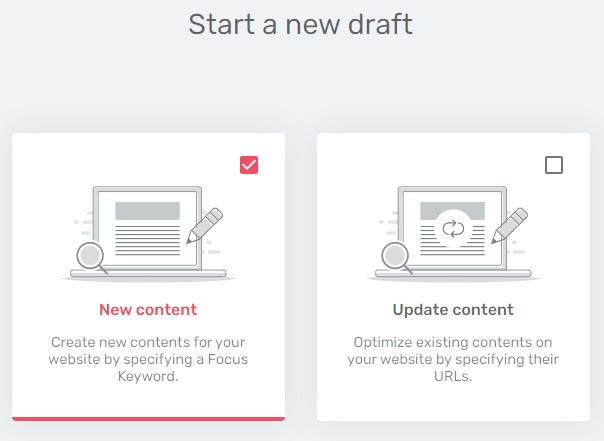
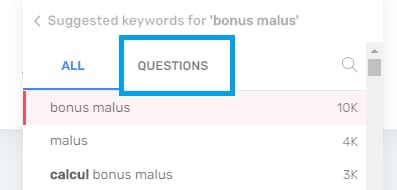
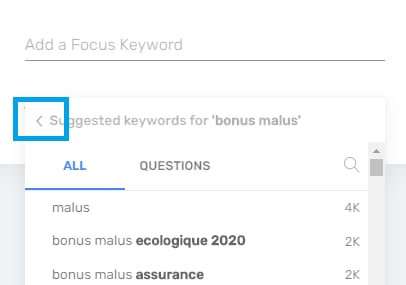
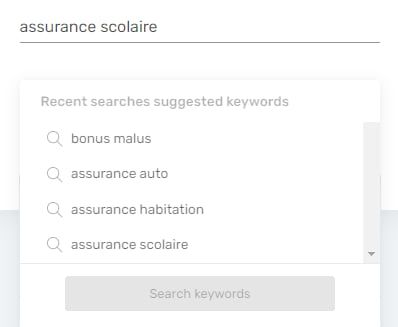
Step 1: Create a draft and choose its Focus Keyword
To create new content from scratch, you need to know:- at least the theme on which you wish to write
- the Focus Keyword you wish to target





Step 2: Assign content to a writer and plan its optimization
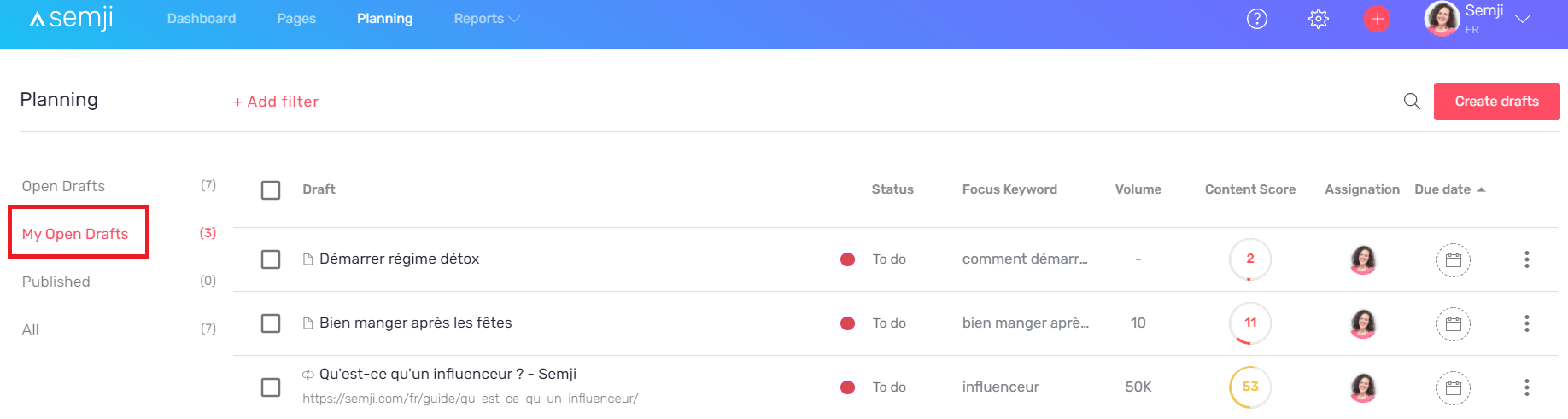
When choosing the Focus Keyword, by unit or in bulk, you can assign a person from your team to create the content and select a Due Date. You can also proceed to these operations directly from the Content Draft or from the Planning tab, by clicking on the Assignment and Due Date icons:
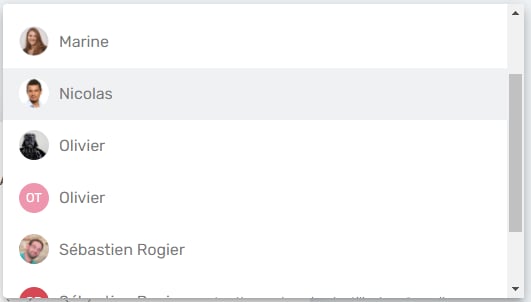
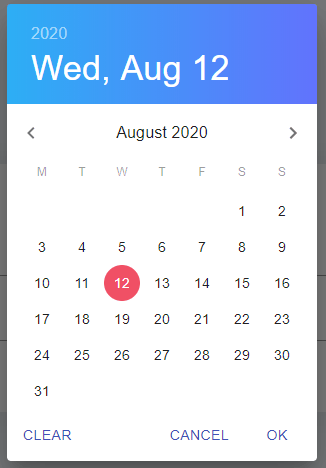
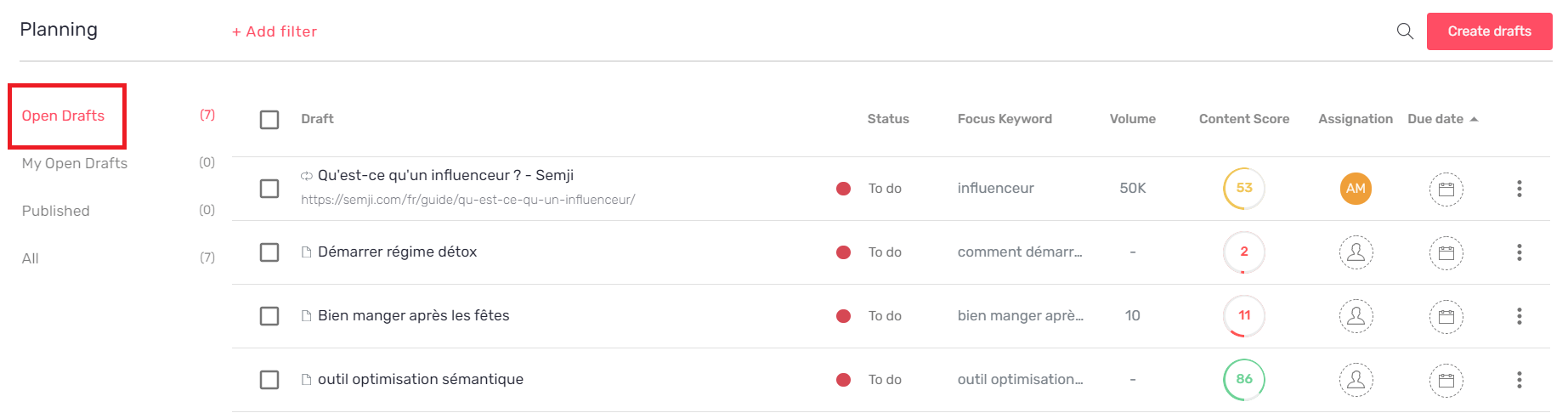
Each member of your team can view the content assigned to them in the “My Open Drafts” section.
Step 3: Follow the optimization recommendations to increase the Content Score
The Draft is created and you can start writing the content. In the editor interface, the Semji platform provides you with a set of concrete recommendations, based on the analysis launched at the creation of the Draft, after the choice of the Focus Keyword. Follow these recommendations to see the Content Score of your content evolve in real time:- Title
- Length recommendations
- Search Intents
- Questions
- Related Terms
- Outgoing Links
Step 4: Approve content for publication (following your production workflow)
After applying all the platform’s recommendations to achieve a Content Score as close to 100 as possible, make sure you continue your production workflow: should your content be reviewed by another department? by a supervisor? Should it be sent directly to integration? By entering a new status for your content, you are indicating that you have completed the optimization and are ready to move on to the next step.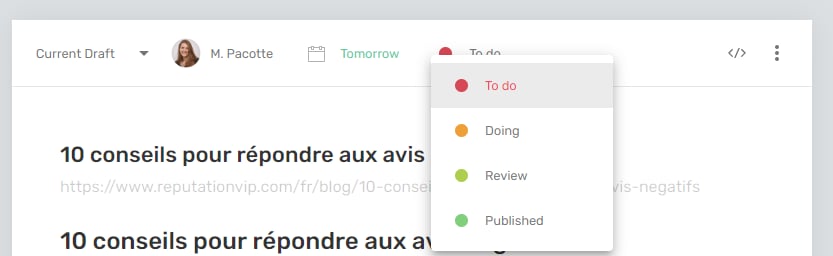
Step 5: Integrate the new content and its internal links into your CMS
When you are sure that your content is complete, the next step is to integrate it into your CMS. You can either copy and paste the whole text you have written in the Semji editor - Hn title tags are normally kept and applied automatically in your CMS editor - or switch to HTML preview and copy the source code of the produced text. To do so, use the button at the top right of the editor interface: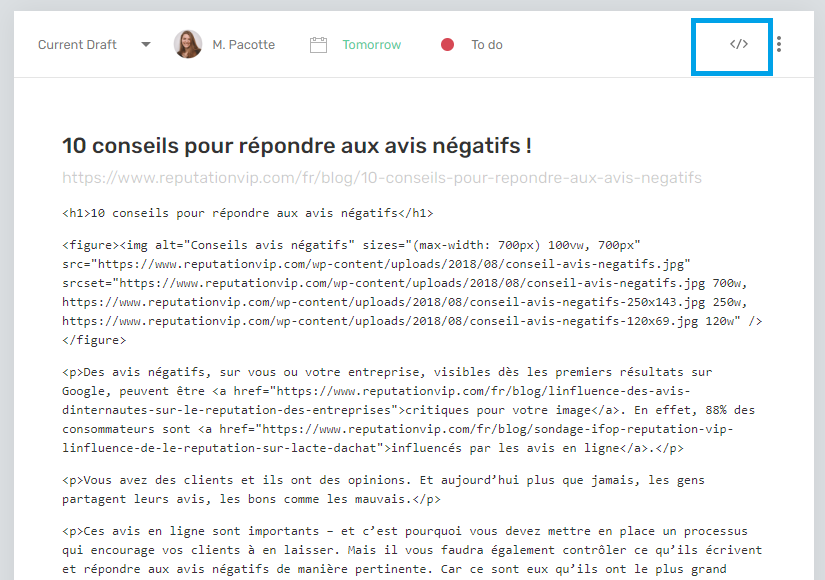
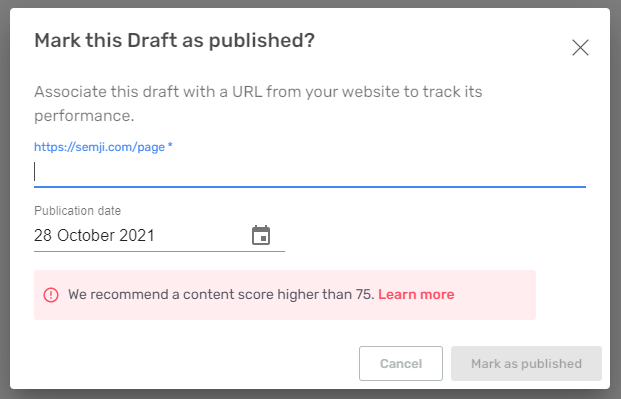
Step 6: Mark content “as Published” in Semji
Once the content is published in your CMS, go back to the corresponding Semji Draft. Then click on the “Mark as Published” button at the top of the content.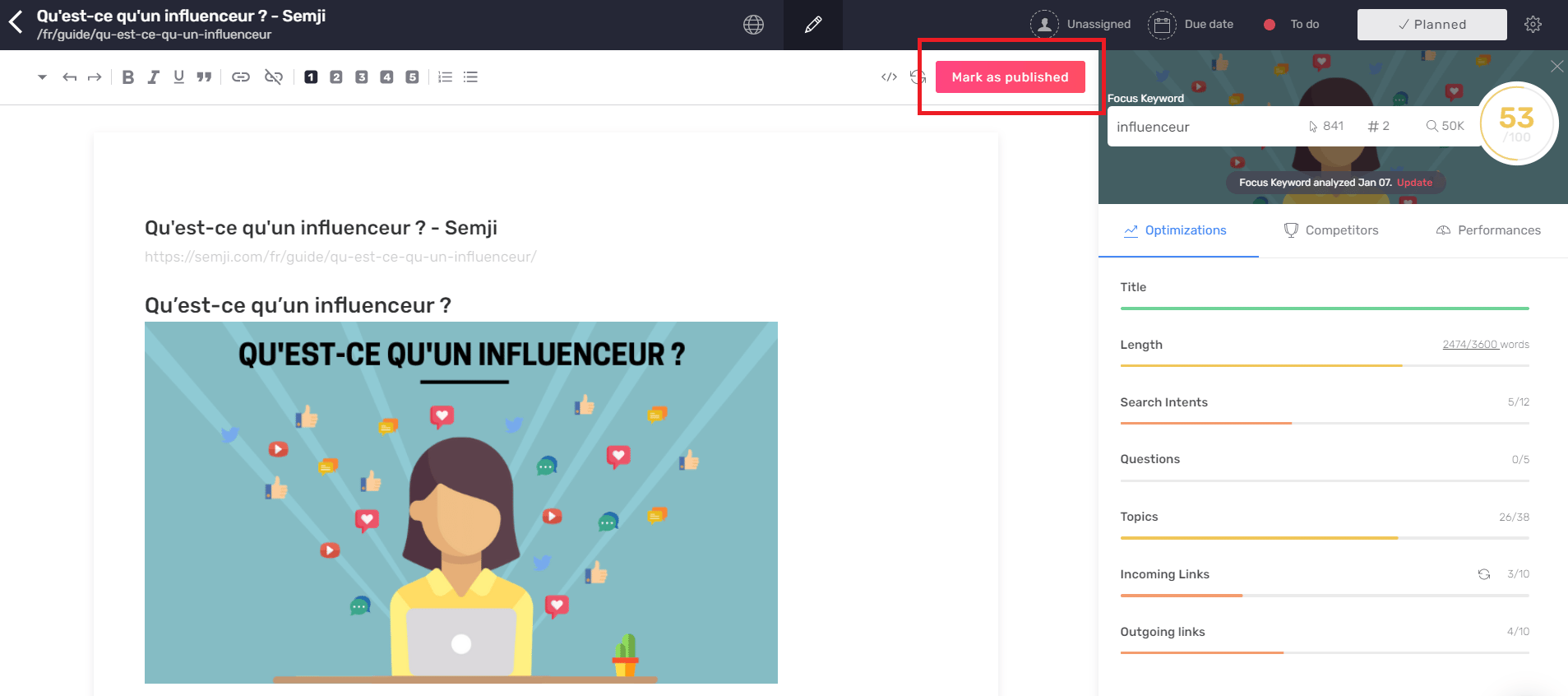
Step 7: Get your final Content Score
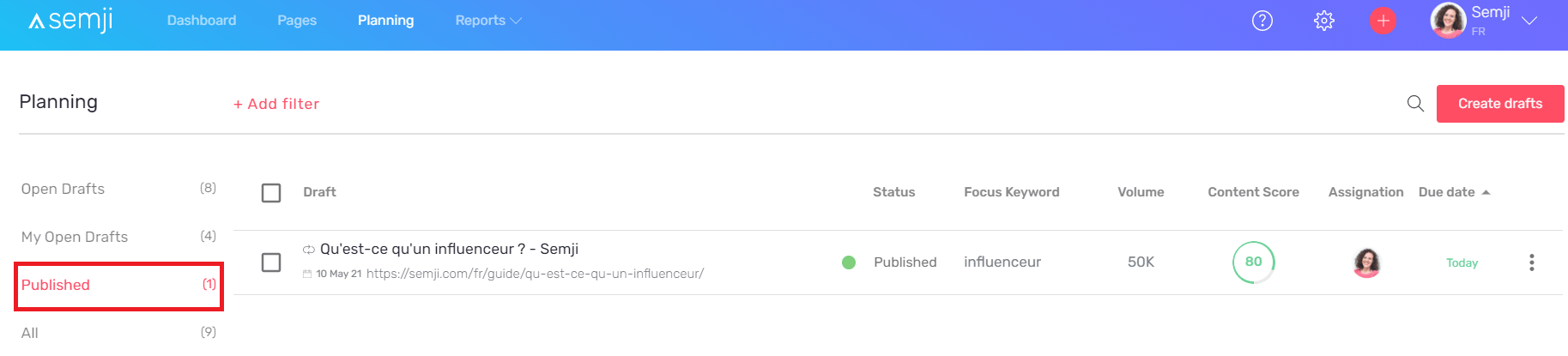
The very last step of creating a new content is to get your final Content Score. This is possible thanks to the integration of the internal links you have made on your CMS (the creation of inbound and outbound links to your content). Since you have clicked on “Mark as Published”, your content is now accessible from the “Published” section of your Planning tab.