

 Home
Home Getting Started
 Help Center
 Developer
 Status
What is the purpose of the Draft?
The Draft is the term used to designate content in the process of being written. It means that content is not yet published and may undergo further changes before going live. When you add a content opportunity from the Pages tab to your Schedule, or when you create a new content, Semji turns these contents into Drafts. From the Schedule tab, you can access all the open Drafts that are currently being written. A draft can be assigned a manager, a due date, or a status. It can also have several versions.Semji’s draft editor
The Draft Editor allows you to easily write powerful content that meets both search intent and Google’s requirements. Semji’s editor is a WYSIWYG editor - which stands for “What You See Is What You Get”. In other words, with this type of editor, the user writes a text and uses simplified formatting options, which the editor automatically transforms into HTML language. For a writer, this type of editor is ideal, because it is not necessary to master HTML to write and then publish a text that is well optimized for engines and Internet users.Build your content plan in minutes in a Draft
How is a draft made up?
A draft is made of several areas to be distinguished.The top bar for project management
To the right of the top bar, you can access the options for managing this content in your editorial strategy:- Assign a manager among your employees
- Choose the due date for this content to be produced
- Customize its status to indicate where it is in your internal process

- In the case of updated contents

- In the case of New Content

The content editing bar
Located above the editing area, this bar contains the usual features of a text editing program.
- Select the version of the draft to edit
- Undo an action
- Bold, italicize or underline a text element
- Insert a quote (with a specific visual formatting)
- Add or remove a link on an anchor in your content
- Choose the title level (corresponding to Hn markup in HTML)
- Insert bulleted or numbered lists
- View the HTML version of the text you are editing
- Re-synchronize the content with the online version on your site (Semji will then launch a new action to automatically retrieve the editorial content)
- Mark the content as Published (using the “Mark as Published” button)
The content editing area
This area is shown as a blank page. It has a specific location at the top for the content title. Then the main area allows you to enter all the editorial content of the body of the page, the title elements, the paragraphs… It includes a scroll bar to navigate vertically between the top and bottom of the editorial text. In Semji editor, you can find a word and character counter at the bottom left. The counter is updated when selecting a part of your content.The sidebar
Note : to be able to work on a Draft and view all the data in this sidebar, you must launch an analysis after selecting a Keyword Focus. This sidebar has different elements.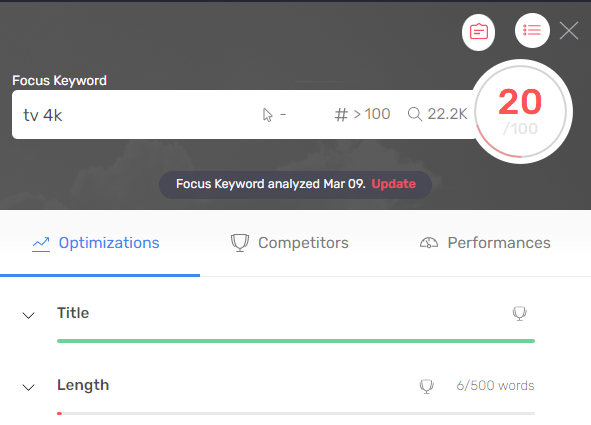
- The Focus Keyword area
- The Optimizations tab
- The Competitors tab
- The Performances tab
The Focus Keyword area
This is where you select the priority keyword that will guide the optimizations to be applied in your content. Each Focus Keyword is associated with 3 important data in your selection criteria:


The Optimizations tab
In this tab, you will find all of Semji’s semantic recommendations. Consider this your brief for writing content. Apply the different guidelines to optimize your content and make it relevant to Internet users’ searches.Discover how to apply the different Optimizations in detail
The Competitors tab
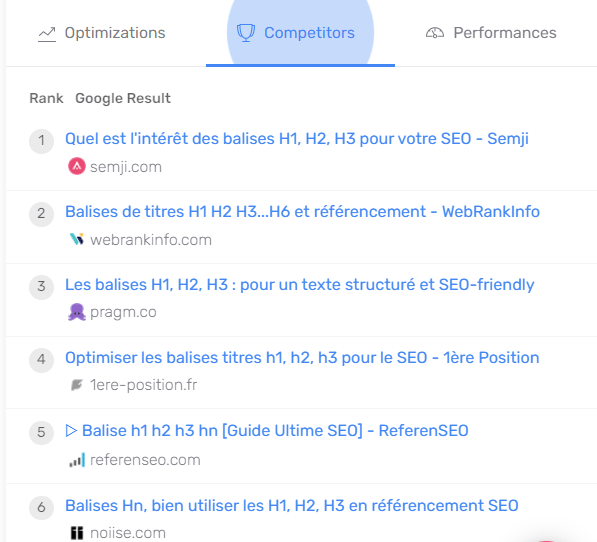
In this tab, you can see the Google results page (the SERP). Semji displays the top 10 results and shows in pink the position of your content - if it is already in the top 10.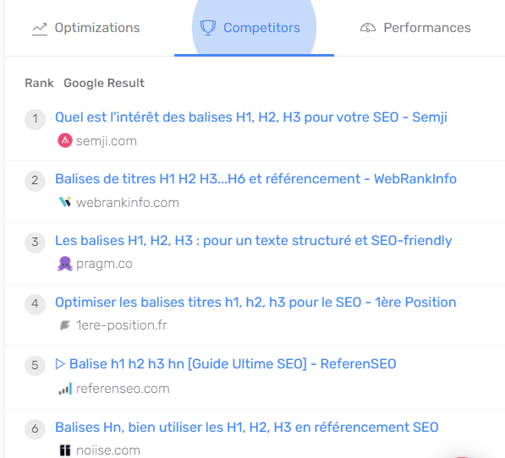
The Performances tab
In this tab, you analyze the performance of your content through different SEO KPIs. Whatever your subscription package, you have access to :- monthly clicks*
- monthly sessions**
- monthly click rate (CTR)*
- monthly impressions*
- bounce rate**
- average number pages seen per session**
- average session lenght**
- Conversions and conversion rate**.
- Revenue generated by the content
- Transactions and transaction rate
How to use the Draft Editor’s features properly? 6 key tips
#1 - Organize the production of content
To make sure your content has every chance of performing, make sure you have assigned a person in charge of it and set a deadline for its production. This way, you are sure to be visually alerted in your Dashboard and your Schedule if a content is behind schedule, and you will be able to address the collaborator in charge of its writing, or of the corresponding process step. Don’t forget to regularly update the status of the content, in order to know its stage of progress. If there is a delay in production, you can easily find out if it is the writing, proofreading or integration phase that is blocking the process.Quick tip: A new feature lets you easily track your content plan. Learn how to build and keep track of your content plan in Semji.
#2 - Choose the right keyword to work on: the Focus Keyword
All the information in the sidebar appear after you choose a Focus Keyword and run an analysis.Click on the Focus Keyword location to change it if needed.
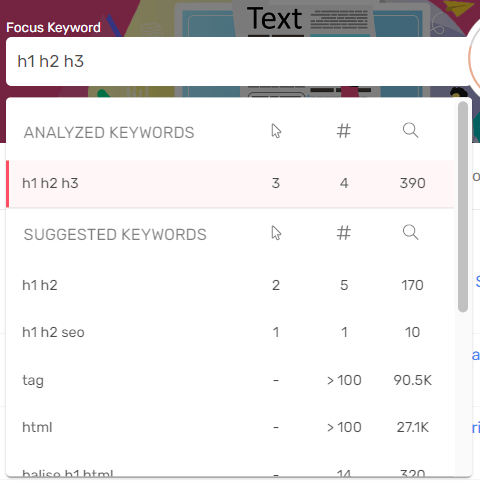
If you’re working on an Updated Content Draft, Semji will suggest other keyword ideas that already position your content and potentially generate clicks. You can always add the Focus Keyword of your choice if it is not in the list.
>> Find out how to choose the right Focus Keyword for your draft:
#3 - Know your content score: estimate the level of optimization of your content
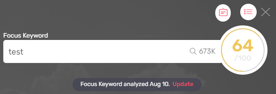
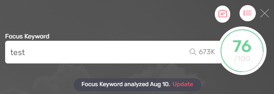
Based on the Focus Keyword you have chosen, Semji calculates your Content Score, which is displayed at the top of the sidebar. If you are working on a New Content Draft, you start from a blank page. The Content Score initially displays 0 or a score close to 10 if you have already added your Focus Keyword in the content title. If you are working on an Updated Content Draft, you are starting from an existing content. The Content Score that is displayed corresponds to the level of optimization of your text in relation to the Google SERP (search engine results page), and to competing content that is positioned there. A color code shows the level of optimization of the content written in the Draft.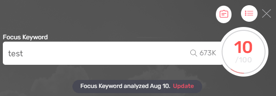

#4 - Apply Semji’s optimization recommendations
One of Semji’s strengths is its semantic engine. When you launch an analysis, its engine retrieves a very large amount of data that it aggregates, analyzes and deduplicates… to deliver a summary of recommendations to be applied to each of your content. When you build your content plan or seek to optimize it, Semji saves you time by detailing the main steps in the form of a brief, in the “Optimizations” tab of the sidebar:- Fill in your title : it must contain the main keyword (Focus Keyword)
- Build the outline of your content : the different levels of nested titles, which should target the important search intents
- Deal with questions asked by Internet users and aim for 0 positions (featured snippets)
- When writing, insert several occurrences of some Related Terms to make your lexical field rich and relevant for Google and your audience.
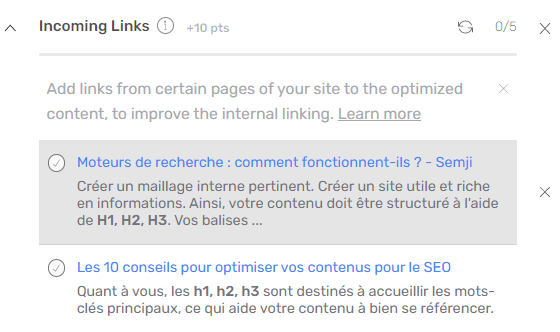
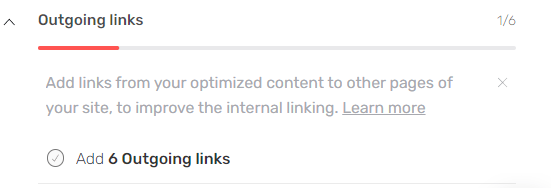
- Think about internal linking! Whether it’s links to your content (Incoming Links) or links from your content (Outgoing Links), Semji advises you so that this key step in SEO doesn’t get lost!
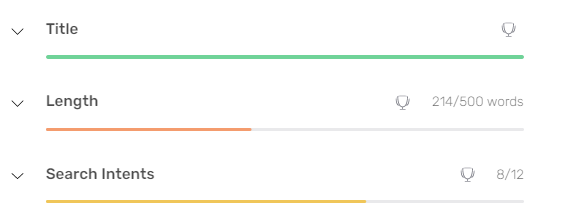
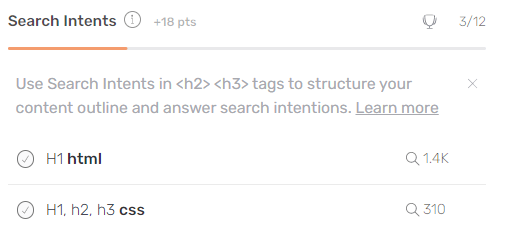
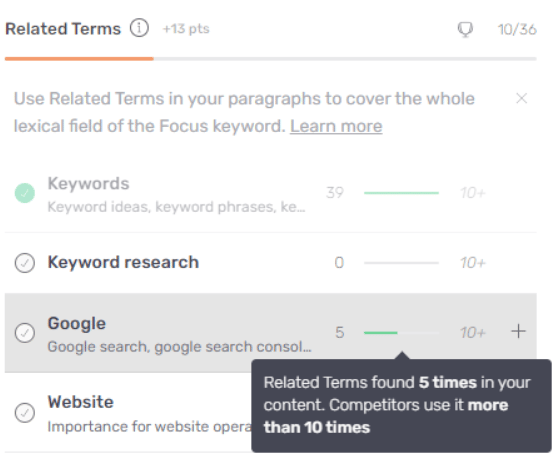
- If it is a Search Intent or a Question, it is automatically added to your text at your cursor position in title level 2 format (in the HTML code, the text is tagged with h2). You can of course change this format, by opting for example for title level 3 (corresponding to the HTML tag h3). But be aware that a Search Intent or a Question must have a title level format to be taken into account in the Content Score and validated in the list of proposals.
- If it is a Topic, clicking on the ”+” button inserts it into your text in paragraph format at your cursor position.

- Declare the content as published with the “Mark as Published” button
- Enter its final url, the one where the content is now accessible online
- Enter its final url, the one linked to the content now available online
- Go back to your Draft (Planning > Published) and refresh the Incoming Links
- The completion bar and the Content Score are evolving!
#5 - Understand your competition: learn from them and differentiate yourself
To guide the production, it is necessary to set SEO objectives. And what could be more important at this stage than to analyze your competition! Indeed, knowing the strengths and weaknesses of your competitors’ content has many advantages:- You will learn good practices to apply to yourself
- You avoid identified pitfalls and win the preference of Google and Internet users
- You find inspiration
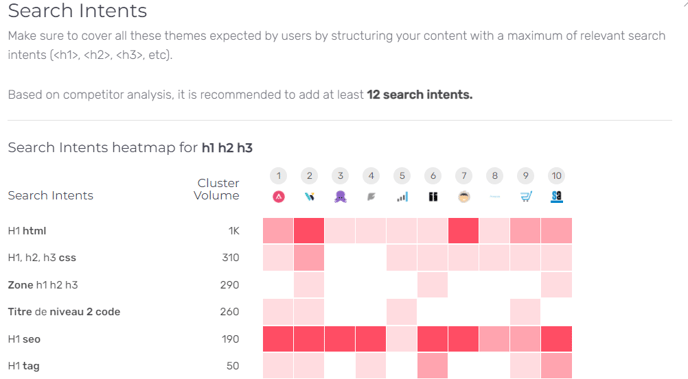
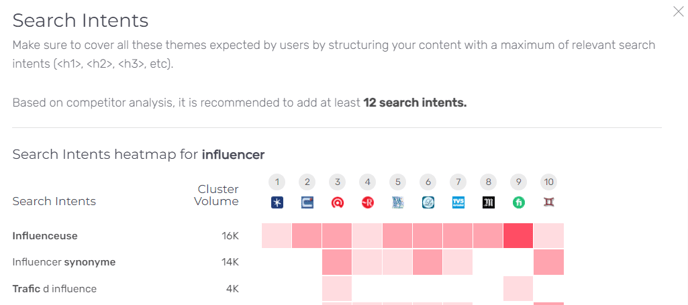
- Make the most of the Competitors tab
#6 - Track the performance of the URL
After all these editorial optimization efforts, reap the benefits of your work! Analyze the performance of your content: its historical performance before optimization, but also the gain after it has been put online. This is materialized by a pink marker (and corresponds to the date you declared by clicking on “Mark as Published”). You can select several KPI to analyze, from the Search Console but also from your web analytics tool (Google Analytics or AT Internet): your conversions, your transactions, your bounce rate… You can adjust the display of the analyzed data:- Choose a comparison period to display the evolution rate
(for example: compare the number of clicks over 1 month with the same month the previous year, or the previous month) - change the granularity of the curve: display the daily data or smooth the data over the week, month or quarter
- change the analysis period: several periods are suggested by default, allowing you to analyze complete periods (month, quarter…)