 Home
Home Getting Started
 Help Center
 Developer
 Status
Why manage users?
Semji has been designed to adapt to all team sizes, from the web marketer supported by an intern, to the team of specialized writers supervised by several managers. Thus, the platform has different levels of granularity to manage content production and authorized users. Controlling the level of user access allows you to assign actions and responsibilities to the right people in the organization. Some examples of features you may want to restrict:- SSO SAML activation
- Excluded Keywords section
- Global contents performance
- Credit logs
How to manage users?
User rights levels can be defined at the Organization level and at the individual Workspace level. The Organization brings together your company and your teams in Semji. An Organization can contain several Workspaces, i.e. several websites or several markets (language/country). The Workspace is the interface where you can edit content. Thus, when you are connected to a Workspace, you are necessarily a member of the Organization. Example : an organization can include:- Workspace 1 : mysite.com/en
- Workspace 2 : mysite.com/fr
- Workspace 3 : myothersite.com
Understand user rights levels
1. At the Organization level
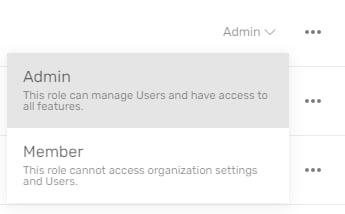
There are 2 levels of rights at the Organization level:- Admin
- Member
- Creation and deletion of workspaces, as well as their configuration
- Details of credit expenses (“Credits logs”)
- Possibility to configure the connection in SSO SAML for all user teams (“Security”)
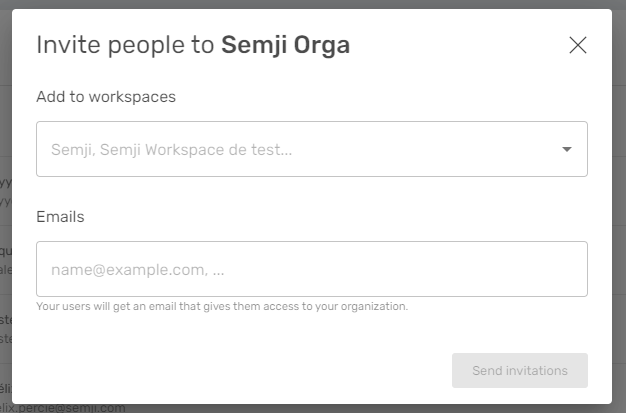
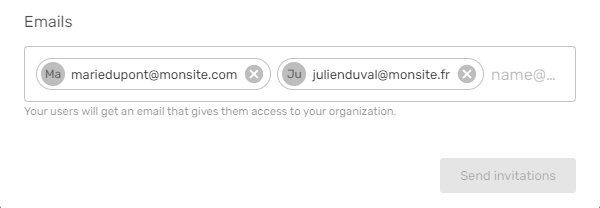
- New users creation and generation of automatic invitation emails (“Users”)
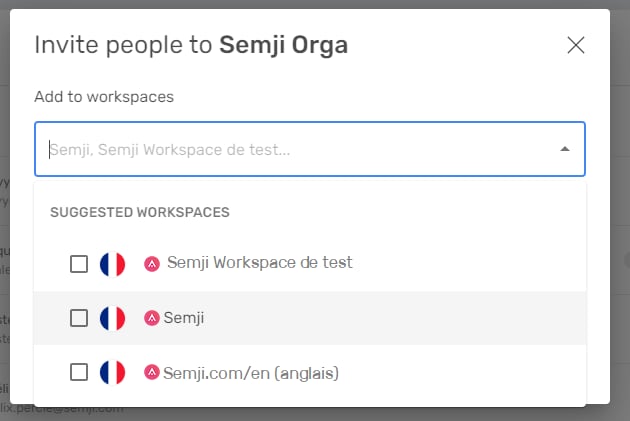
- Grant access to the whole Organization or to some Workspaces only
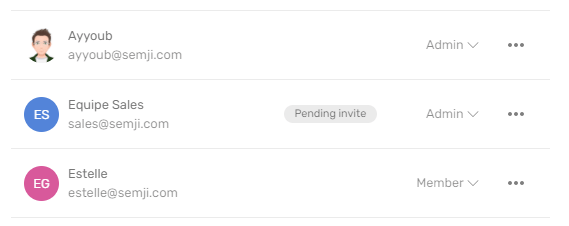
- Change the level of rights of the users of the Organization by defining them as “Admin” or as “Member”.
- Send them a link to change their password
- Remove their access to the Organization
2. At a Workspace level
There are several levels of rights at the Workspace level:- Owner
- Member
- Guest Writer
- Rename the workspace or delete it
- Manage content status
- Exclude terms and keywords from the Headings, Questions and Topics recommendations in the Workspace drafts.
For example: exclude your competitors brand name (“Keywords relevance” tab) - Add and manage Workspace users (“Users” tab)
- Connect analytical tools, also called Service Integrations, such as Google Analytics, Search Console or AT Internet.
- Send them invitations to access this Workspace only
- Change users rights on this Workspace by setting them as “Owner”, as “Member” or as “Guest Writer
- Send them a link to change their password
- Remove their access to this Workspace
Manage user access
1. Add users from the Organization
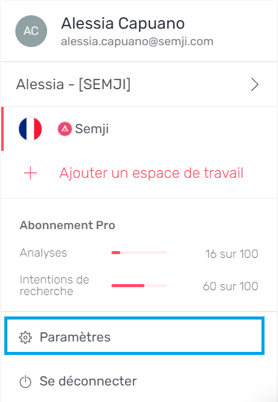
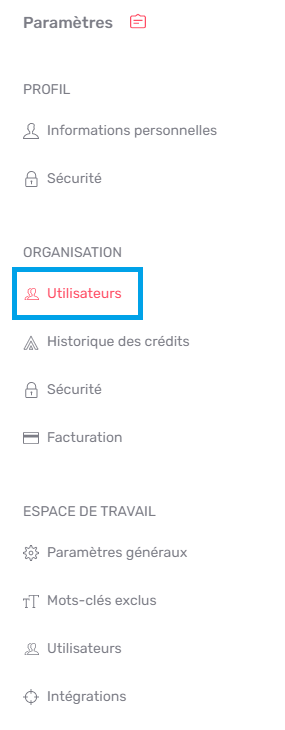
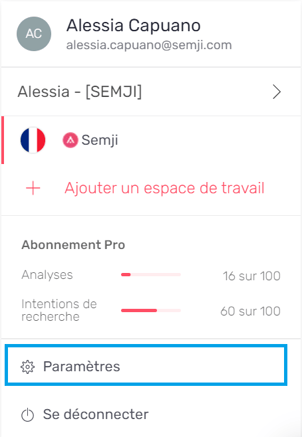
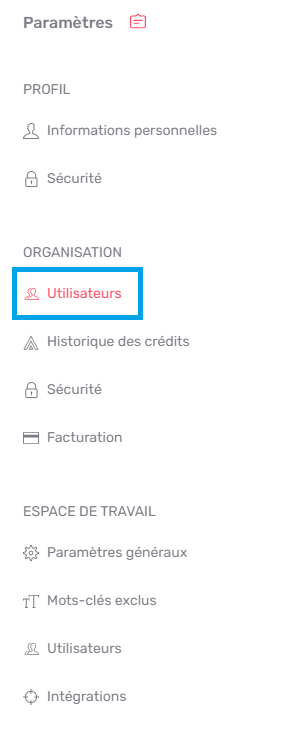
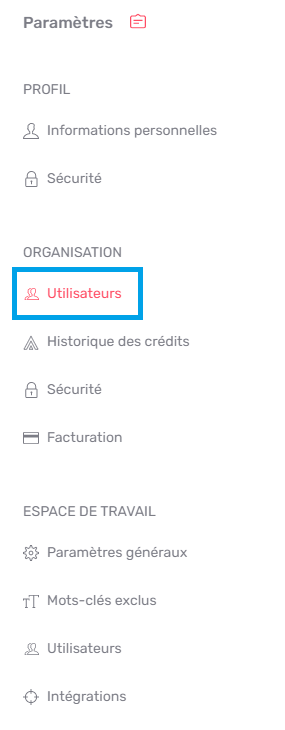
At the Organization level, the Admin is the only one who can invite other users.As an Admin, access the Organization Settings, as seen above:

2. Add users from the Workspace
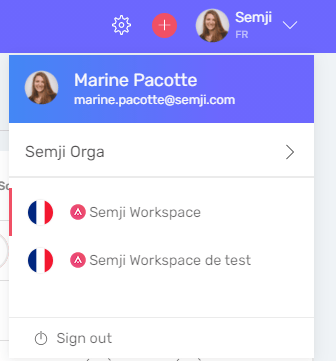
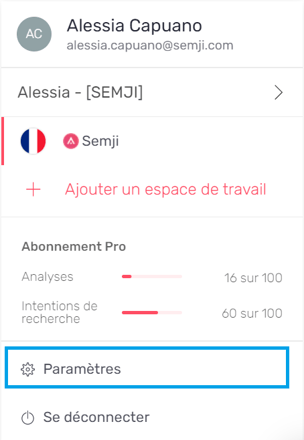
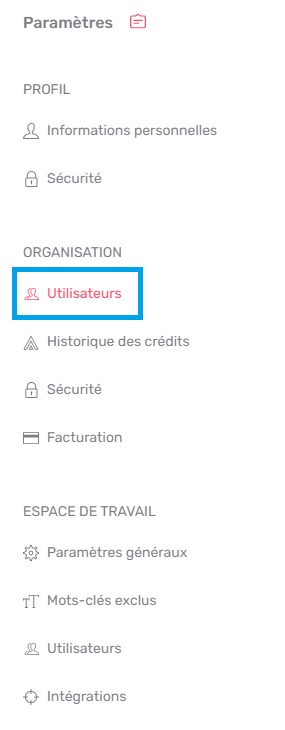
At the Workspace level, Owner(s) are the only ones who can invite other users to join this Workspace. As an Owner, you can access the Workspace Settings, as seen before: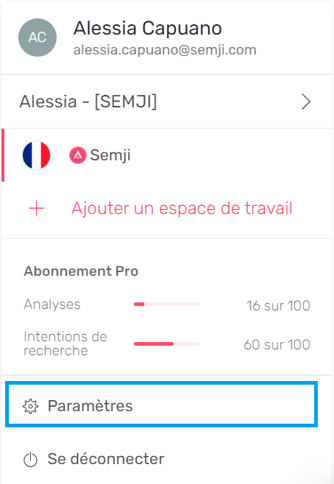

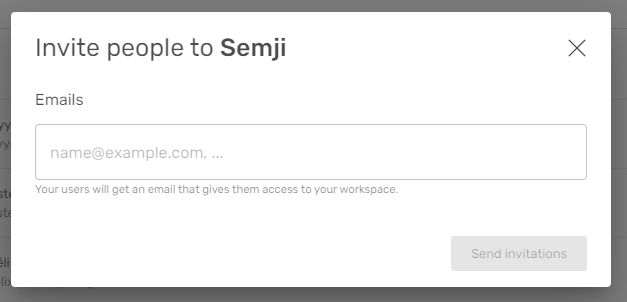

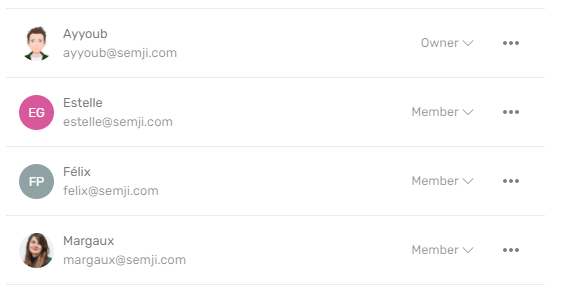
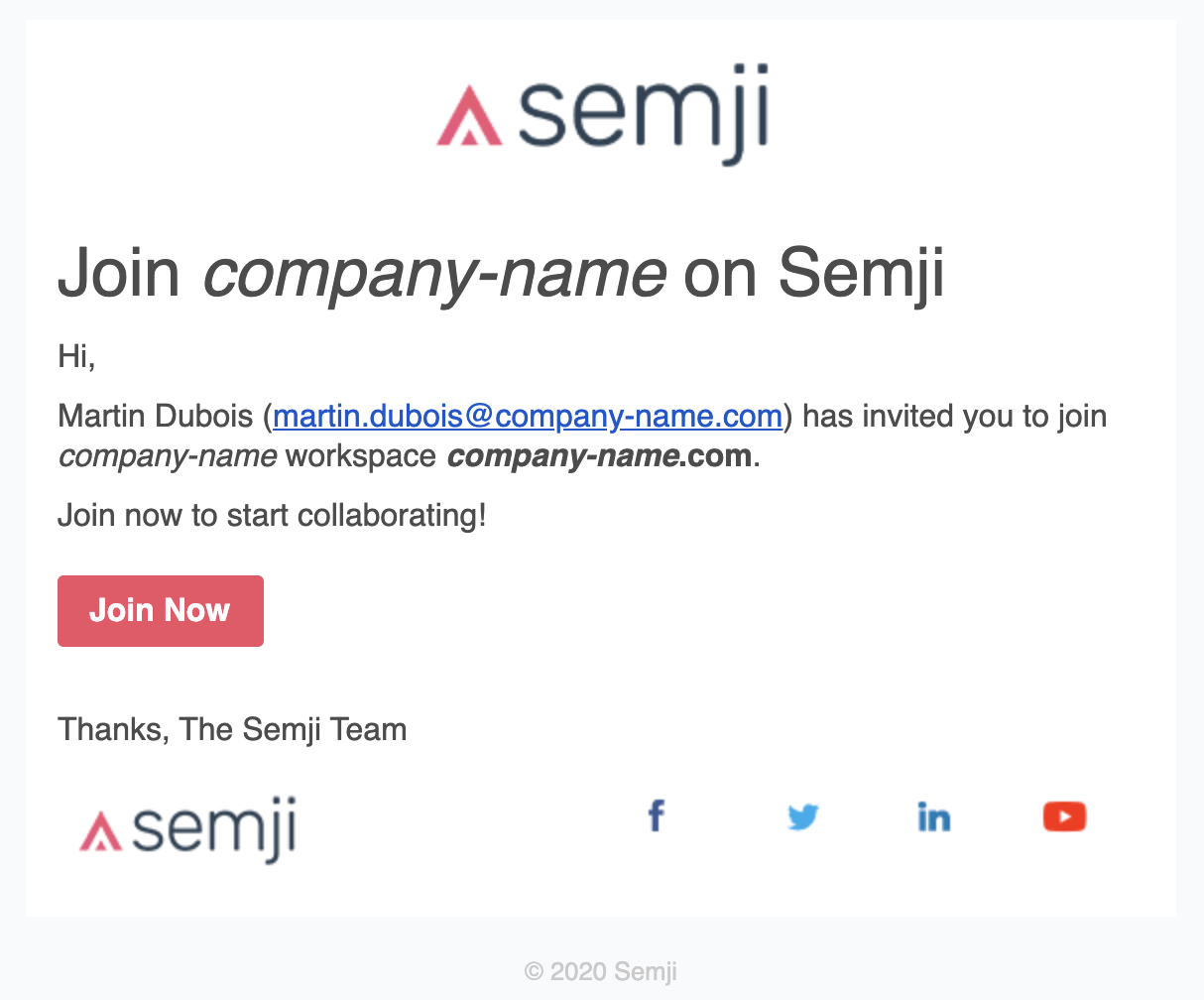
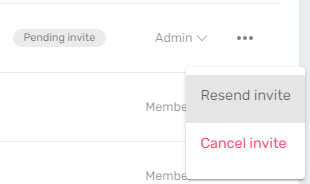
- When I want to give them access to several workspaces at once
- When I want to add several people to the “Member” status of one or several Workspaces
- When I want to give them an Organization Admin status, i.e. the possibility to change advanced settings of the Organization and to invite new users
- When I want to give access to a unique Workspace to one or more users
- When I want to grant restricted access (Guest Writer or Limited Guest Writer) to one or more users
- When I want to give them the Owner status of this Workspace, i.e. the possibility to change the advanced settings of the Workspace and to invite new users
3. Invite a user to reset their password
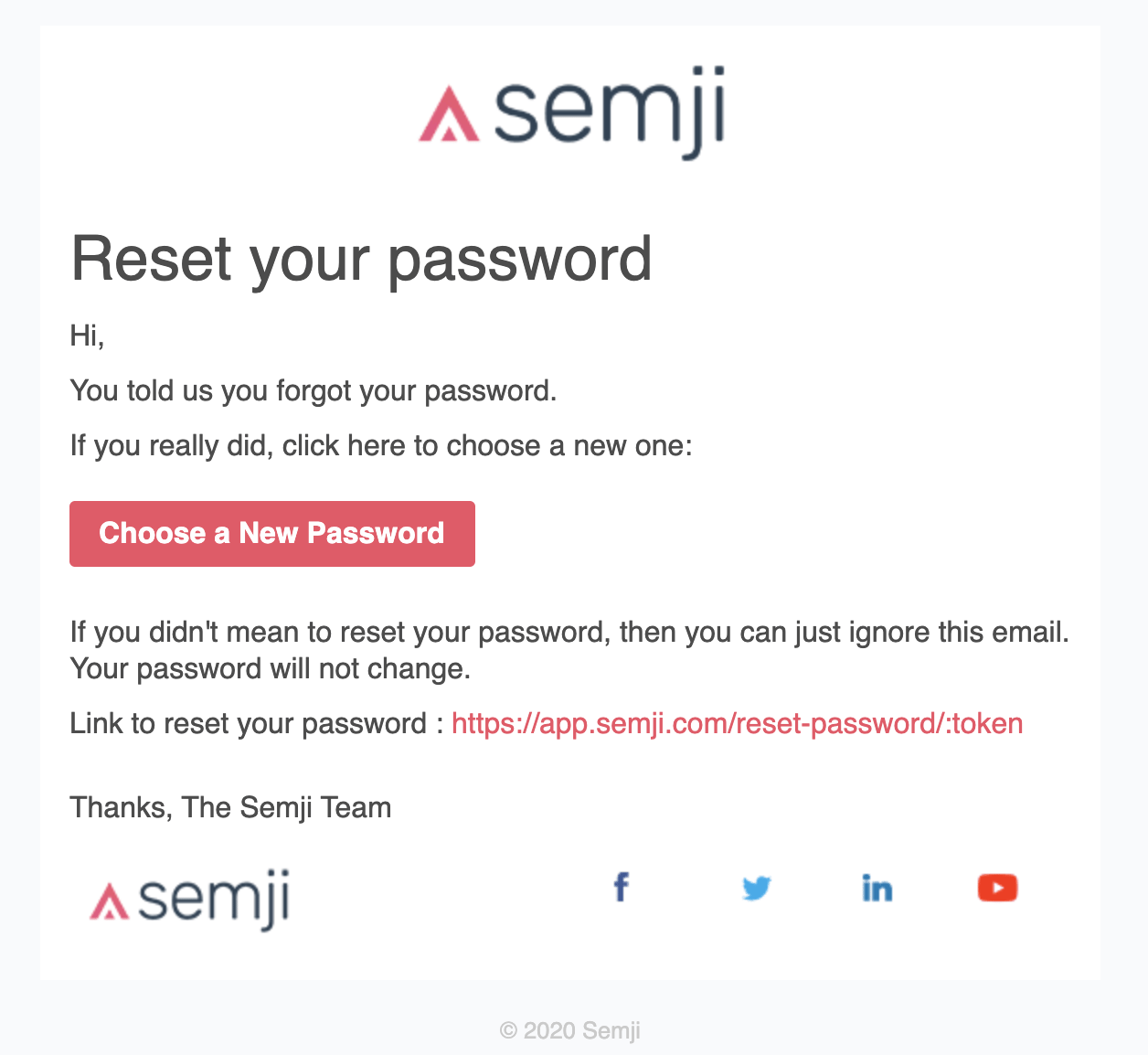
This option can be useful if a user has forgotten his password. He can launch the password reset process himself, but he can also ask a Workspace Owner or an Organization Admin to do it for him. If your company’s security policy requires you to reset employee passwords on a regular basis or on a one-time basis following an internal event, this option allows you to do so on a massive scale in just a few clicks. To send an email to a user and invite him to reset his password, click on the three horizontal dots to the right of his status, and choose “Reset password”.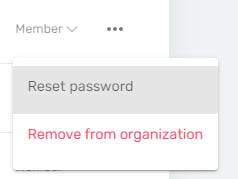
4. Remove a user’s access
The Admin of an Organization and the Owner of a Workspace can remove access to one or more users if necessary. This option is also available by clicking on the three horizontal dots to the right of a user’s status: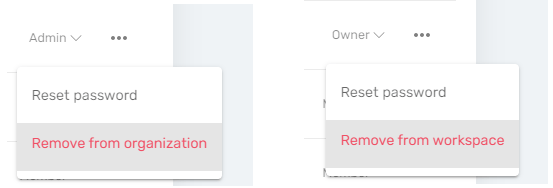
How many users can join Semji?
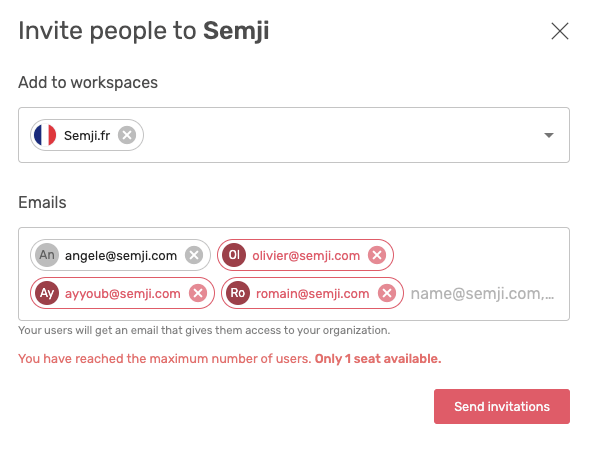
The maximum number of users you can invite to Semji is set at the Organization level and depends on the subscription package you have. This limit is mentioned on your contract. Do not hesitate to contact your Customer Success Manager for further details. Once this limit is reached, you will receive an alert message and you will not be able to invite new people to join your Organization or your Workspaces. You will have to upgrade your plan to add new members.